Office 365 China Edition Pre-integrated Application
# Description
This document describes how to configure IDaaS single sign-on for Office 365 China Edition. This integration uses the WS-Fed protocol and supports three scenarios: web-based Office 365 login, Office 365 client login, and Windows host login.
# Preparations Before Integration
# Office 365 (China Edition) Side Preparations
# 1. Create a Domain
If using a domain name provided by the customer, skip this step.
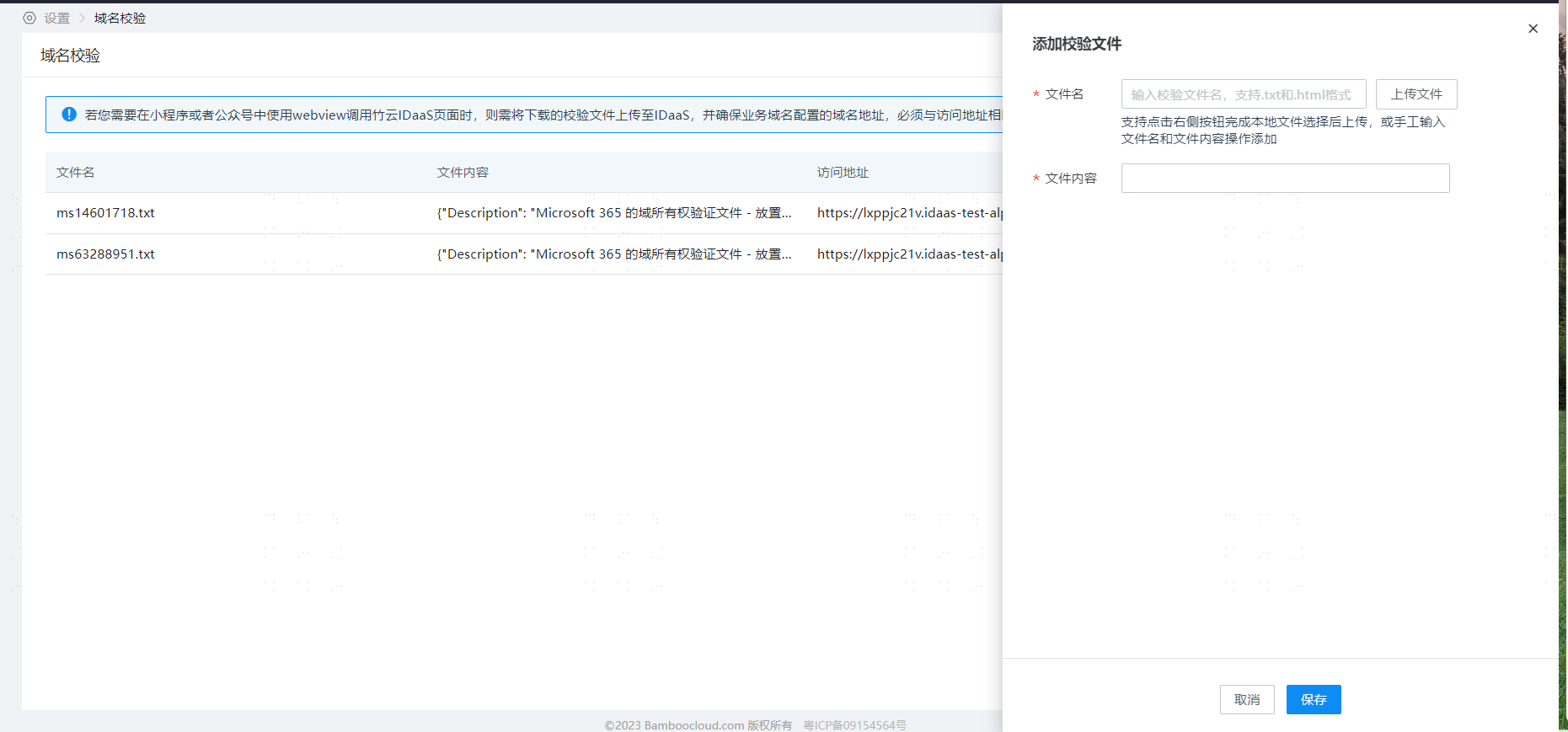
If using IDaaS's tenant default domain name, the domain verification work is completed by the implementer in the tenant's Enterprise Center - Settings - Domain Verification. See the image below.
# 2. Create Office 365 Users
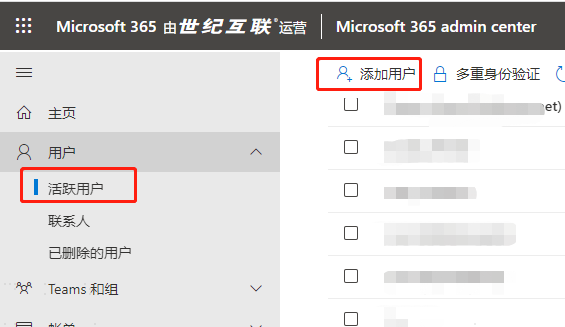
Access: https://portal.partner.microsoftonline.cn/ (the Office 365 admin portal) to perform user addition operations.
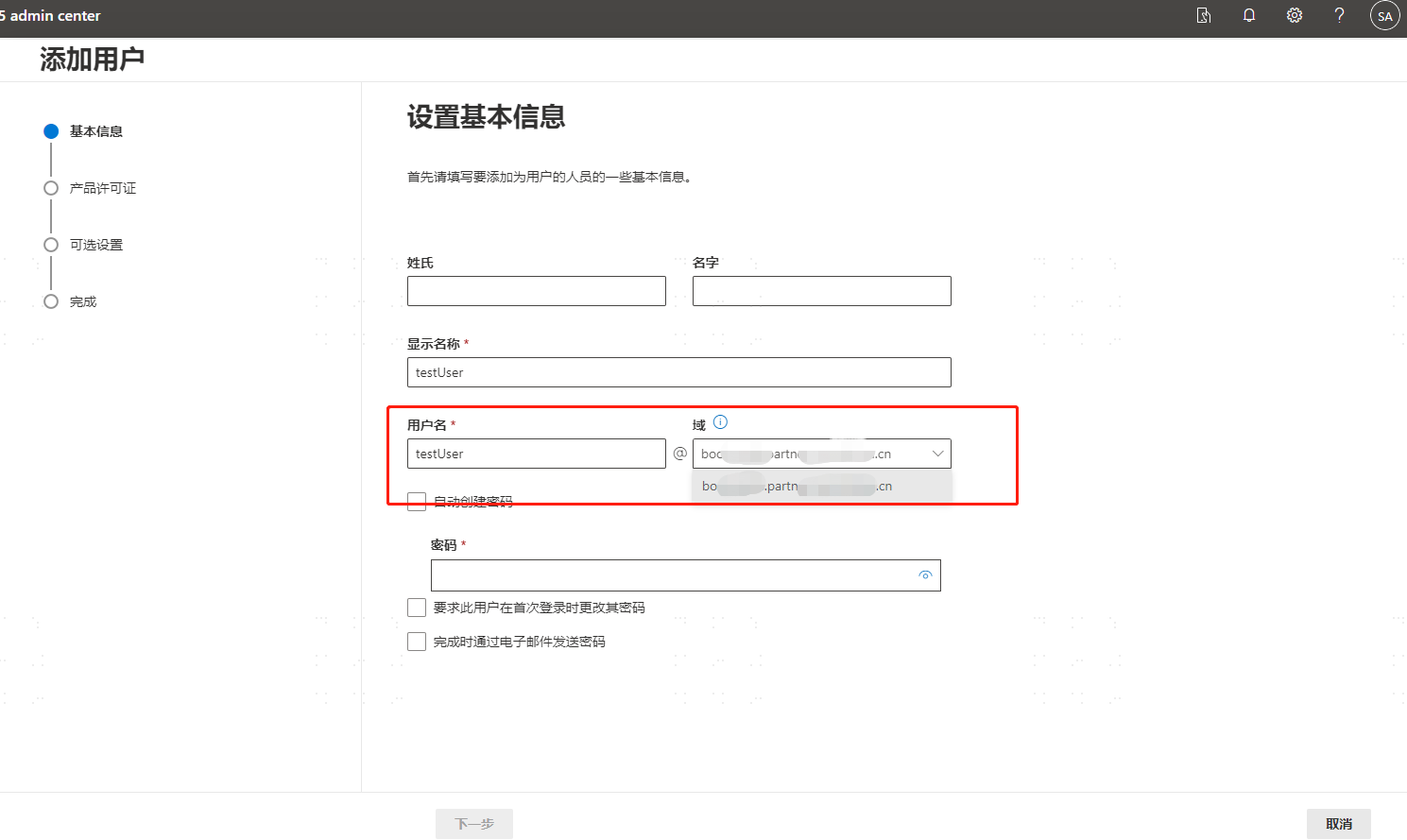
The created user must be bound to the domain created in the previous step.
# IDaaS Side Preparations
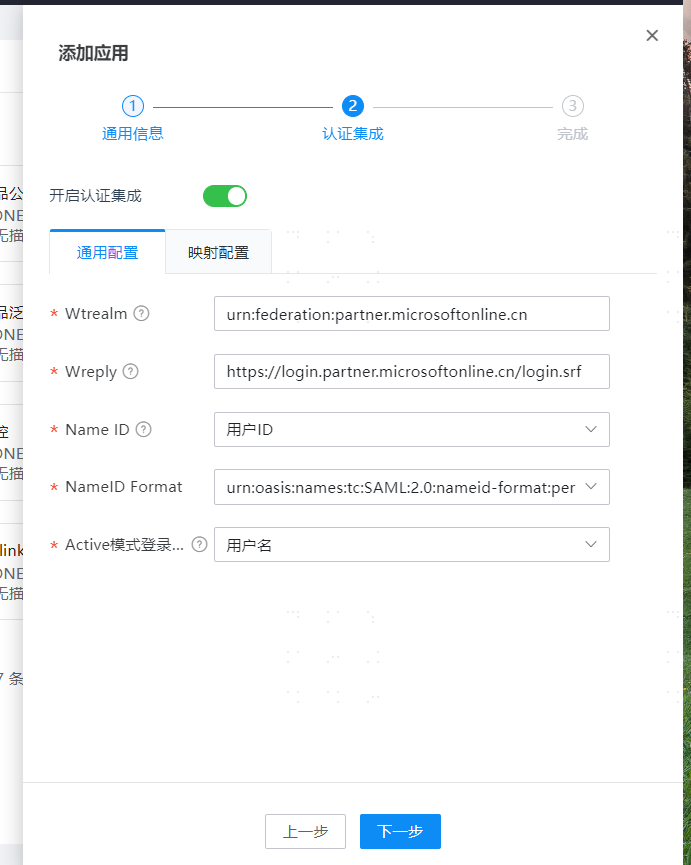
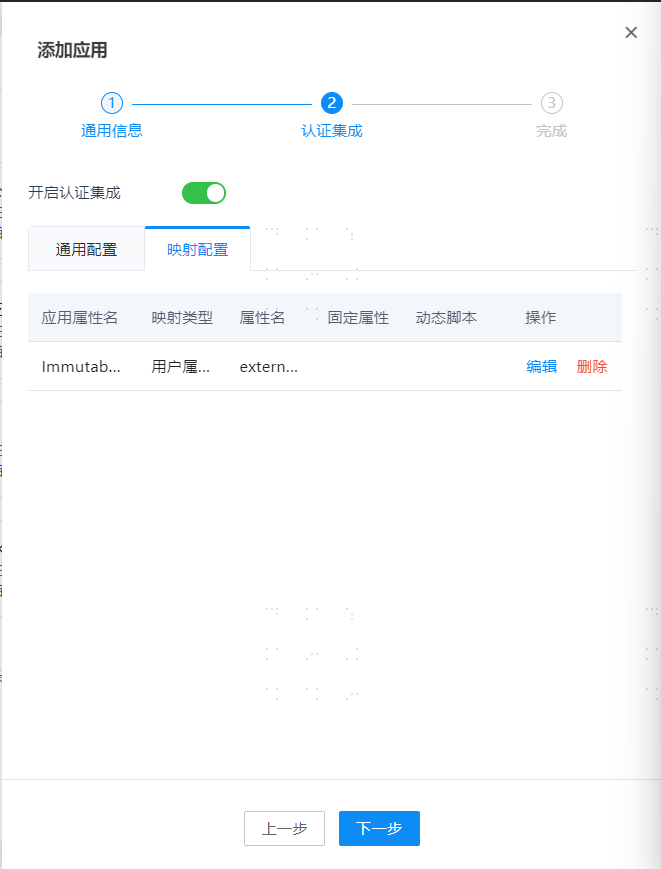
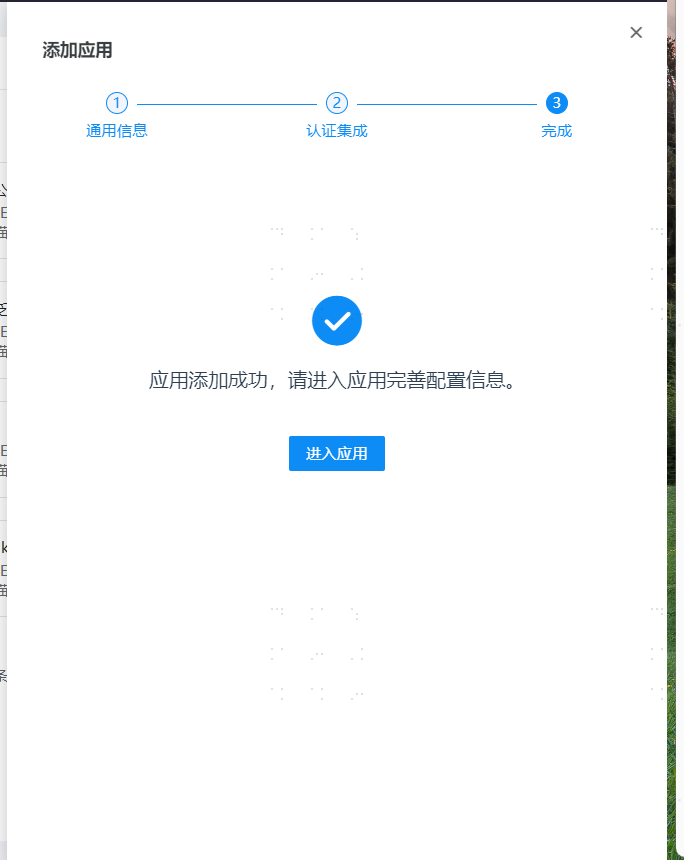
# 1. Create the Office 365 China Edition Pre-integrated Application

# 2. Authorize Users
Authorization Management - Application Accounts - Add Account.
# 3. User Attribute Mapping
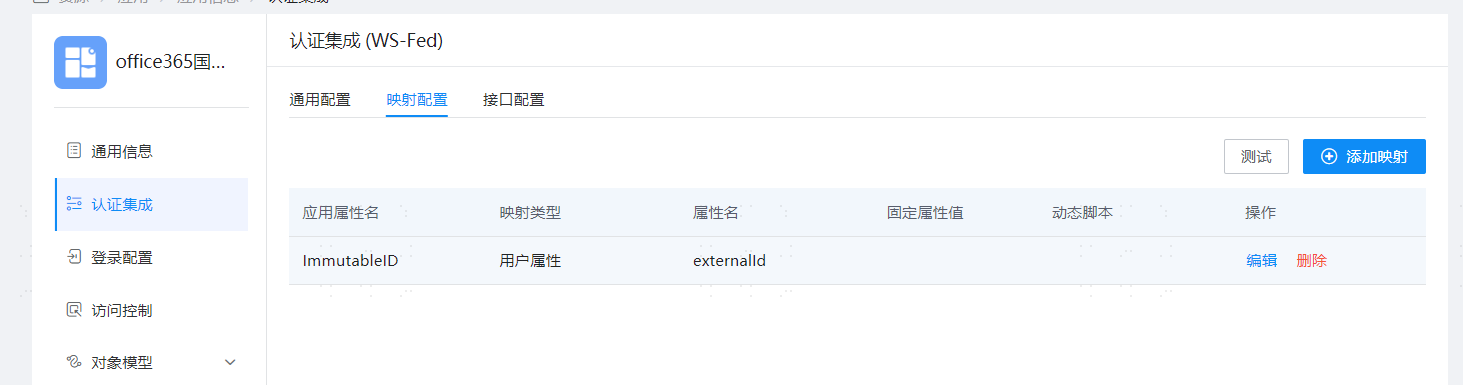
The field exposed by Office 365 is ImmutableID. The corresponding default field in IDaaS is externalid.
If modification is needed, it can be done in the mapping configuration.
Note: Ensure that the user's ImmutableID in Office 365 (how to set this will be explained later) matches the value of the externalid of the IDaaS user.
# 4. Prepare WS-Fed Protocol Configuration Parameters
Enter the application, open Authentication Integration, and switch to the Interface Configuration tab, as shown below:
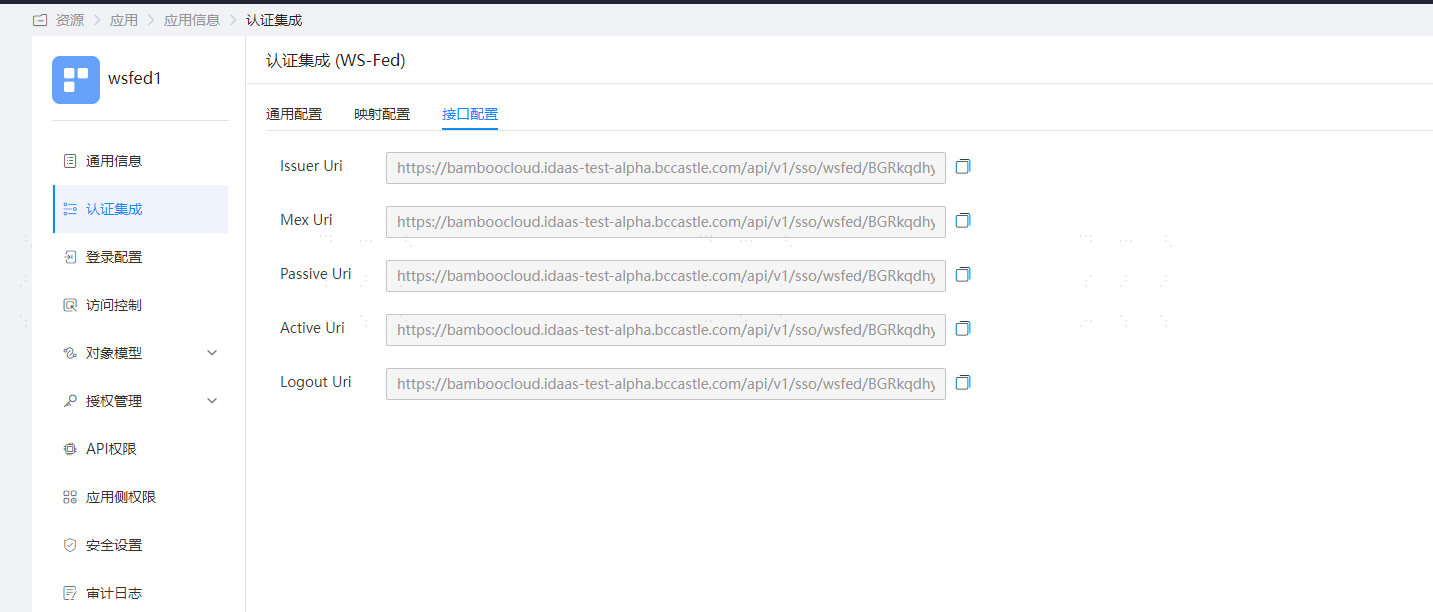
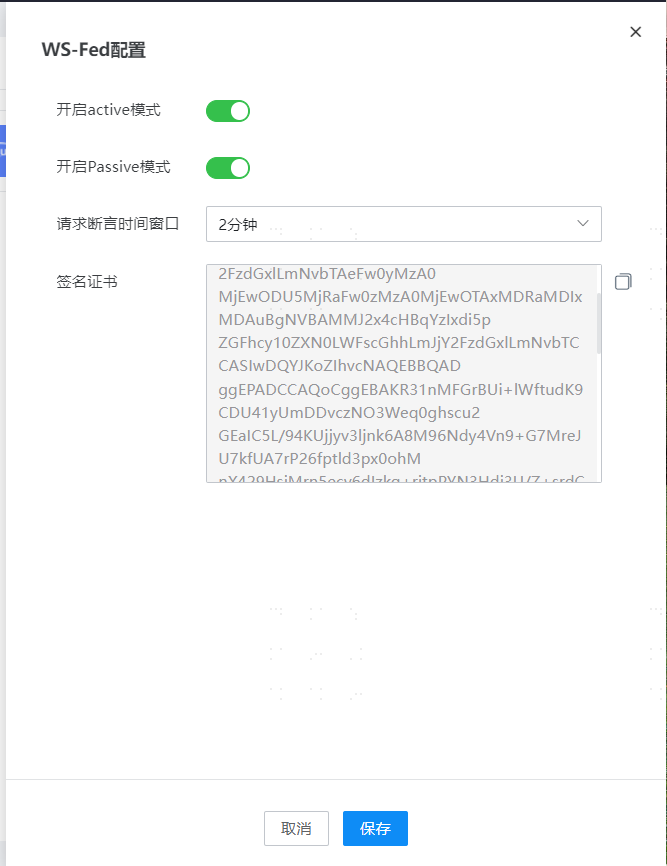
Go to Enterprise Center - Settings, then Service Configuration, and open the WS-Fed configuration, as shown below:
# Authentication Integration
Execute PowerShell commands to set up the WS-Fed configuration (the WS-Fed protocol configuration parameters preparation was introduced in the IDaaS Side Preparations chapter of this document). The configuration is as follows:
# PowerShell requires plugin installation first, which may require internet access.
Install-Module MSOnline

# After successful plugin installation, execute the following commands
Connect-MsolService  -AzureEnvironment AzureChinaCloud (a pop-up will appear, complete the login authentication)

# Add federation configuration for the domain (each parameter inside is obtained from the fourth point in the IDaaS Side Preparations)
Set-MsolDomainAuthentication  -DomainName xx.bccastle.com -Authentication Federated -FederationBrandName idaas-ws -IssuerUri https://xx.bccastle.com/api/v1/sso/wsfed/Ffm8YwZ1pi7loYqcTg86I5g6H -PassiveLogOnUri https://xx.bccastle.com/api/v1/sso/wsfed/Ffm8YwZ1pi7loYqcTg86I5g6H/passive -ActiveLogOnUri https://xx.bccastle.com/api/v1/sso/wsfed/Ffm8YwZ1pi7loYqcTg86I5g6H/active -MetadataExchangeUri https://xx.bccastle.com/api/v1/sso/wsfed/Ffm8YwZ1pi7loYqcTg86I5g6H/mex -LogOffUri https://xx.bccastle.com/api/v1/sso/wsfed/Ffm8YwZ1pi7loYqcTg86I5g6H/logout -SigningCertificate MIIC2DCCAcCgAwIBAgIGAYcwlcLAMA0GCSqGSIb3DQEBCwUAMC0xKzApBgNVBAMMInJ5YW4uaWRhYXMtdGVzdC1hbHBoYS5iY2Nhc3RsZS5jb20wHhcNMjMwMzMwMDMzMzUzWhcNMzMwMzMwMDMzNTMzWjAtMSswKQYDVQQDDCJyeWFuLmlkYWFzLXRlc3QtYWxwaGEuYmNjYXN0bGUuY29tMIIBIjANBgkqhkiG9w0BAQEFAAOCAQ8AMIIBCgKCAQEAkVsNRWM+UPDQcHz2VdaTJn22v21TFLkRBqOcQmQJhlBg1tUgL5zbxO/4OyGDsraTY4e+vjPKcfmJpM/KvNOpjz7HY9EZelW+AWeTFzjg6X5SZMgK8r2hFUXovz2V/vBehtqFlfFc0oJaBdAzKh2/MvH6H7K59zFbQd4ylCzXhR/jFchOuc50EKlTd6wYKW+7xTHVJGe85HkMrOnnKbaJdK0oJH8zNTa3HMiH336UsEK81dlPSpTiSOJgskBfOb8nwneBs+HCzoRW22CDOxrToVFdv5VRUjerl3FDd89vQwIDAQABMA0GCSqGSIb3DQEBCwU3nl4224VMp+aTnDts8z/kQRkxkSFcxWv6MF34wA3pqmCa3GgBadyhk10goWD8VZKdgYwdjhjyGiMMs+ogYC1YCTkMMlULo4745hINmUtJ//tSMCAj7muirFqGbD7+m+Ebe3hVmZYD5gEJYuYG7Z4EWEkGNa3WM+oXJvvGtrIpi4AtedZLY5fCsgka9i3CMIFJ2nLmQzlaClhFxYatvRib3fKQTgb3cq0LLCJQxNJ81miwLHY9QqvXpTRrrQVx7ahyHfxHBRY3gs5NOZKYjlkT6waMpKiCiqug9lywWjm/erpFaM6VeylqZsmXUN4jnaSNcyDV5pl36MCL92hg -SupportsMfa $true

#  Update federation configuration
Set-MsolDomainFederationSettings -DomainName xx.bccastle.com -FederationBrandName idaas-ws -IssuerUri  https://xx.bccastle.com/api/v1/sso/wsfed/Ffm8YwZ1pi7loYqcTg86I5g6H -PassiveLogOnUri https://xx.bccastle.com/api/v1/sso/wsfed/Ffm8YwZ1pi7loYqcTg86I5g6H/passive -ActiveLogOnUri https://xx.bccastle.com/api/v1/sso/wsfed/Ffm8YwZ1pi7loYqcTg86I5g6H/active -MetadataExchangeUri https://xx.bccastle.com/api/v1/sso/wsfed/Ffm8YwZ1pi7loYqcTg86I5g6H/mex -LogOffUri https://xx.bccastle.com/api/v1/sso/wsfed/Ffm8YwZ1pi7loYqcTg86I5g6H/logout -SigningCertificate MIIC2DCCAcCgAwIBAgIGAYcwlcLAMA0GCSqGSIb3DQEBCwUAMC0xKzApBgNVBAMMInJ5YW4uaWRhYXMtdGVzdC1hbHBoYS5iY2Nhc3RsZS5jb20wHhcNMjMwMzMwMDMzMzUzWhcNMzMwMzMwMDMzNTMzWjAtMSswKQYDVQQDDCJyeWFuLmlkYWFzLXRlc3QtYWxwaGEuYmNjYXN0bGUuY29tMIIBIjANBgkqhkiG9w0BAQEFAAOCAQ8AMIIBCgKCAQEAkVsNRWM+UPDQcHz2VdaTJn22v21TFLkRBqOcQmQJhlBg11WJHMFjixzwkPhSKwCFlfFc0oJaBdAzKh2/MvH6H7K59zFbQd4ylCzXhR/jFchOuc50EKlTd6wYKW+7xTHVJGe85HkMrOnnKbaJdK0oJH8zNTa3HUlesGRQAj06/EaPCmMiH336UsEK81dlPSpTiSOJgskBfOb8nwneBs+HCzoRW22CDOxrToVFdv5VRUjerl3FDd89vQwIDAQABMA0GCSqGSIb3DQEBCwUAA4IBAQBwk9A3nl4224VMp+aTnDts8z/kQRkxkSFcxWGgBadyhk10goWD8VZKdgYwdjhjyGiMMs+ogYC1YCTkMMlULo4745hINmUtJ//tSMCAj7muirFqGbD7+m+Ebe3hVmZYD5gEJYuYG7Z4EWEkGNa3WM+oXJvvGtrIpi4AtedZLY5fCsgka9i3CMIFJ2nLmQzlaClhFxYatvRib3fKQTgb3cq0LLCJQxNJ81miwLHY9QqvXpTRrrQVx7ahyHfxHBRY3gs5NOZKYjlkT6waMpKiCiqug9lywWjm/erpFaM6VeylqZsmXUN4jnaSNcyDV5pl36MCL92hg -SupportsMfa $true

# View federation domain configuration
Get-MsolDomainFederationSettings  -DomainName xx.bccastle.com

# Set the AAD user's ImmutableID property to match the IDaaS user's NameId property
Set-MSOLuser -UserPrincipalName  test1@xx.bccastle.com -ImmutableID  test1

# View the AAD user's ImmutableID property value
Get-MSOLuser -UserPrincipalName  test1@xx.bccastle.com  | select ImmutableId
2
3
4
5
6
7
8
9
10
11
12
13
14
15
16
17
18
19
20
# Scenario Verification
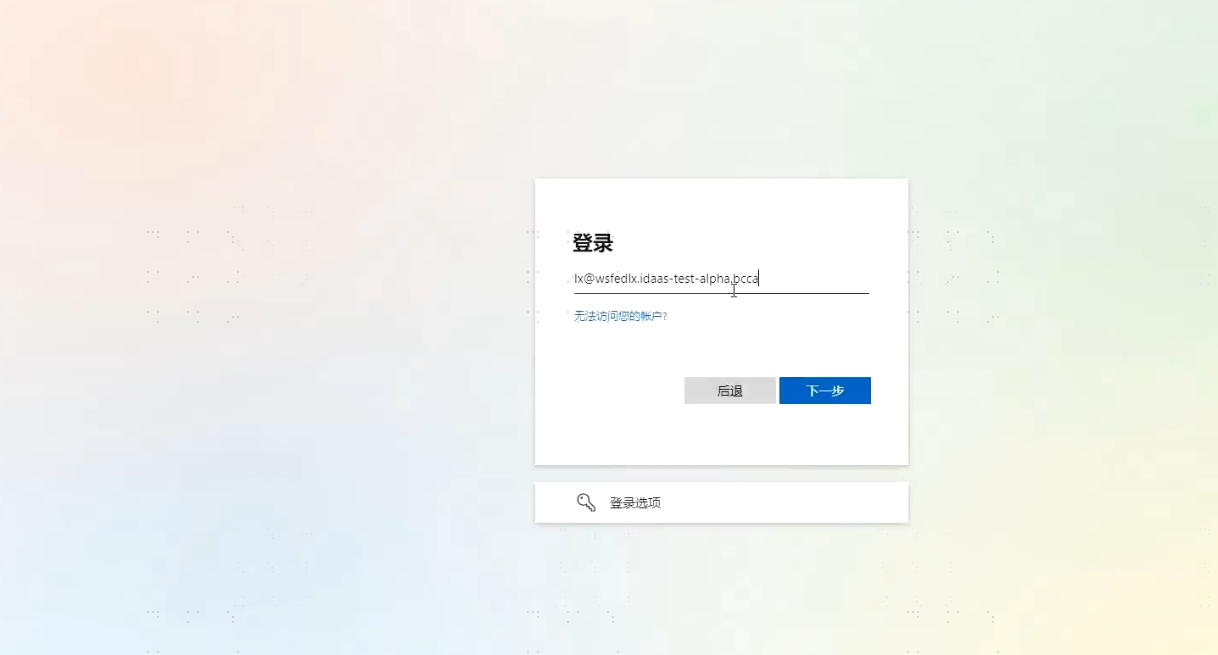
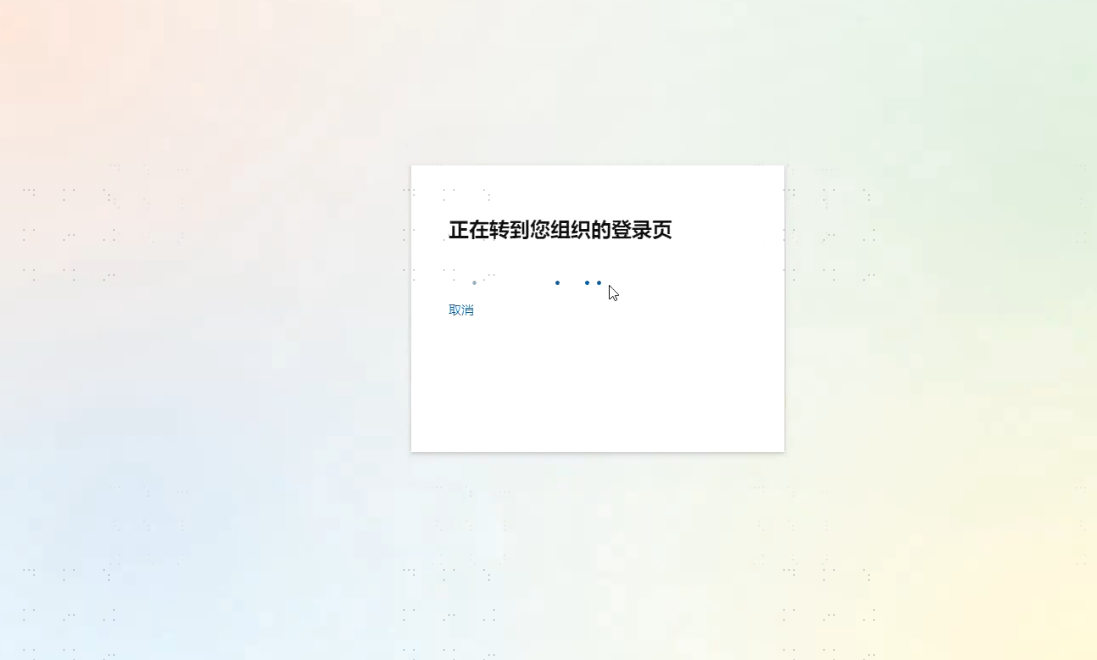
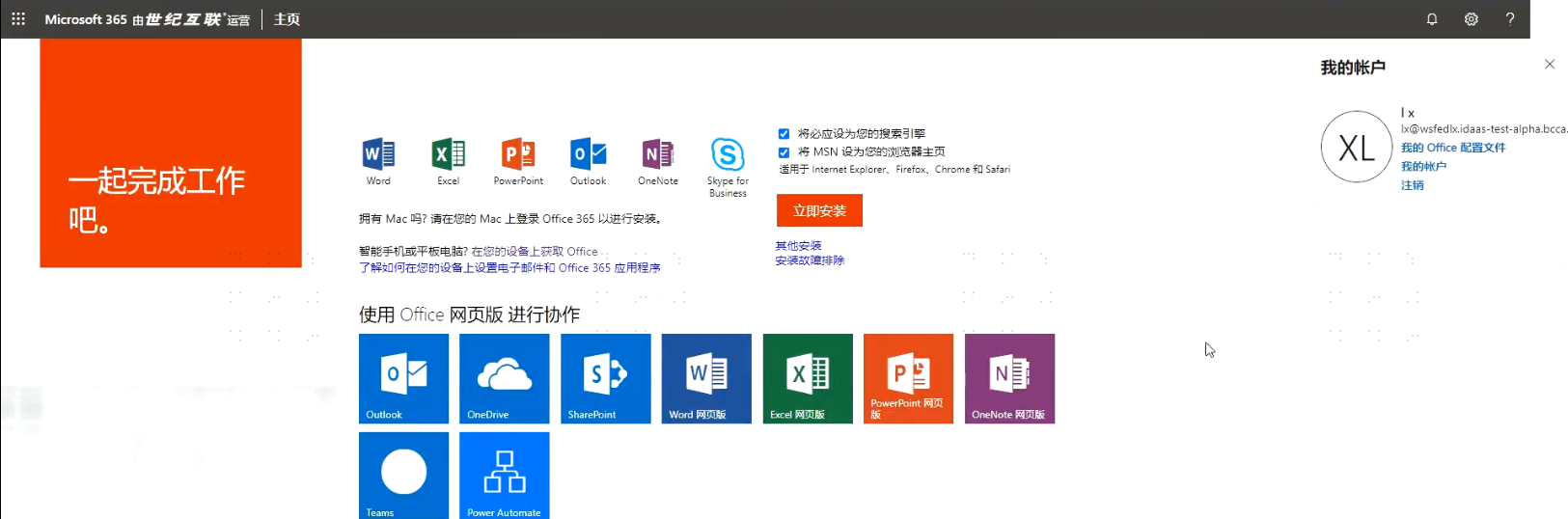
# 1. Web-side Test Access to Office365 Portal
Portal address: https://portal.partner.microsoftonline.cn/

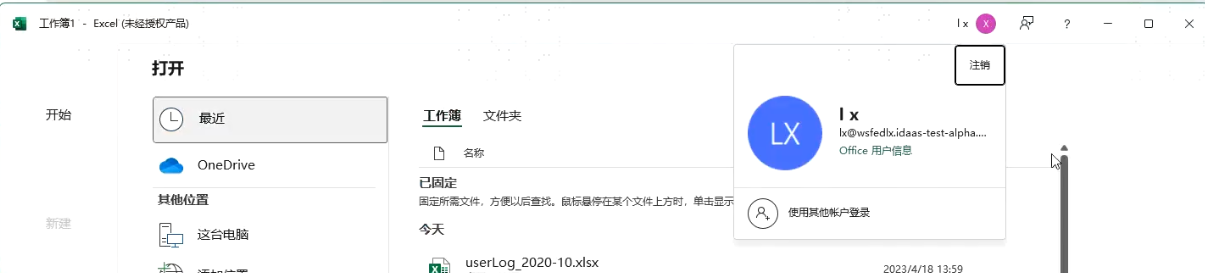
# 2. Office Client Logging in with IDaaS Account


# 3. Windows Host Logging in with IDaaS Account
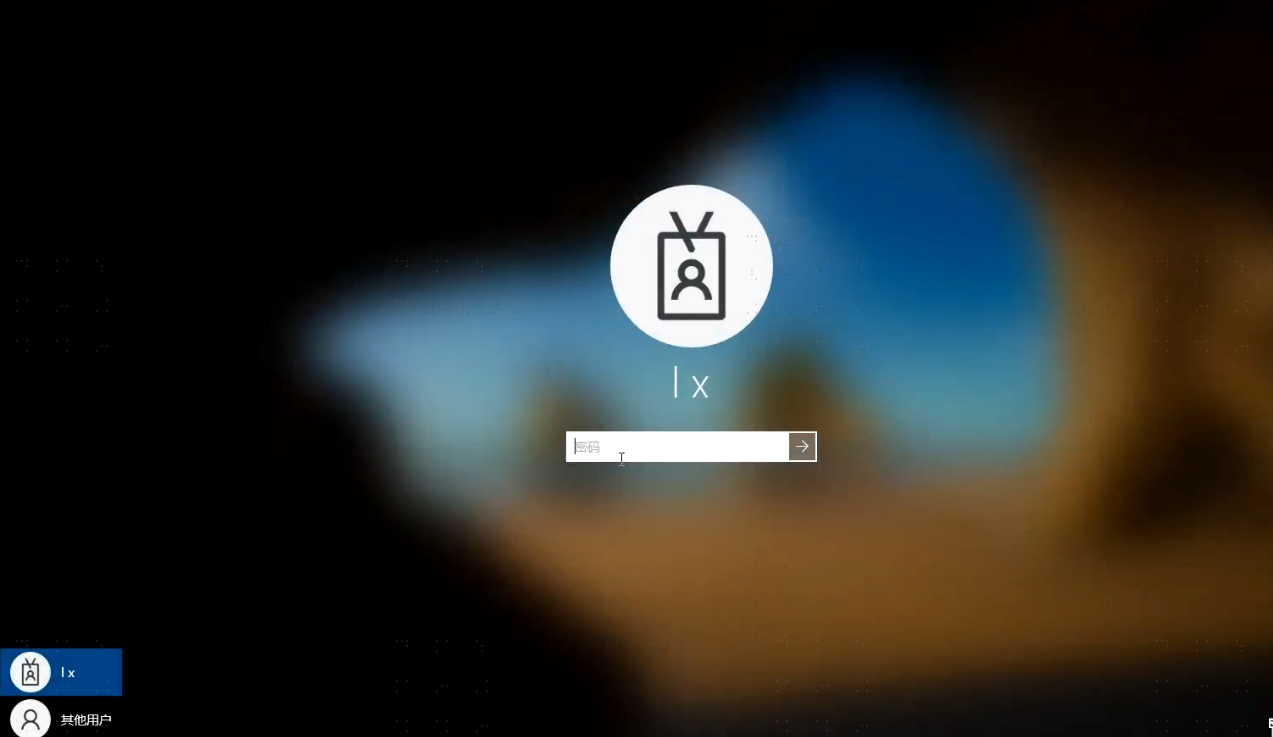
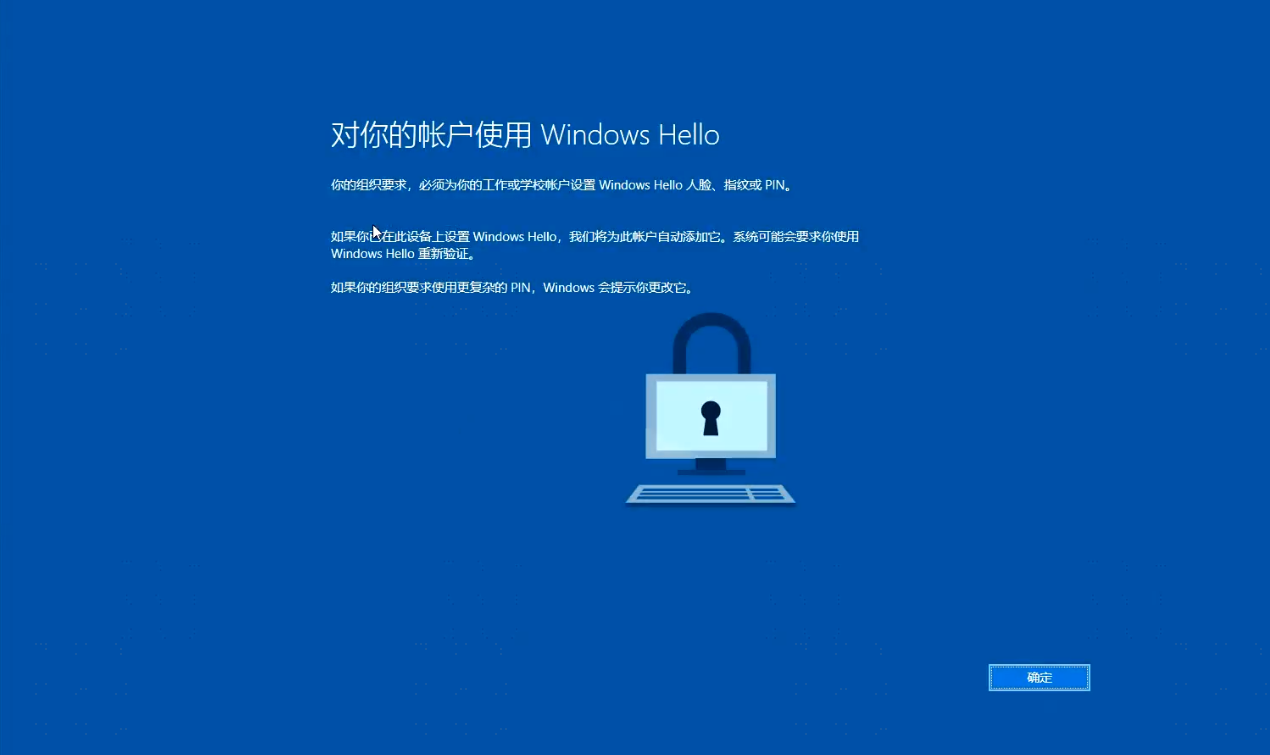
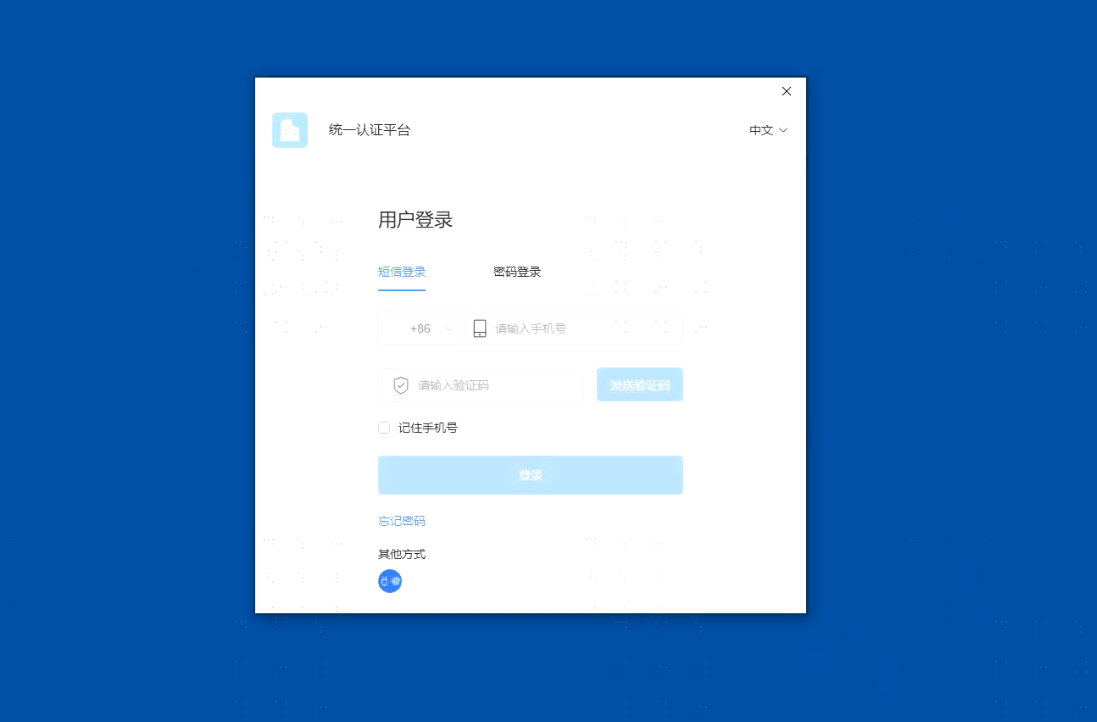
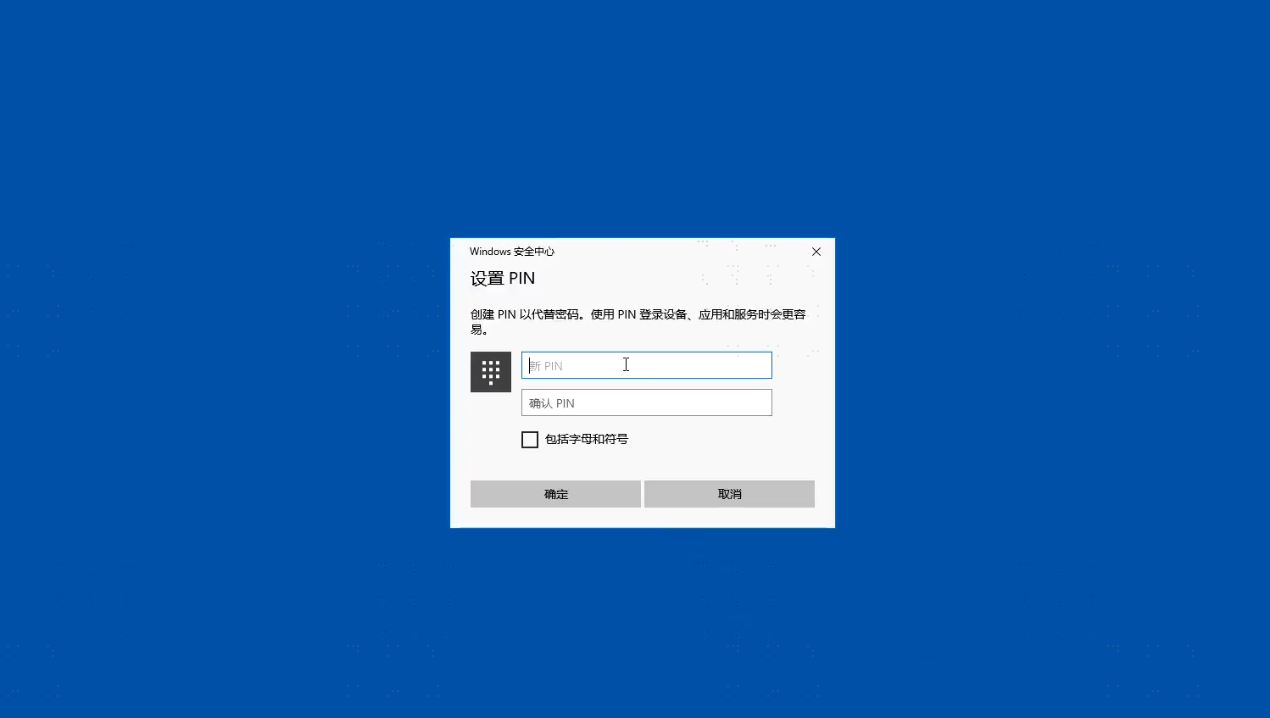
After joining the host to AAD, you can use the IDaaS account to log in to the Windows host.