
NetEase Enterprise Email Data Synchronization
# Description
This article describes the synchronization configuration between NetEase Enterprise Email and IDaaS, enabling the synchronization of IDaaS organizational and user data to NetEase Enterprise Email.
This application template includes both login authentication and account/organizational structure synchronization features. They can be configured simultaneously or individually. If only one is selected, the mandatory data for the other can be temporarily filled with dummy data.
# Prerequisites
- The administrator possesses a NetEase Enterprise Email account and has obtained and configured relevant parameters in the NetEase Enterprise Email backend (e.g., API address, public key information, IP whitelist, etc.).
- The administrator has access permissions to the IDaaS Enterprise Center.
# NetEase Enterprise Email Configuration
Please contact NetEase Enterprise Email customer service personnel and provide the required information accordingly.
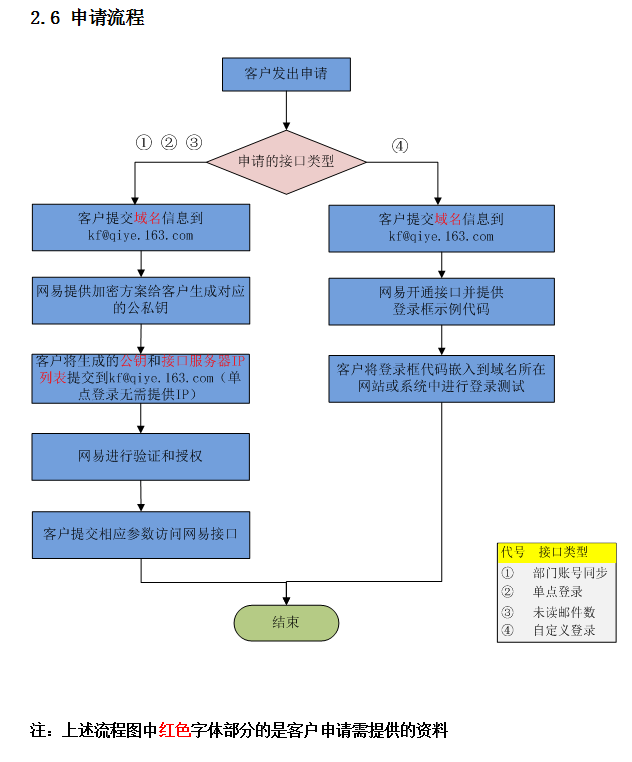
Apply for the NetEase Enterprise Email API integration process.
# Synchronization Configuration
Add the pre-integrated application NetEase Enterprise Email and configure the synchronization parameters.

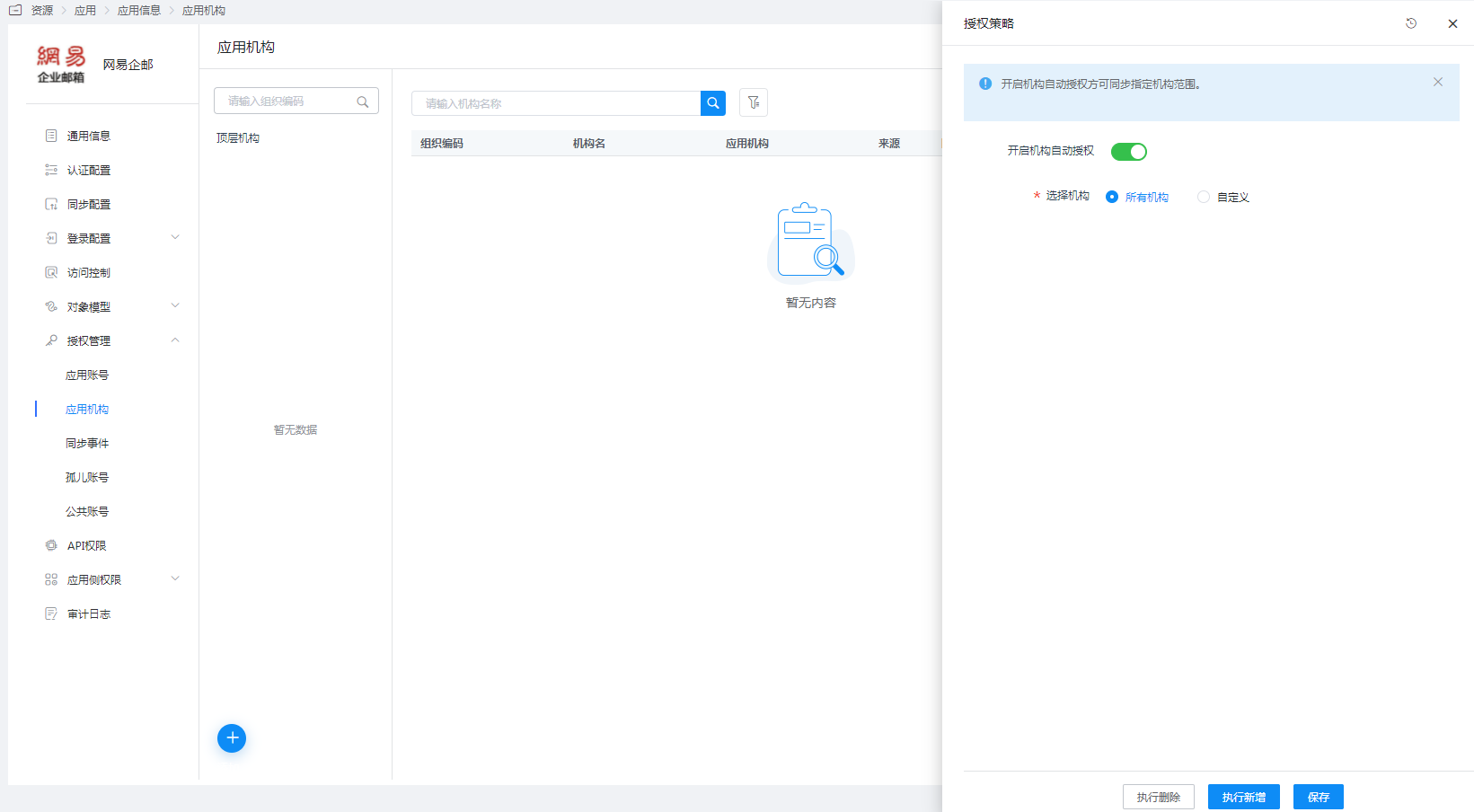
Parameter Description POST Request URL Fill in the URL obtained from NetEase Enterprise Email, e.g.: https://apibj.qiye.163.com/qiyeservice/api Enterprise Email Registered Domain The domain name of NetEase Enterprise Email Enterprise Identifier The enterprise identifier from NetEase Enterprise Email RSA Private Key The private key provided by NetEase Enterprise Email, in binary format. Remove line breaks and spaces when filling it in. Go to Application Details -> Application Organizations -> Authorization Policy, enable automatic organization authorization, select the organization scope, click the save button, then click 'Execute Add' to synchronize organizations to the enterprise email.
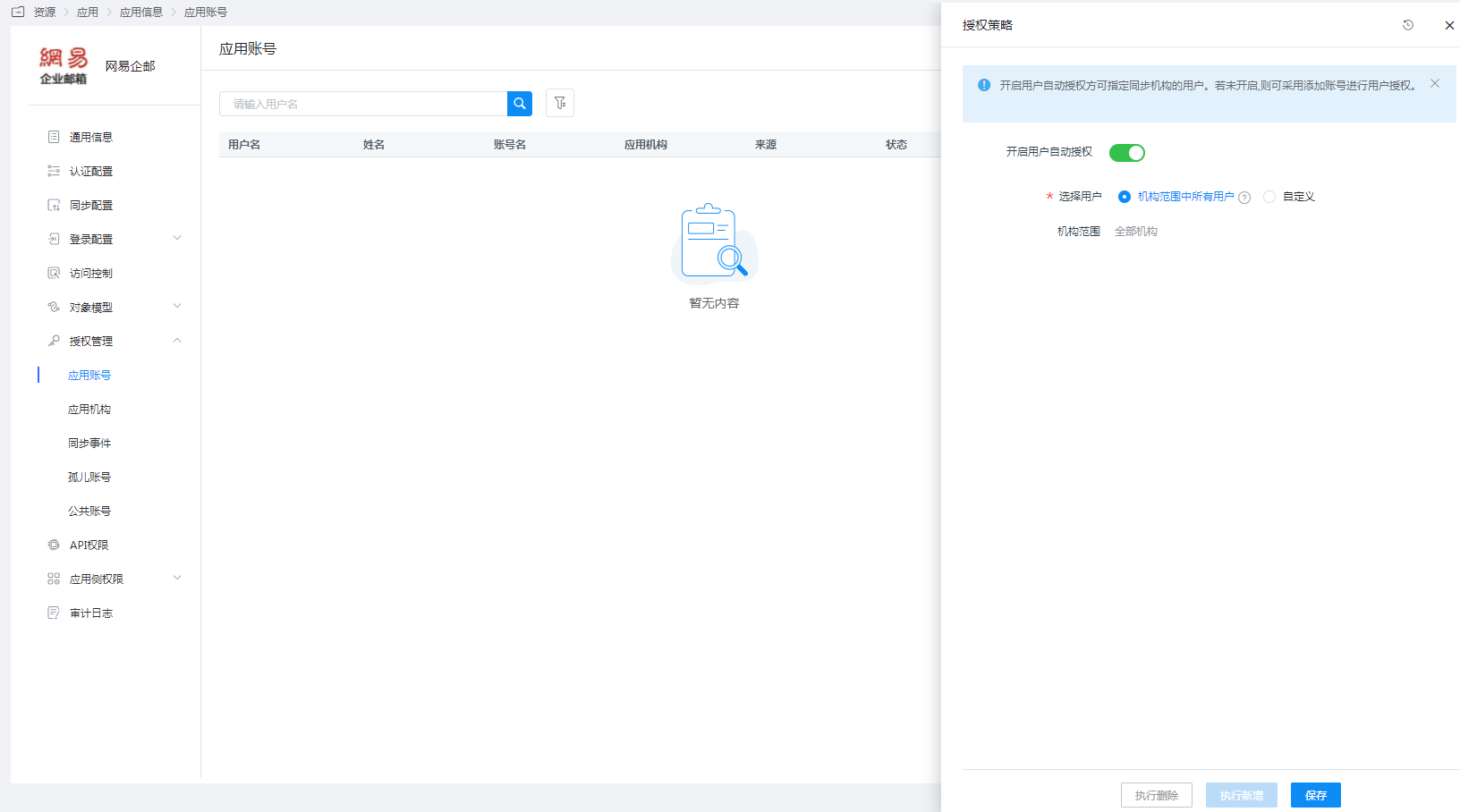
Go to Application Details -> Application Accounts -> Authorization Policy, enable automatic user authorization, select the user scope, click the save button, then click 'Execute Add' to synchronize users to the enterprise email.
Go to Application Details -> Synchronization Events to view the synchronization events.
