Dynamics 365 (On-Premises) Single Sign-On
# Description
This document describes how to configure single sign-on between Dynamics 365 and IDaaS using the WS-Federation protocol. This documentation is based on the on-premises Microsoft Dynamics 2016 version.
# Authentication Configuration
# Adding the Dynamics 365 Application in IDaaS
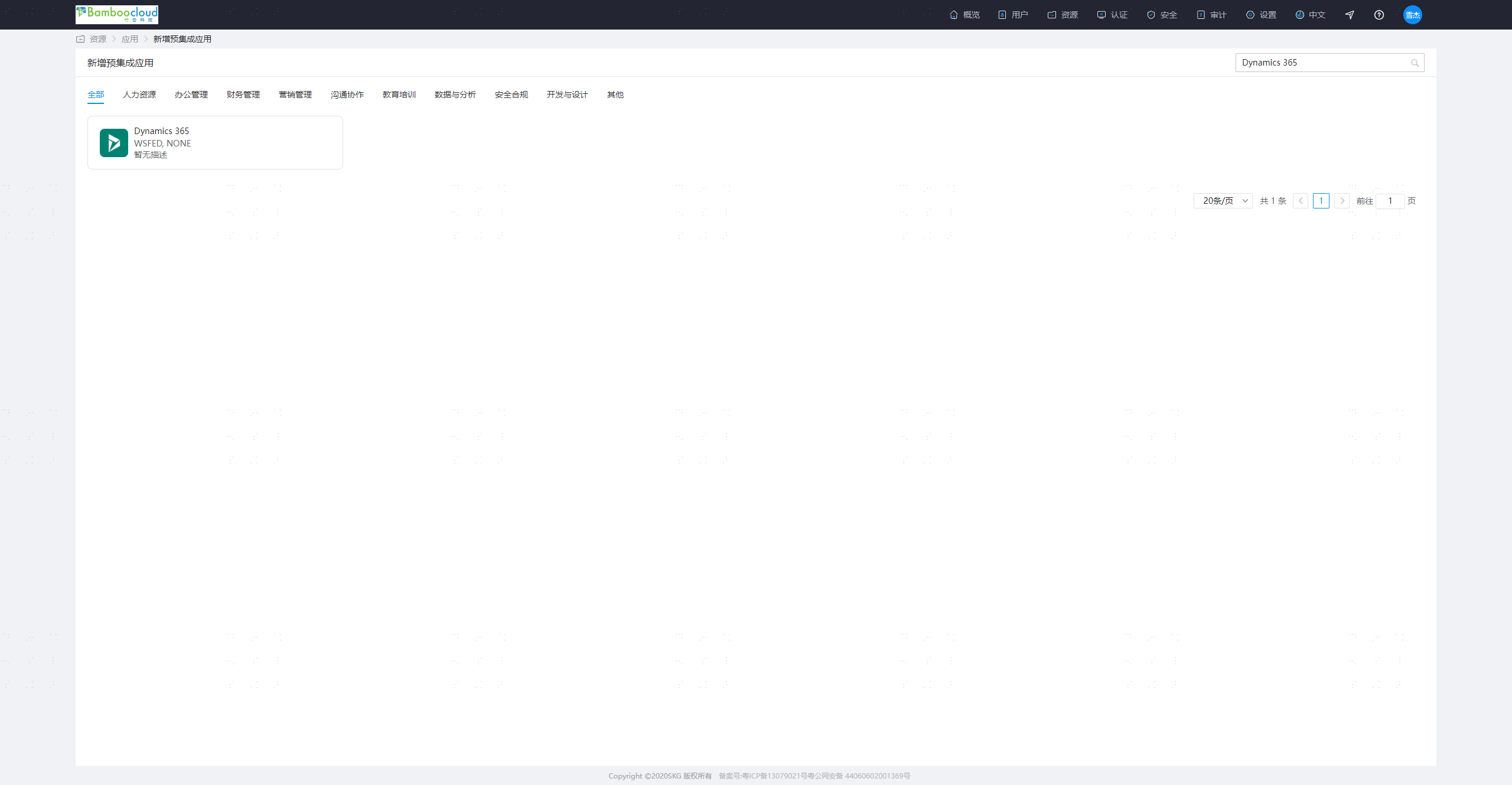
The administrator logs into the IDaaS Enterprise Center, navigates to Resources - Applications - Add Pre-integrated Application, searches for and adds the Dynamics 365 application.
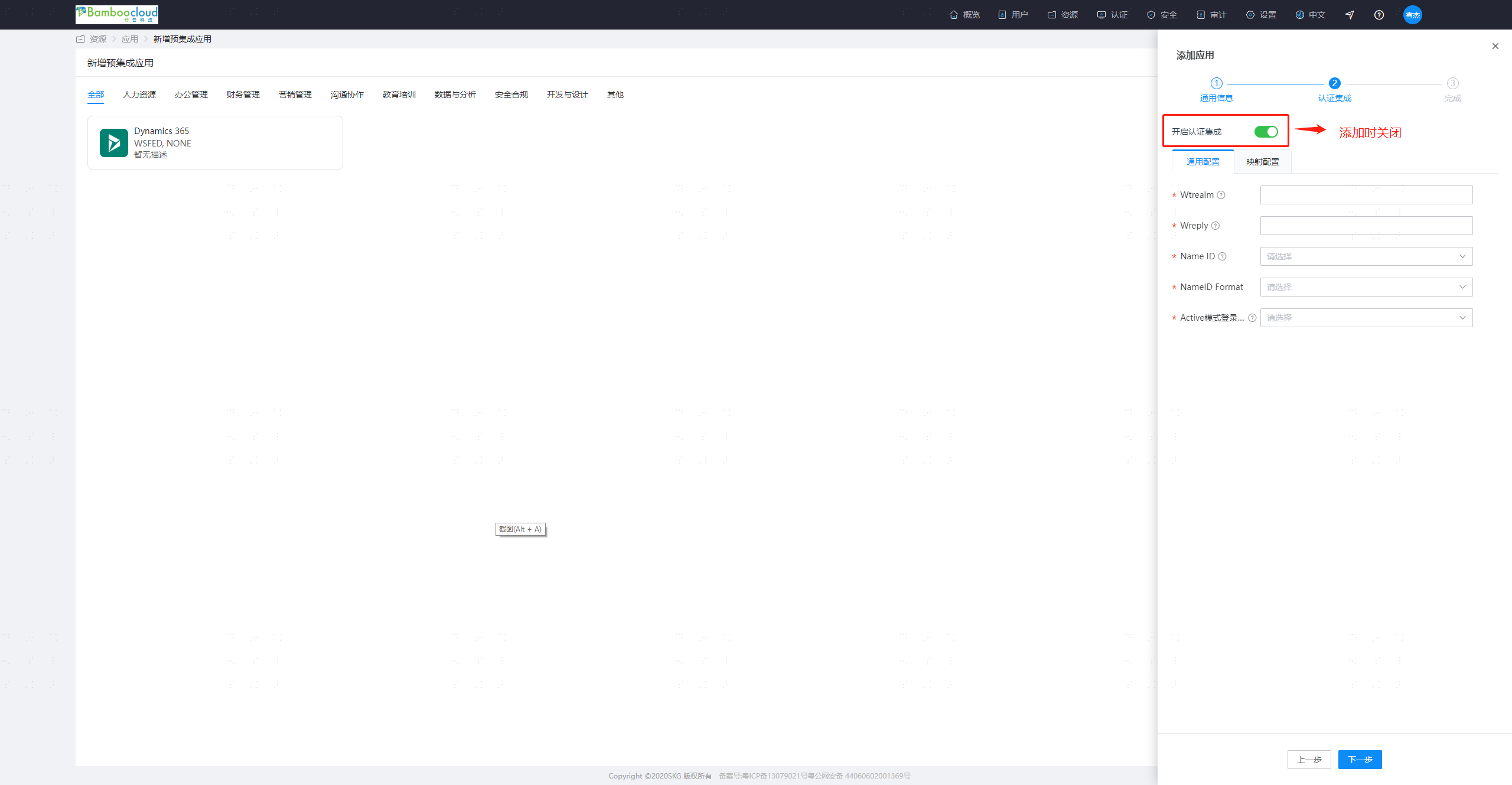
Configure the application authentication parameters.
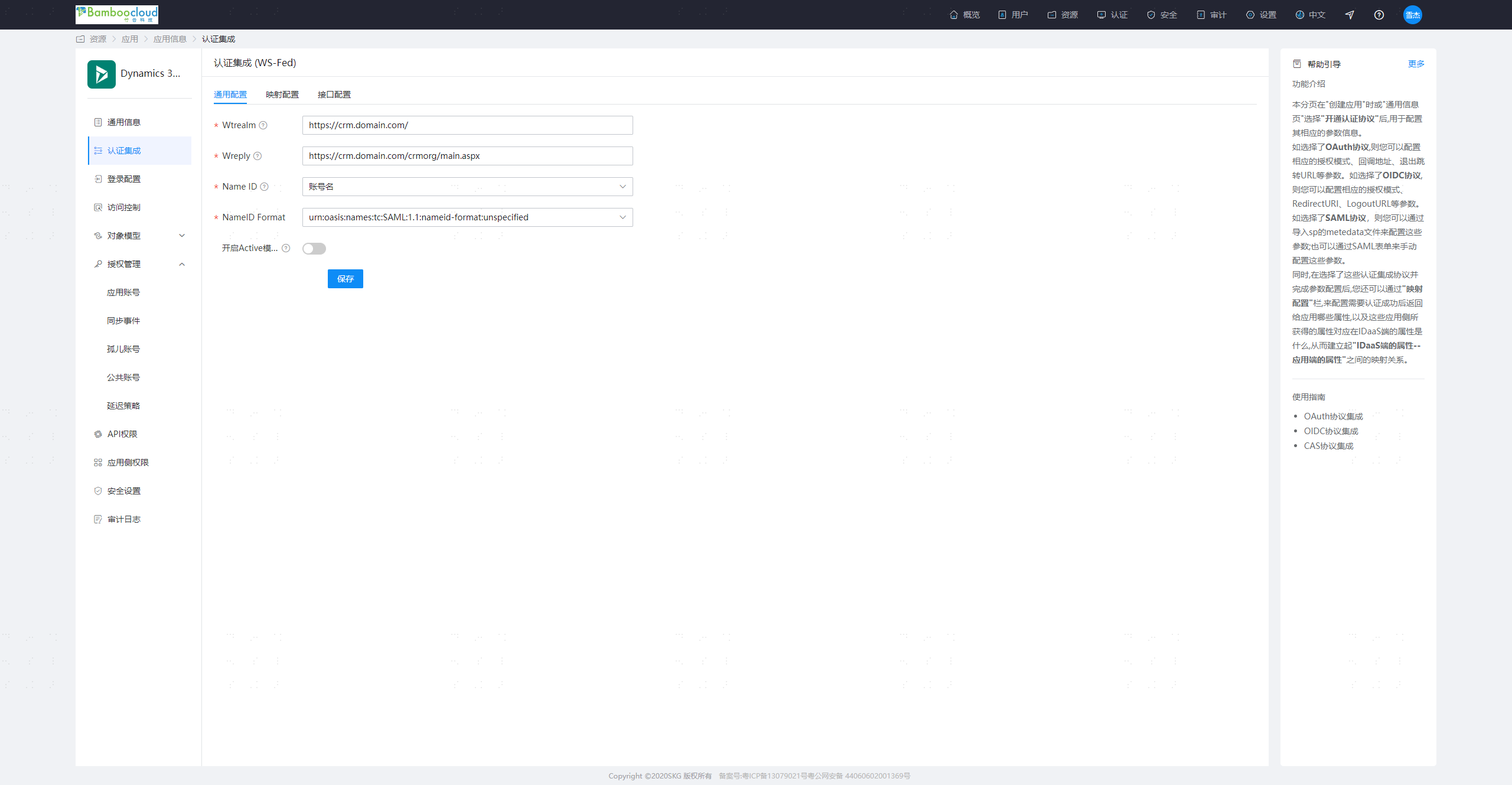
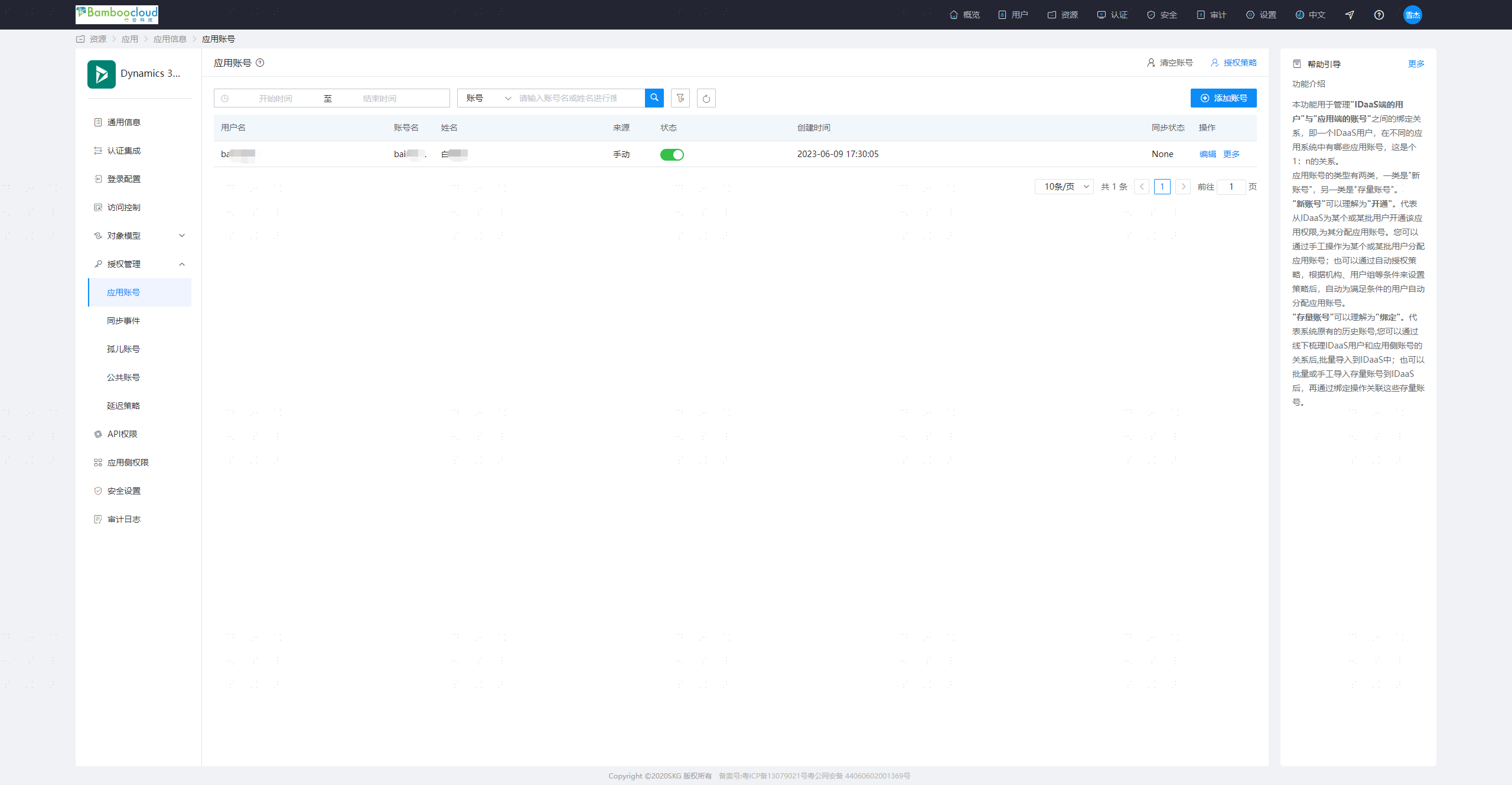
Parameter Description Wtrealm Microsoft Dynamics 365 service address, e.g.: https://[Dynamics system domain name]/ Wreply Microsoft Dynamics 365 callback address, e.g.: https://[Dynamics system domain name]/[organization name]/main.aspx Name ID By default, select Application Account NameID Format Select the default option Enable Active Mode No Authorize users. Navigate to Authorization Management - Application Accounts - Add Account. The account name should match the account name in Microsoft Dynamics 365.
# Obtaining IDaaS WS-Fed Service Configuration
- The administrator logs into the IDaaS Enterprise Center, navigates to Settings - Service Configuration - WS-Fed Configuration.
- Signing Certificate: WS-Fed service signing certificate
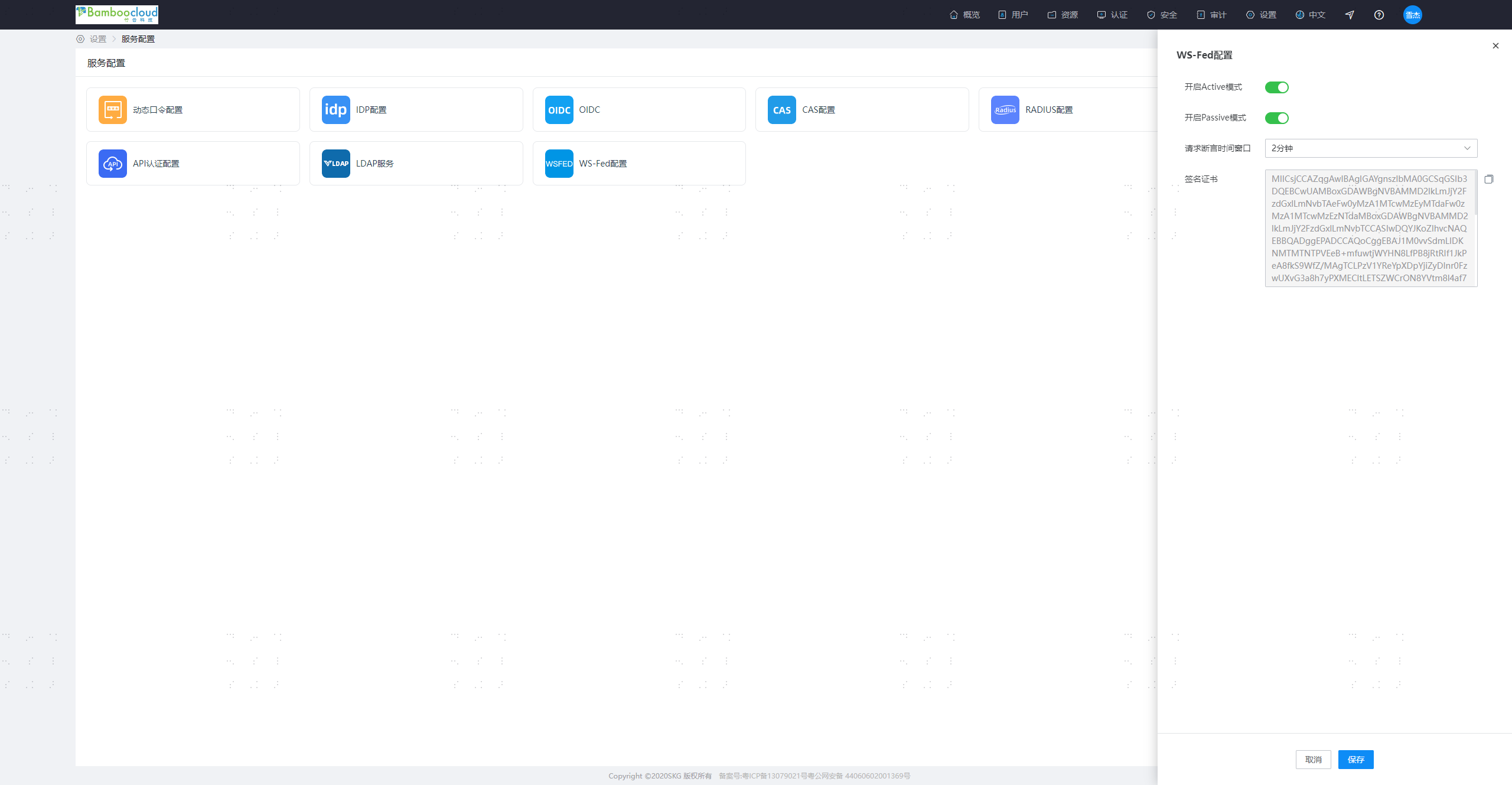
- Signing Certificate: WS-Fed service signing certificate
- The administrator logs into the IDaaS Enterprise Center, navigates to Resources - Applications - Dynamics365 - Authentication Integration - Interface Configuration
- Passive Uri: Authentication interface for the WS-Federation protocol
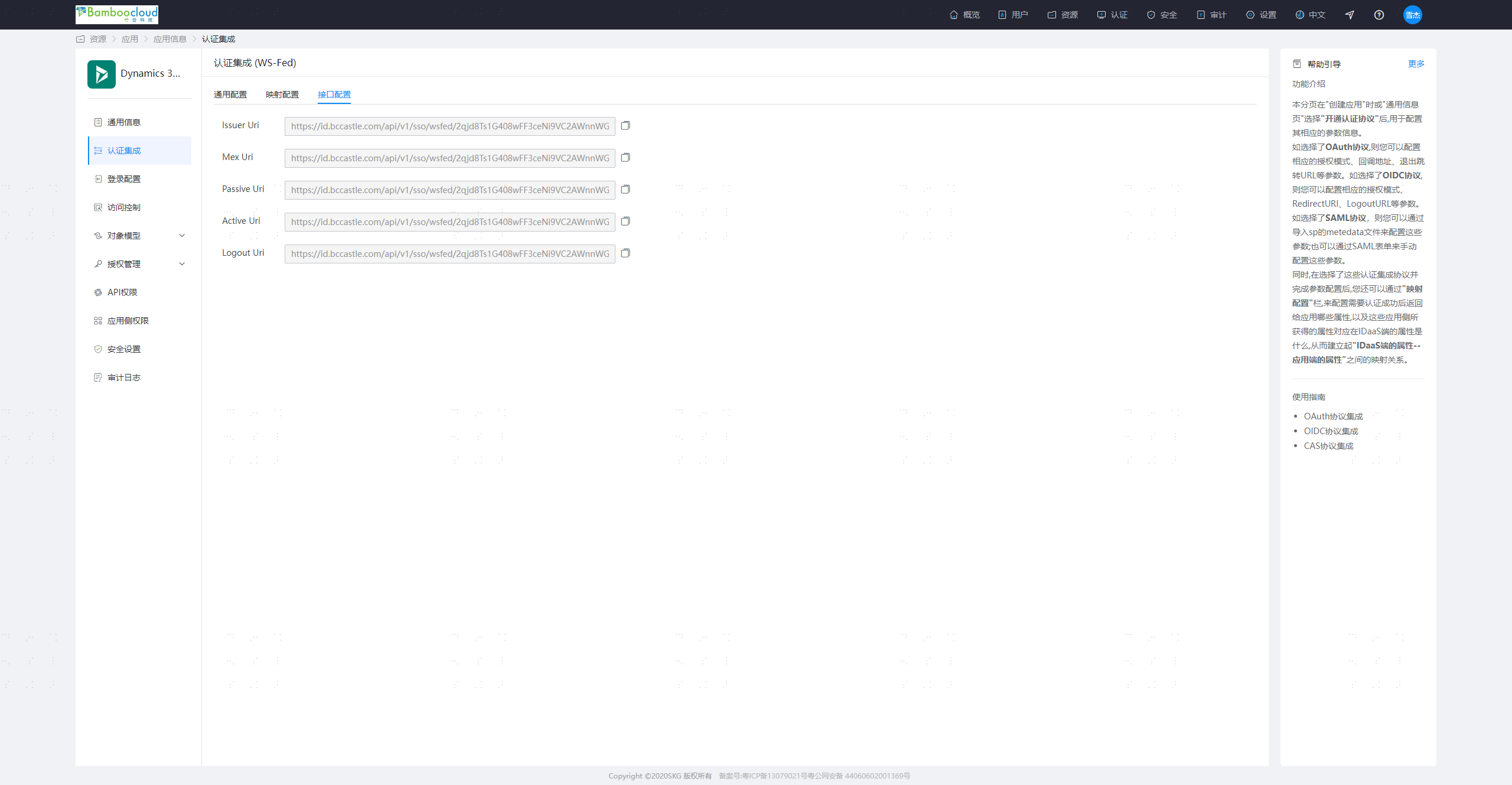
- Passive Uri: Authentication interface for the WS-Federation protocol
- Download the federationmetadata.xml file and fill in the configuration obtained in the previous two steps into the XML file.
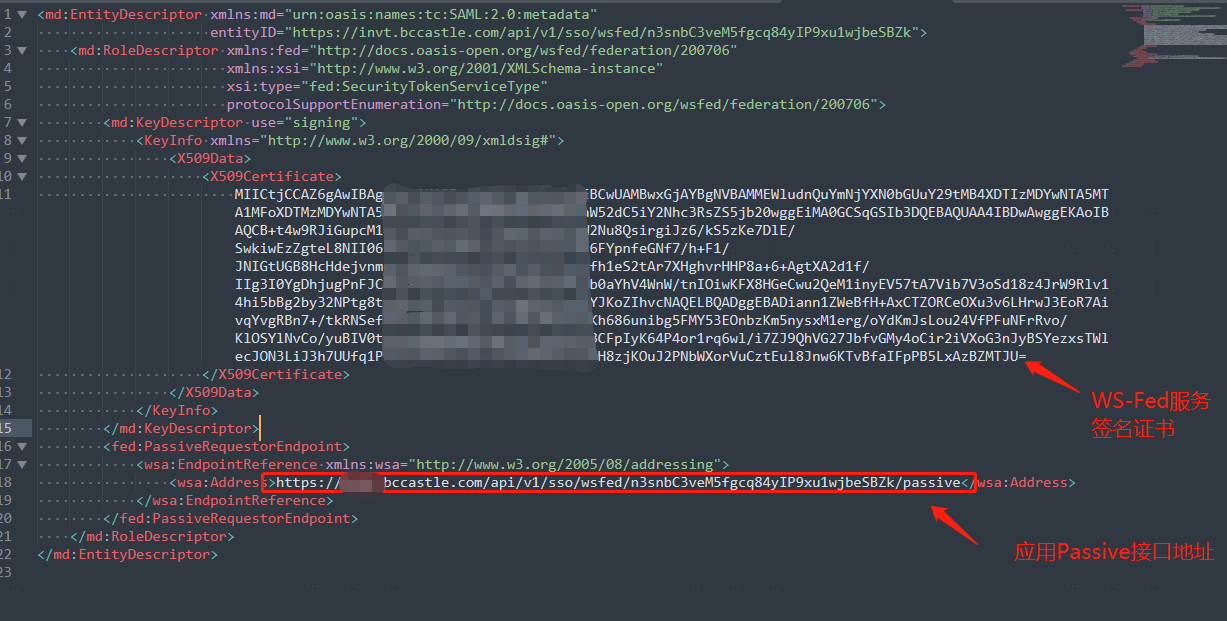
- Upload the file to the Microsoft Dynamics 365 server and save it in the C:\Program Files\Microsoft Dynamics CRM\CRMWeb directory.
# Configuring SSO in Microsoft Dynamics 365
# Set Microsoft Dynamics 365 Server Binding to HTTPS and Configure Root Domain Web Address
On the Microsoft Dynamics 365 server, start the Deployment Manager.
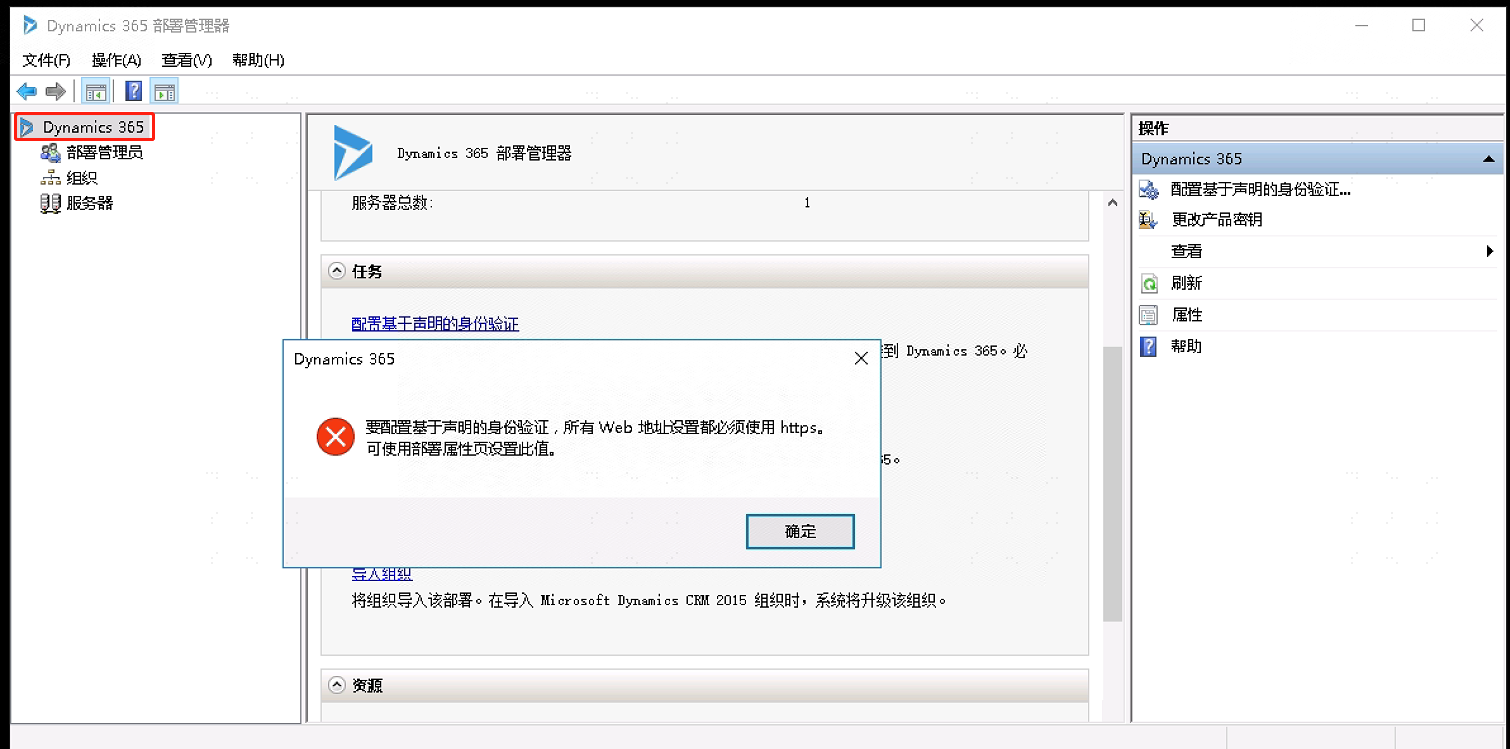
In the "Actions" pane, click "Properties".
Click the "Web Address" tab.
Under "Binding Type", select "HTTPS".
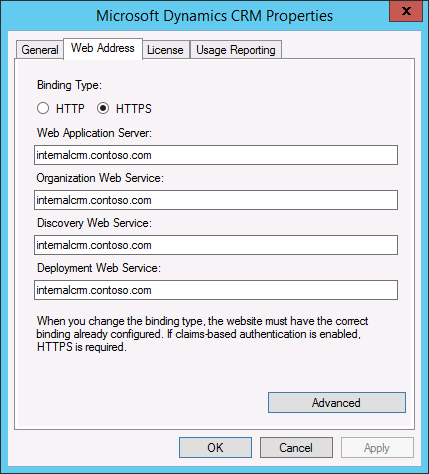
- Confirm that the web address is valid for the TLS/SSL certificate and TLS/SSL port bound to the Microsoft Dynamics 365 website. Since you are configuring the Microsoft Dynamics 365 server to use claims authentication for internal access, use the hostname for the root domain web address.
# Microsoft Dynamics 365 Configure Claims-Based Authentication
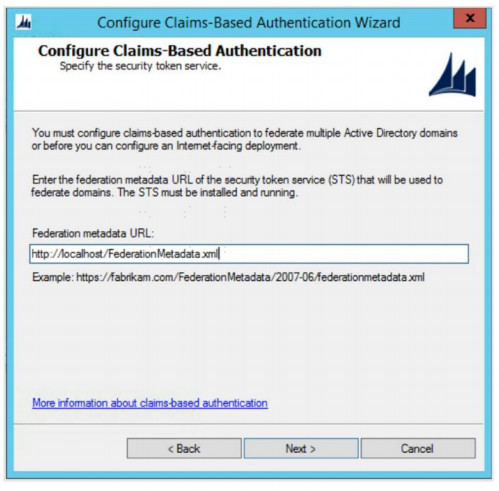
In the Deployment Manager console tree, right-click "Microsoft Dynamics 365", and then click "Configure Claims-Based Authentication".
On the "Specify Security Token Service" page, enter the federation metadata URL: http://localhost/federationmetadata.xml .
On the "Specify Encryption Certificate" page, specify the encryption certificate using one of the following two methods:
- In the "Certificate" box, type the full common name (CN) of the certificate in the format CN=certificate_subject_name.
- Under "Certificate", click "Select", and then choose a certificate.
Proceed to the next step to verify and complete the configuration.
# Microsoft Dynamics 365 Configure Internet-Facing Deployment
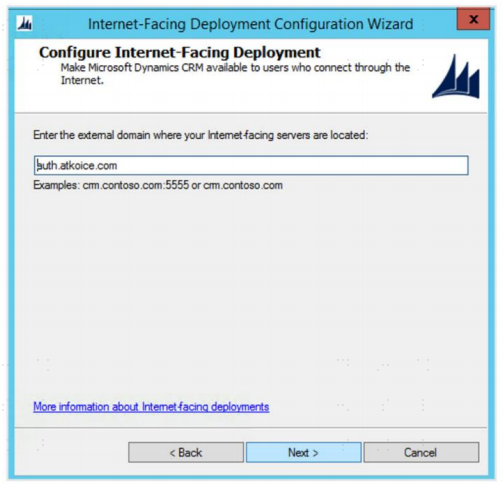
- In the Deployment Manager console tree, right-click "Microsoft Dynamics 365", and then click "Configure Internet-Facing Deployment".
- Internal Internet Access Configuration

| Parameter | Description |
|---|---|
| Web Application Server Domain | Microsoft Dynamics 365 system domain name, e.g., crm.domain.com, used for internal access |
| Organization Web Service Domain | Microsoft Dynamics 365 system domain name, e.g., crm.domain.com |
| Discovery Web Service Domain | Microsoft Dynamics 365 system domain name, e.g., crm.domain.com |
- Click Next to configure External Internet Access Configuration
- The domain name filled in this step can only be a subdomain, not the root domain, e.g., auth.domain.com
- If external network access is required, the network policy for this domain must be set to allow external access. If only internal access is needed, simply set any secondary domain name in this step.
# Internet Information Service Configuration
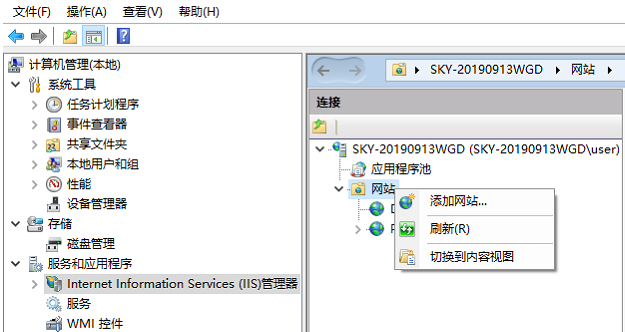
- Right-click on My Computer, select Manage -> Services and Applications -> Internet Information Services (IIS) Manager.
- Select and add a website, domain name: crm.domain.com, port: 443. For external access, add domain name: auth.domain.com, port 443.
# Login Verification
Log in to the IDaaS user center, click on the application logo, and single sign-on into the application system.