JIRA & Confluence JIT Configuration
# Description
This article describes the steps to enable JIT configuration for JIRA or Confluence.
# Jira & Confluence JIT Configuration
Administrator logs into the site management interface and selects SSO2.0.
Configure user login method, select SAML Single Sign-On for the authentication method.

Enable and check the JIT configuration

| Parameter | Description |
|---|---|
| Display Name | The login name when creating a user, value: ${NameID} |
| The email when creating a user, value: ${email} | |
| Group | The group the jira user belongs to, value: jira_groups |
# IDaaS Configuration
View the jira group list
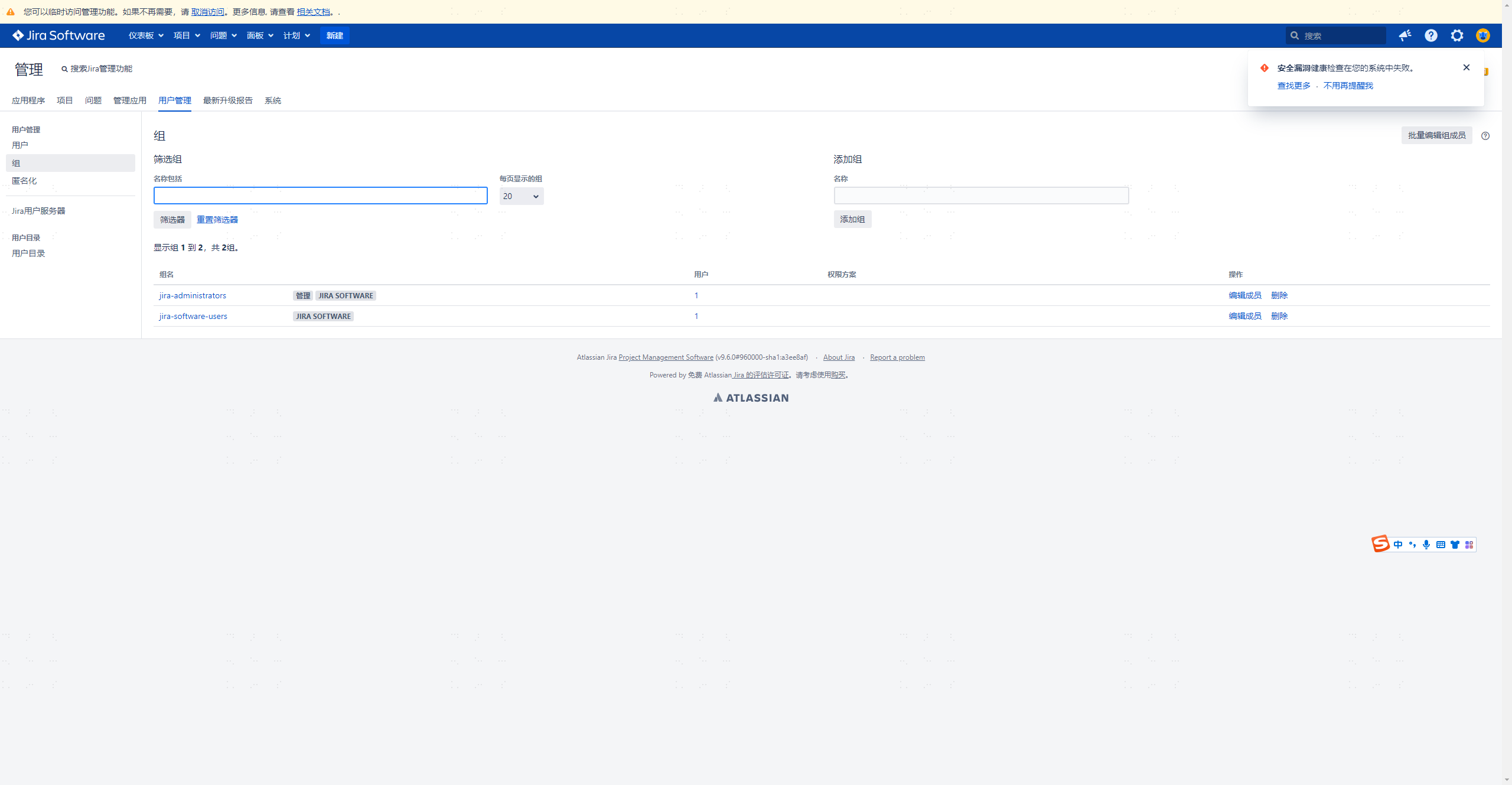
Administrator logs into the IDaaS Enterprise Center, goes to Settings - Data Dictionary - Add Dictionary
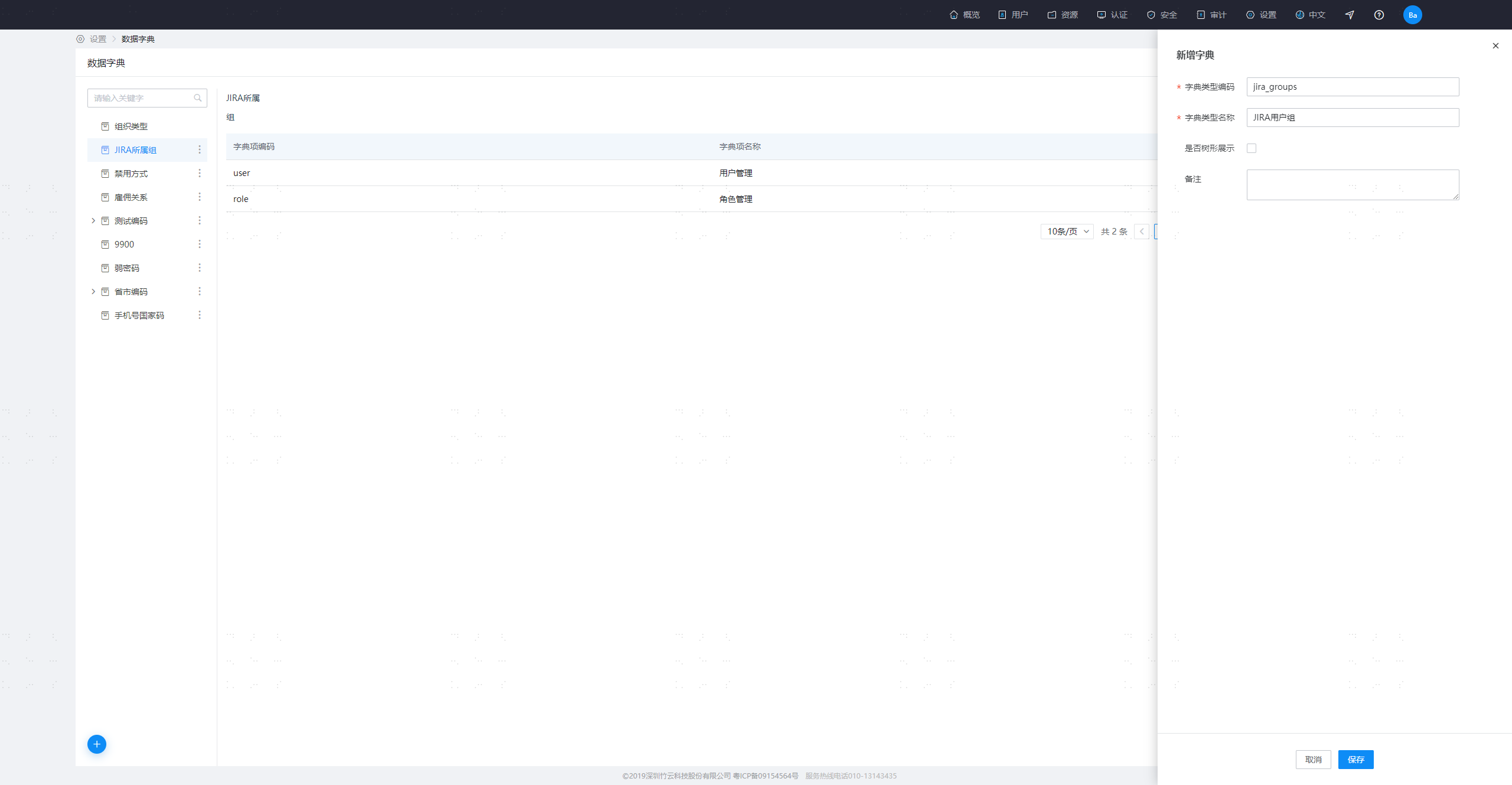
Set the dictionary type code to: jira_groups, and the dictionary name to: JIRA User Group
Administrator logs into the IDaaS Enterprise Center, goes to Settings - Data Dictionary - select the JIRA User Group dictionary on the left - Add Dictionary Item
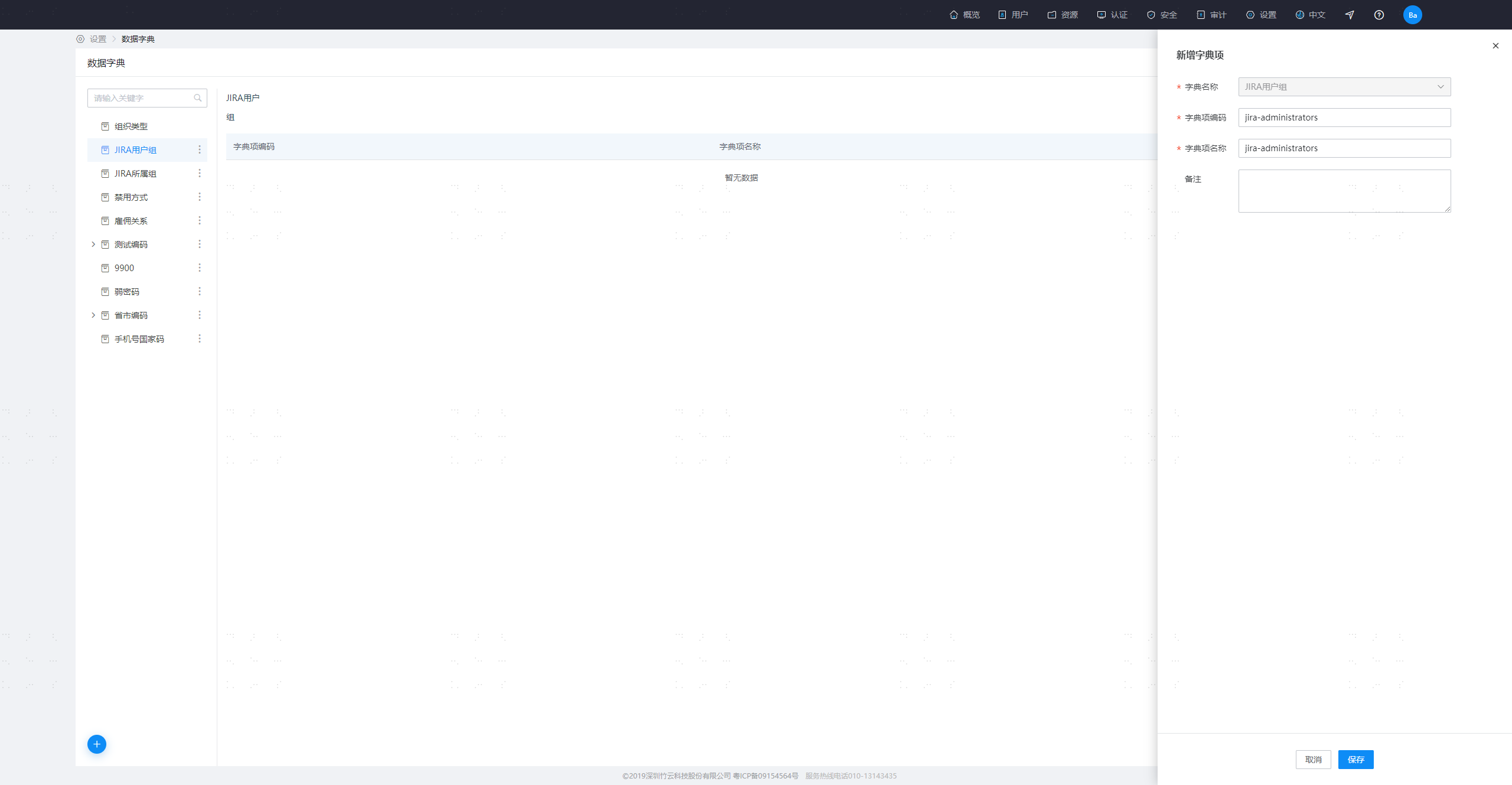
Add dictionary items based on the jira group list found in step 1. Both the dictionary item code and dictionary item name are the jira group names.
Go to IDaaS Users - Attribute Definition - User Attribute Definition - Work Information - Settings - Add Field
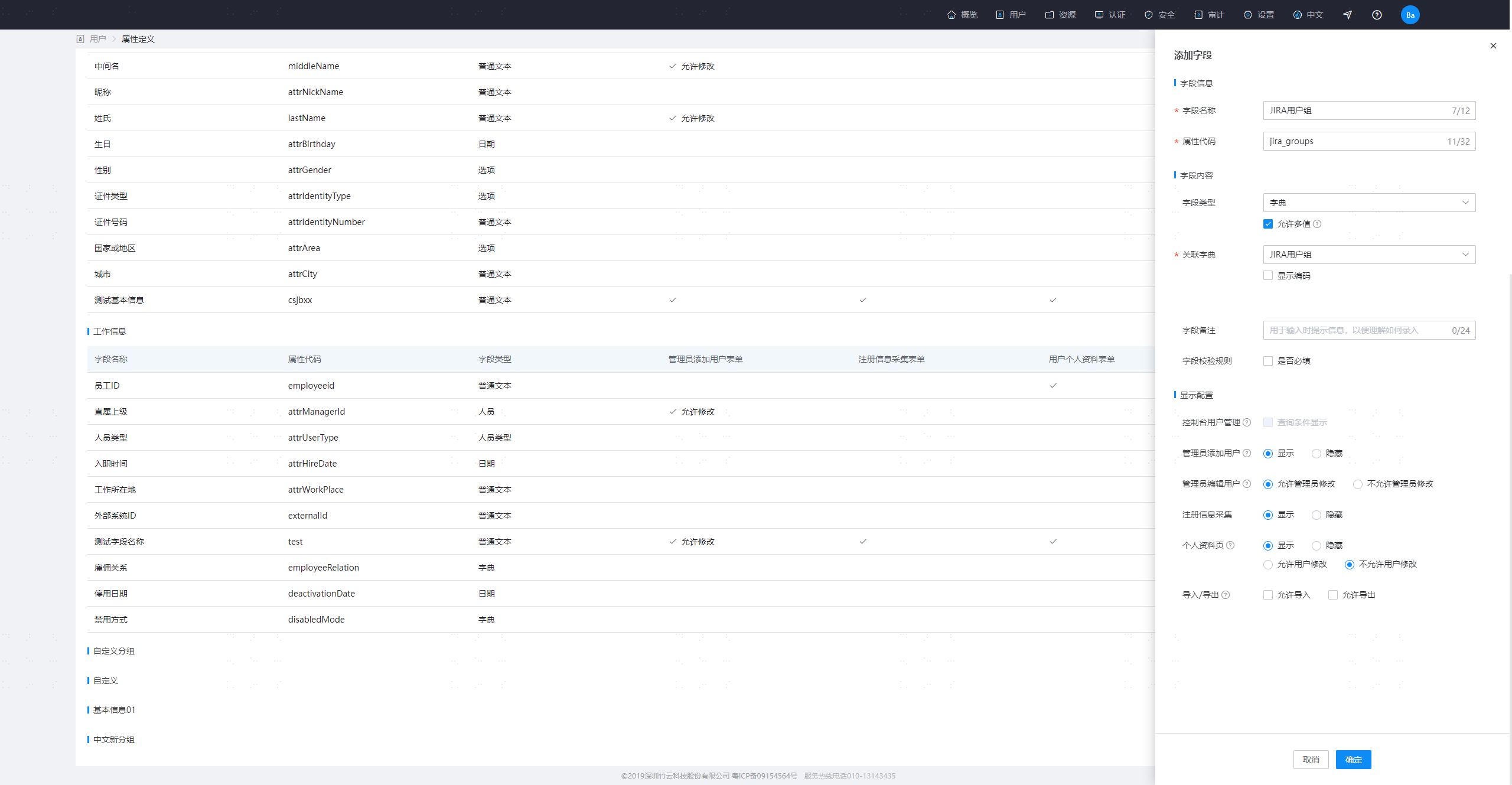
Fill in the attribute definition information as shown in the image above and save.
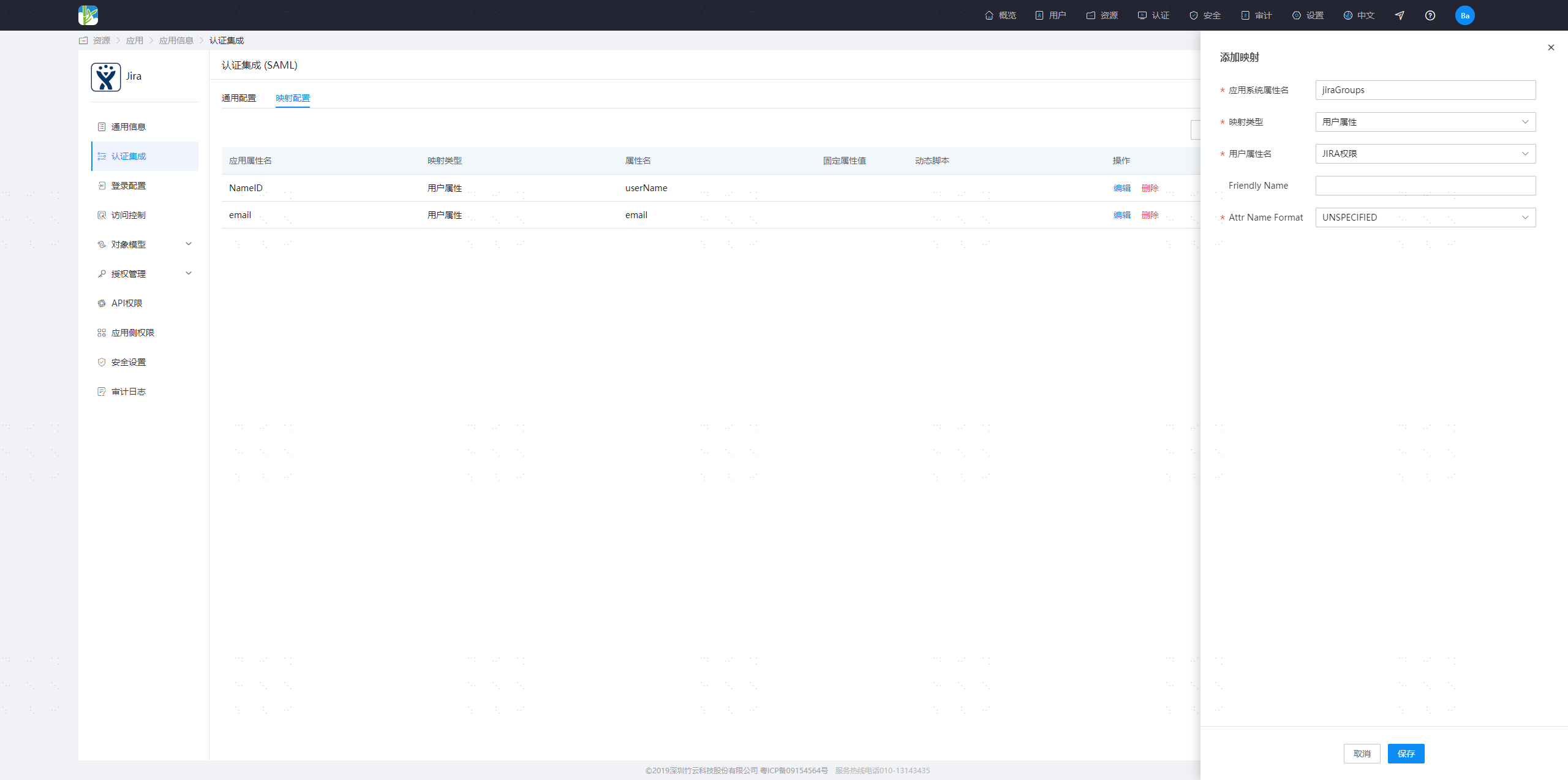
Configure mapping. Go to Application Details - Authentication Configuration - Mapping Configuration, and add a mapping.
jiraGroups JIRA User Group