
Kingdee Cloud Xinghan Data Synchronization
Identity Synchronization
# Description
This article describes how to synchronize personnel data from IDaaS to Kingdee Cloud Xinghan, enabling data flow from IDaaS to Kingdee Cloud Xinghan.
# IDaaS Configuration
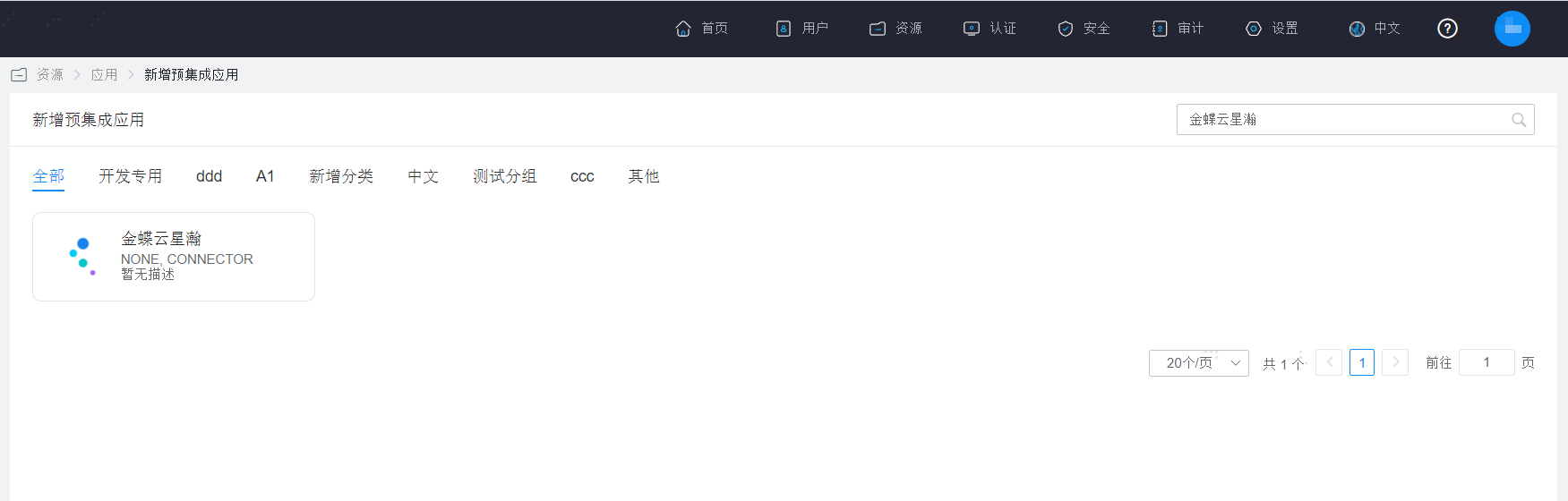
Add the pre-integrated application Kingdee Cloud Xinghan.
Configure synchronization parameters.
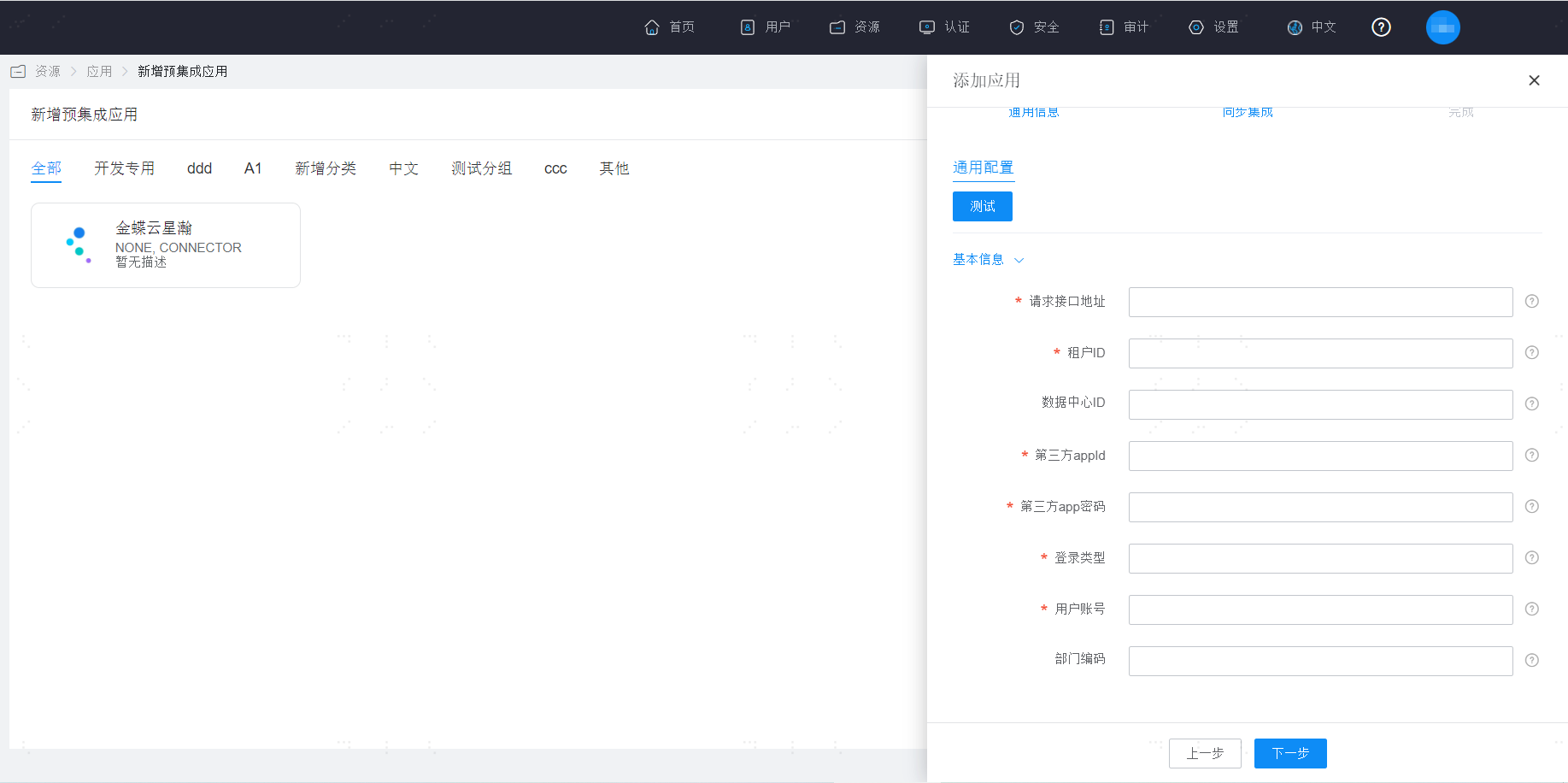
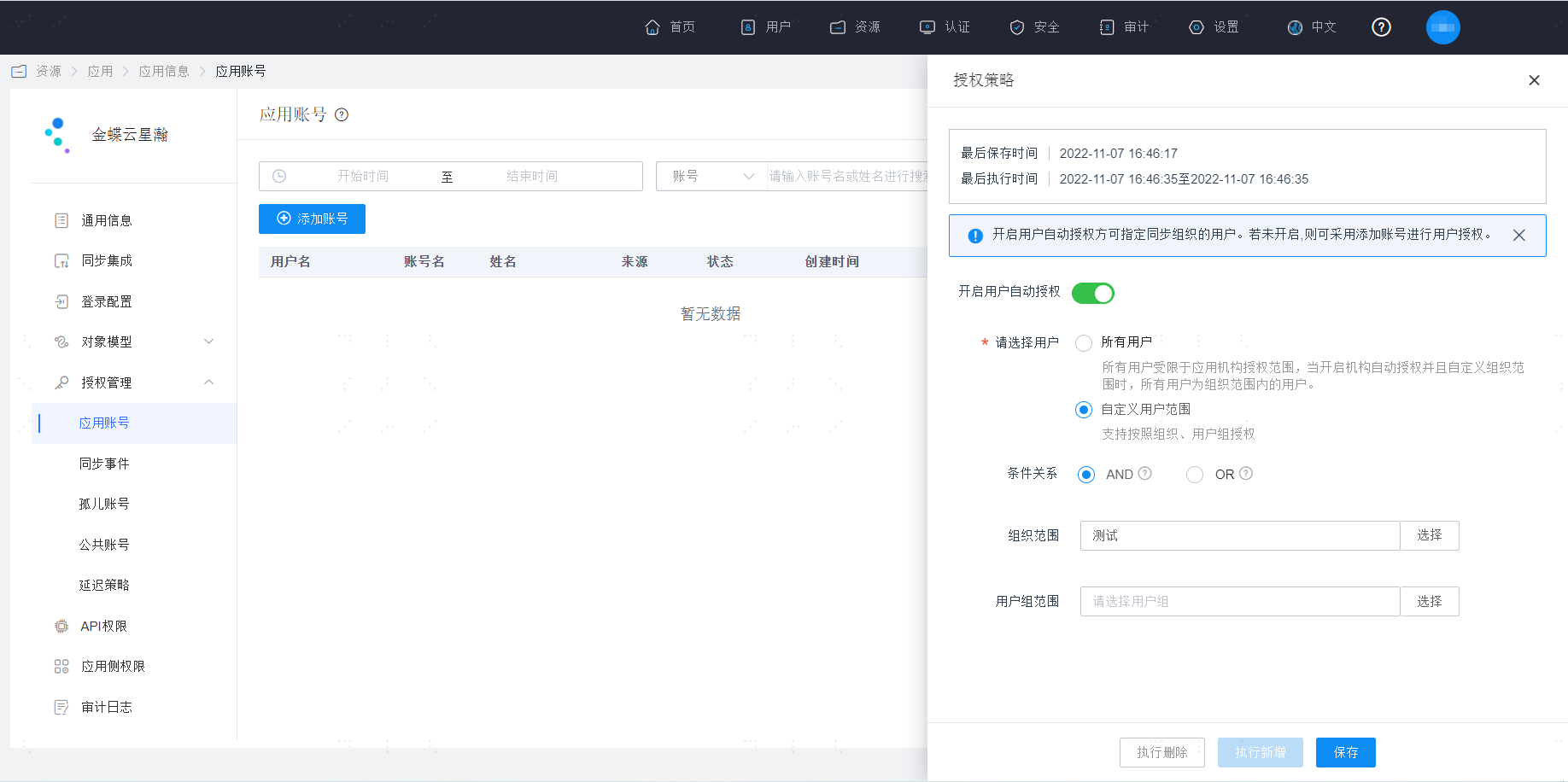
Parameter Description url Request interface address appId Third-party appId appSecuret Third-party app password accountId Data center ID. If not entered, the default data center under the tenant will be selected by default. user User account usertype Login type. Mobile: Identified as mobile phone, default is mobile phone; Email: Identified as email; UserName: Identified as username. tenantid Tenant ID orgCode Department code, used to configure the code of the department to which the new account belongs when adding an account. See the code of the corresponding organization under the administrative organization in the Kingdee Cloud Xinghan platform. Note: If a department code is configured here, newly added users will be synchronized to the currently configured department, and the corresponding department position needs to be configured. If no department code is configured here, synchronization will go to the default unassigned department on the Kingdee Cloud Xinghan platform. Go to Application Details - Application Account Structure - Authorization Policy, enable automatic organization authorization, select the user scope, click the Save button, and then click Execute Add.
Go to Application Details - Synchronization Events to view synchronization events.

# View Synchronization Results
Log in to the Kingdee Cloud Xinghan management backend to view the synchronized organizations and users.