
Jiandaoyun Single Sign-On
# Description
This article describes how to implement IDaaS Single Sign-On for Jiandaoyun. Reference Documentation (opens new window)
# Authentication Configuration
# Jiandaoyun System Configuration
Log in to the Jiandaoyun system, go to Account Center >> Account Settings >> Single Sign-On >> Enable.
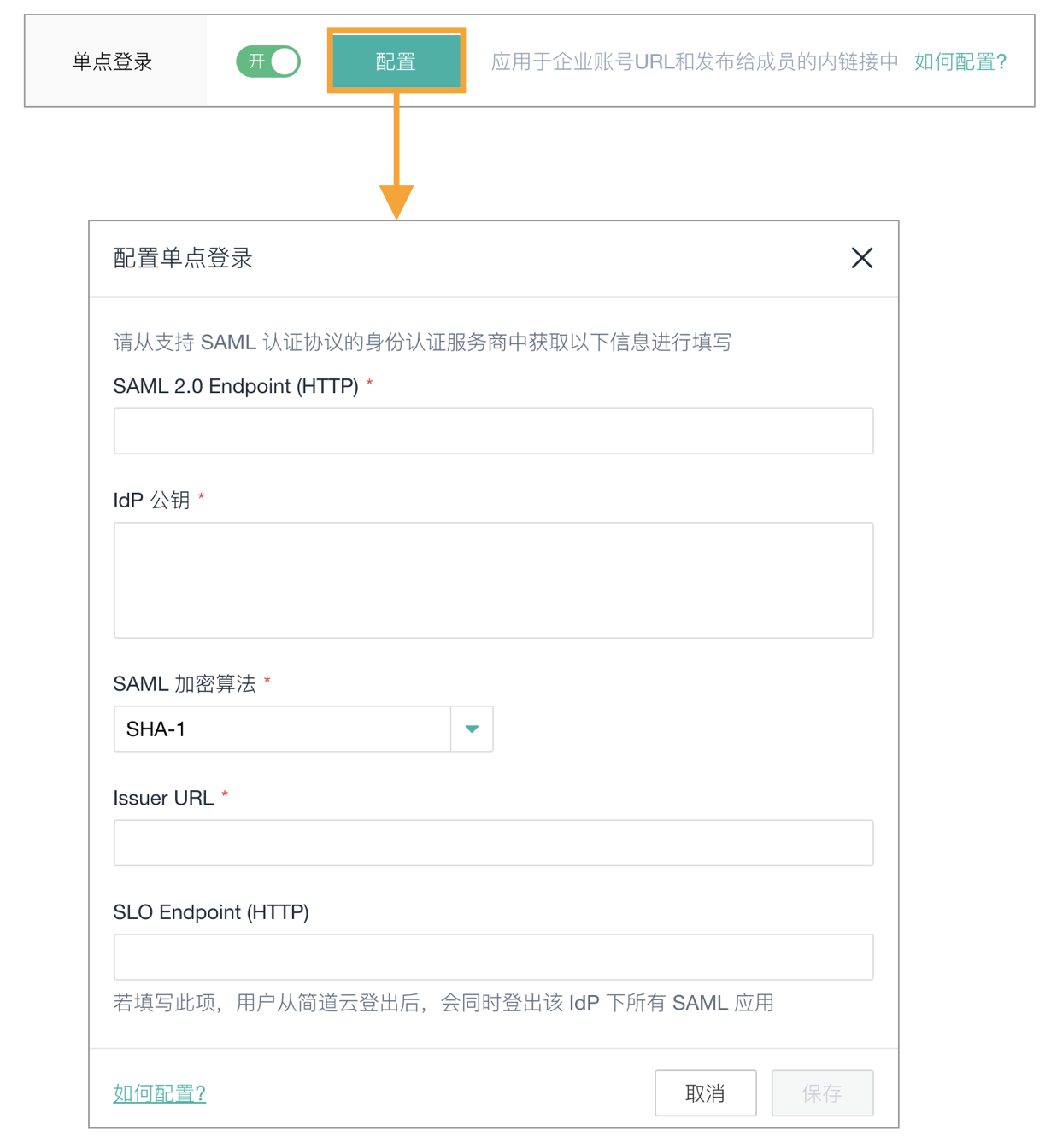
Fill in the parameter information:
Parameter Description SAML 2.0 Endpoint (HTTP) The address Jiandaoyun requests when sending SAML (Required) IDP SSO URL IdP Public Key The public key certificate used by the identity provider for signing (Required) IDP Certificate SAML Encryption Algorithm SHA-1, SHA-256, SHA-512 (Required) SHA-1 Issuer Address Use the application identifier of the identity provider (Required) IDP EntityId SLO Endpoint(HTTP) If filled, users will be logged out of IDaaS after logging out from Jiandaoyun (Optional) To download the IDP metadata for IDaaS, please visit https://{your_domain}/api/v1/saml2/idp/metadata.
After configuration is complete, save and download the Metadata.
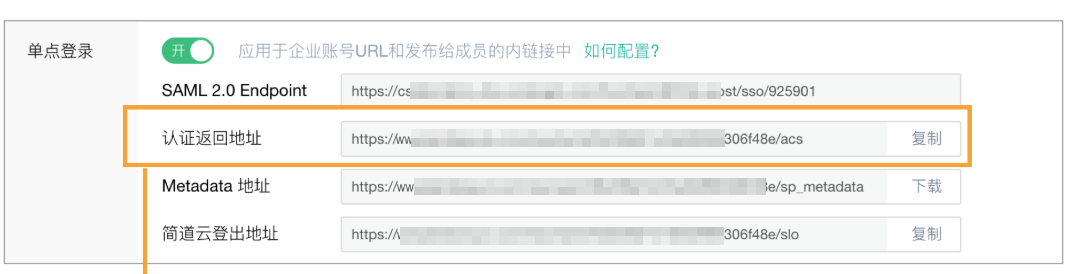

# IDaaS Configuration
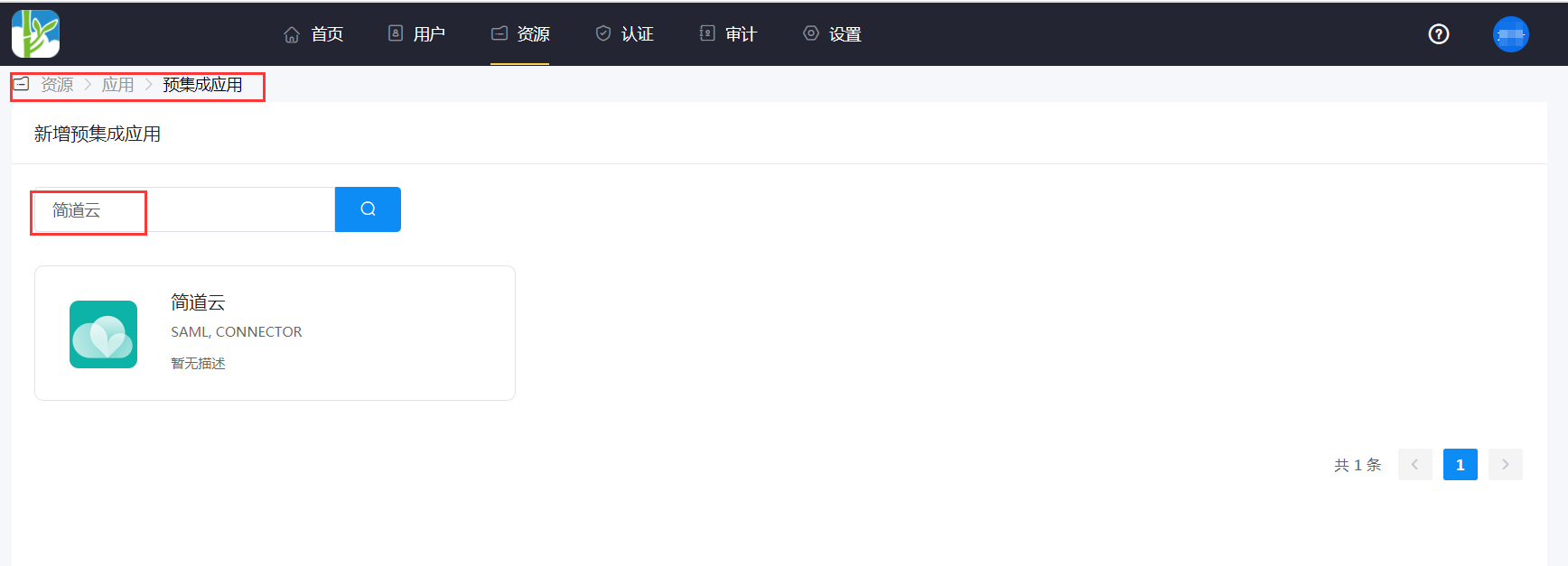
Add the built-in application Jiandaoyun.
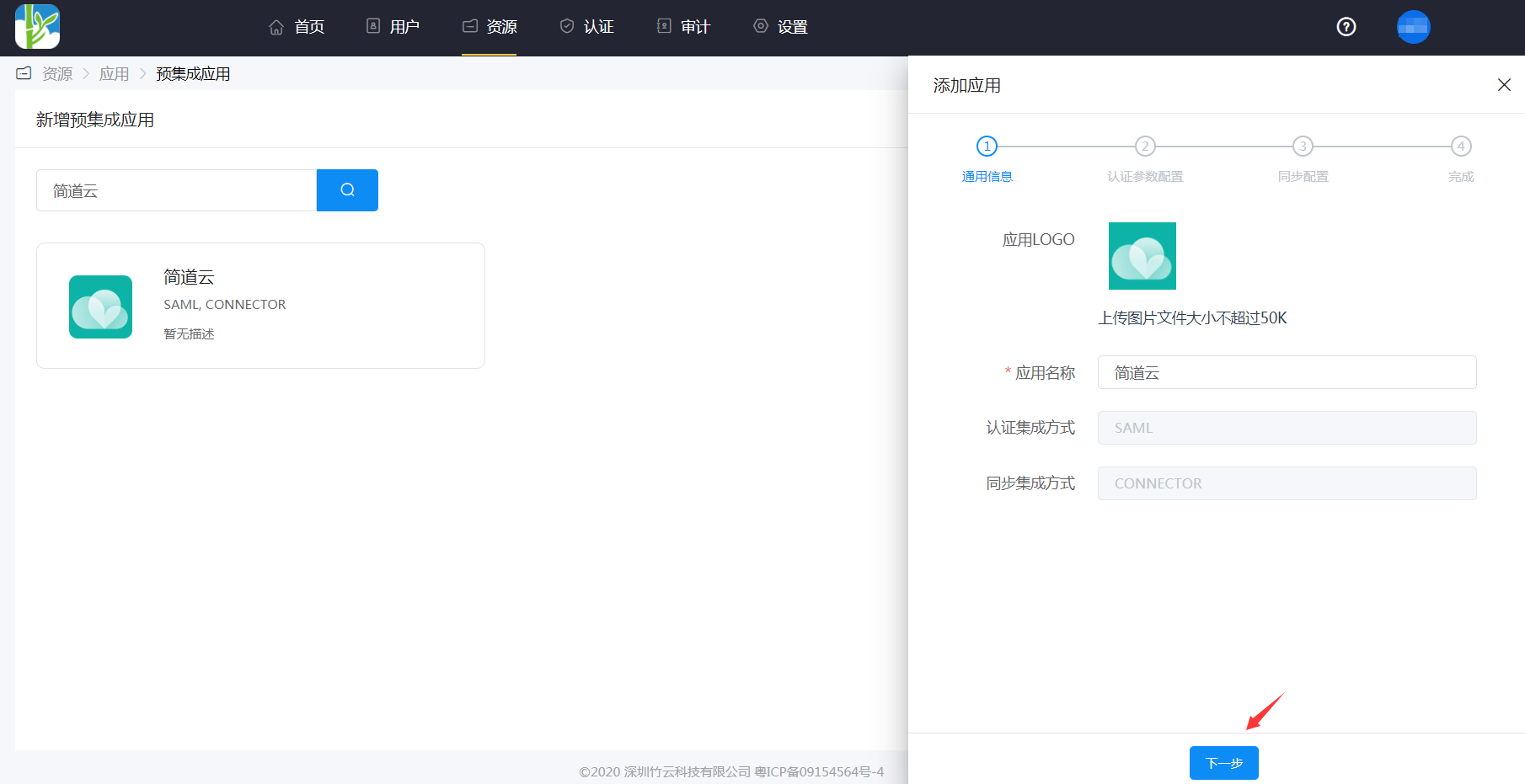
Configure authentication parameters. You can import SP metadata or add them manually.
SP Entity ID or Issuer: https://www.jiandaoyun.com/sso/saml/*****/iss
Audience URI: Same as above
ACS URL: https://www.jiandaoyun.com/sso/saml/*****/acs
NameID: Email
NameID Format: emailAddress

In the application details -> Authentication Configuration -> Mapping Configuration, add the username attribute.
The Attribute segment of the SAMLResponse must contain an attribute named
username, whose value corresponds to the member's number within Jiandaoyun.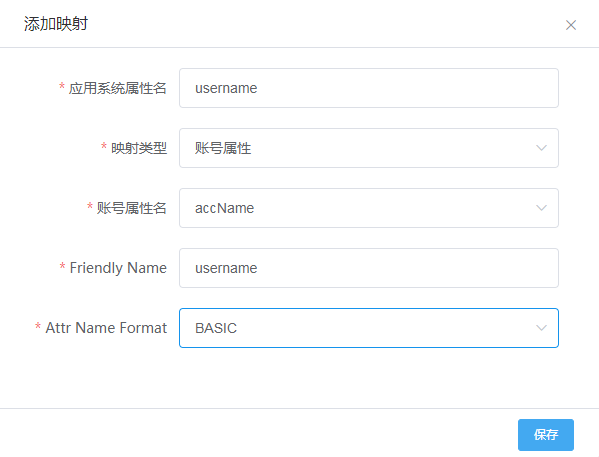
Go to Application Details -> Authorization Management -> Application Accounts, click the Add Account button, and select authorized users.
# Login Verification
Set up the "Custom Login Page" in the Jiandaoyun admin backend. After completing the above steps, relevant members can directly log in to Jiandaoyun via SSO on mobile or web.
- Before logging in, the enterprise account URL must be set up. Members perform single sign-on through the enterprise account URL.
- For the first login, the authorized username and password from IDaaS need to be entered.