Beisen iTalent Single Sign-On
# Description
This document describes how to implement password-free login to the Beisen HR system via IDaaS. When configuring the Beisen HR application integration in IDaaS, relevant integration parameters need to be provided by Beisen. Specific parameters are detailed below.
# Authentication Configuration
# Obtaining Beisen Parameters

You can also log in to the Beisen Open Platform (opens new window) to create a connector and add API permissions for obtaining employee login information.
# Adding the Beisen Application in IDaaS
Log in to the IDaaS Enterprise Center, open 【Resources】—【Applications】— and click "Pre-integrated Applications".
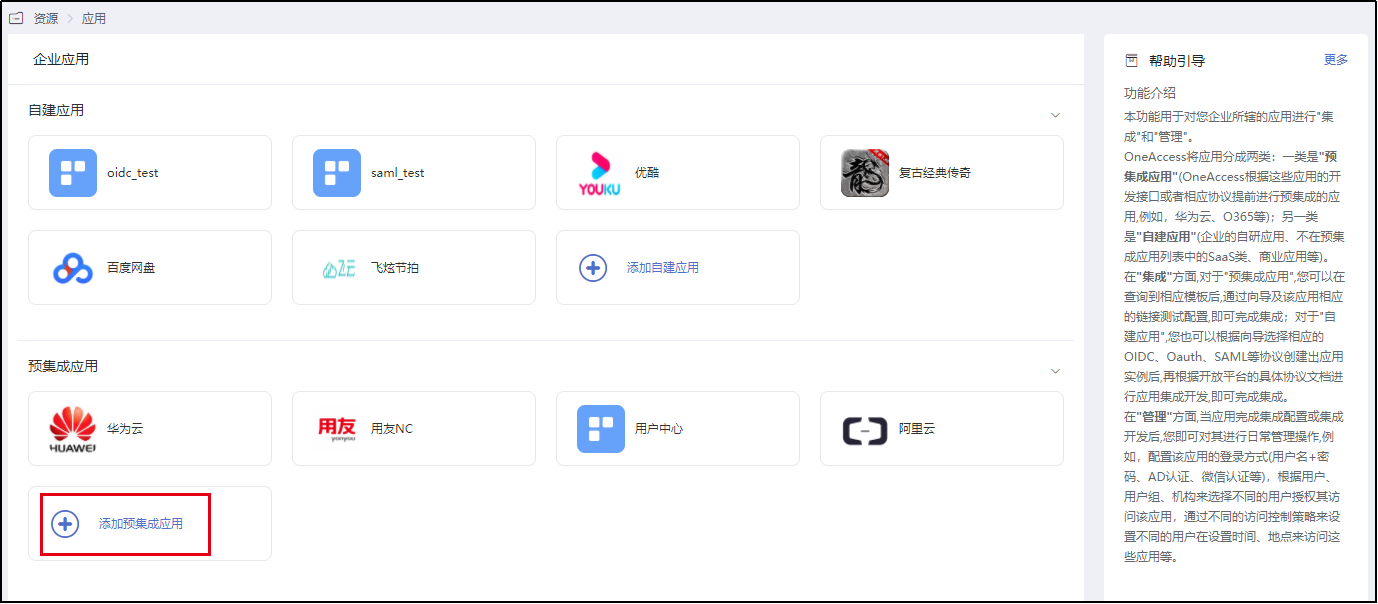
Find the Beisen HR pre-integrated application by searching with the keyword "Beisen" among the pre-integrated applications.
Click on the application to enter the application configuration interface.
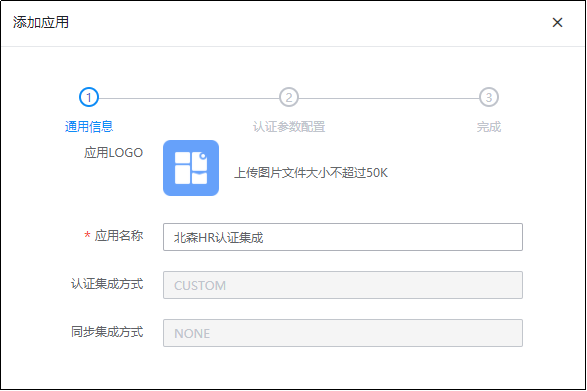
First, configure the "General Information". On this page, you can configure the application's "logo". Descriptions of other parameters are as follows:
Parameter Description Application Name Default is "Beisen HR Authentication Integration", can be customized. Authentication Integration Method Default is "CUSTOM", cannot be modified. Synchronization Integration Method Default is "NONE", cannot be modified. Click "Next" to configure authentication integration parameters.
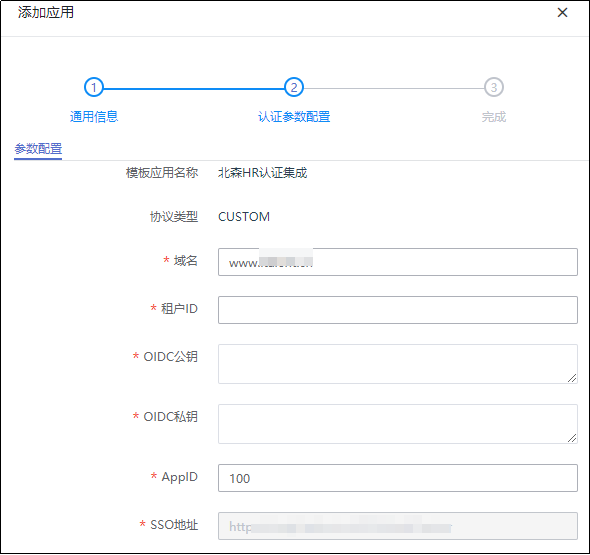
Parameter Description Domain Fill in "www.italent.cn" Tenant ID Provided by the Beisen HR system OIDC Public Key Provided by the Beisen HR system OIDC Private Key Provided by the Beisen HR system AppID Default is "100" Login Identifier The user's unique identifier in Beisen. Optional values: Beisen username, Beisen user ID, Beisen employee number. The format for filling in the public and private keys is as follows: Ensure there are no spaces at the end of line breaks.
-----BEGIN PUBLIC KEY-----
MIIBIjANBgkqhkiG9w0BAQEFAAOCAQ8AMIIBCgKCAQEArUi2aYNO5ooK0Hxy5ieJ
g2WuHpkO5dc0eoJsUTpS2YzQ4J5pGNRqF42mzeMT9y64yXYP9xCpUWguw+qHw2ME
C3JKYvLqL6YtDG7/2bVN8X/NFBZZKJBIFLv4Haab4s/8zaEPdN5F3YrutMveooEn
qivw1HySjJ9z/8aKabI/f4fQz3BCfH4Ri2M5f6r6o25PWmZDZpprO+uMQwc6HL5a
T6CKGQsX2nCUlsT3AhTe5tSUNjiNZcjJRX41csgX2rTe/wJJ7JljakHbGezeP9s3
qxwiphjSLJqbzrOckfrbVJGGxRW4KnBQgRQwd4Zk3o0DwaYyyVDAxsXt/pxZeV6C
VQIDAQAB
-----END PUBLIC KEY-----
1
2
3
4
5
6
7
8
9Click "Next" to complete the configuration.
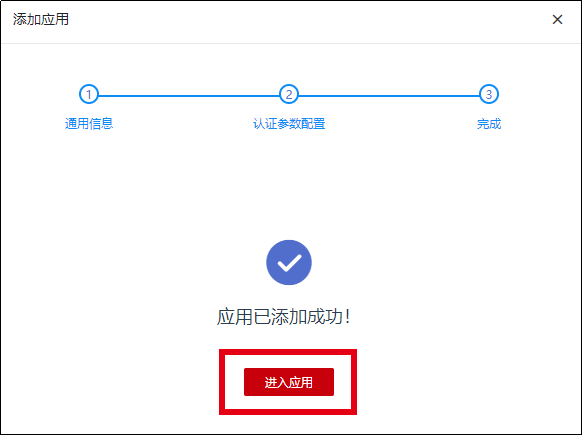
Then click "Enter Application" to access the application configuration interface.

On the application configuration interface, perform authorization operations for the accounts that have permission to access the Beisen HR system.
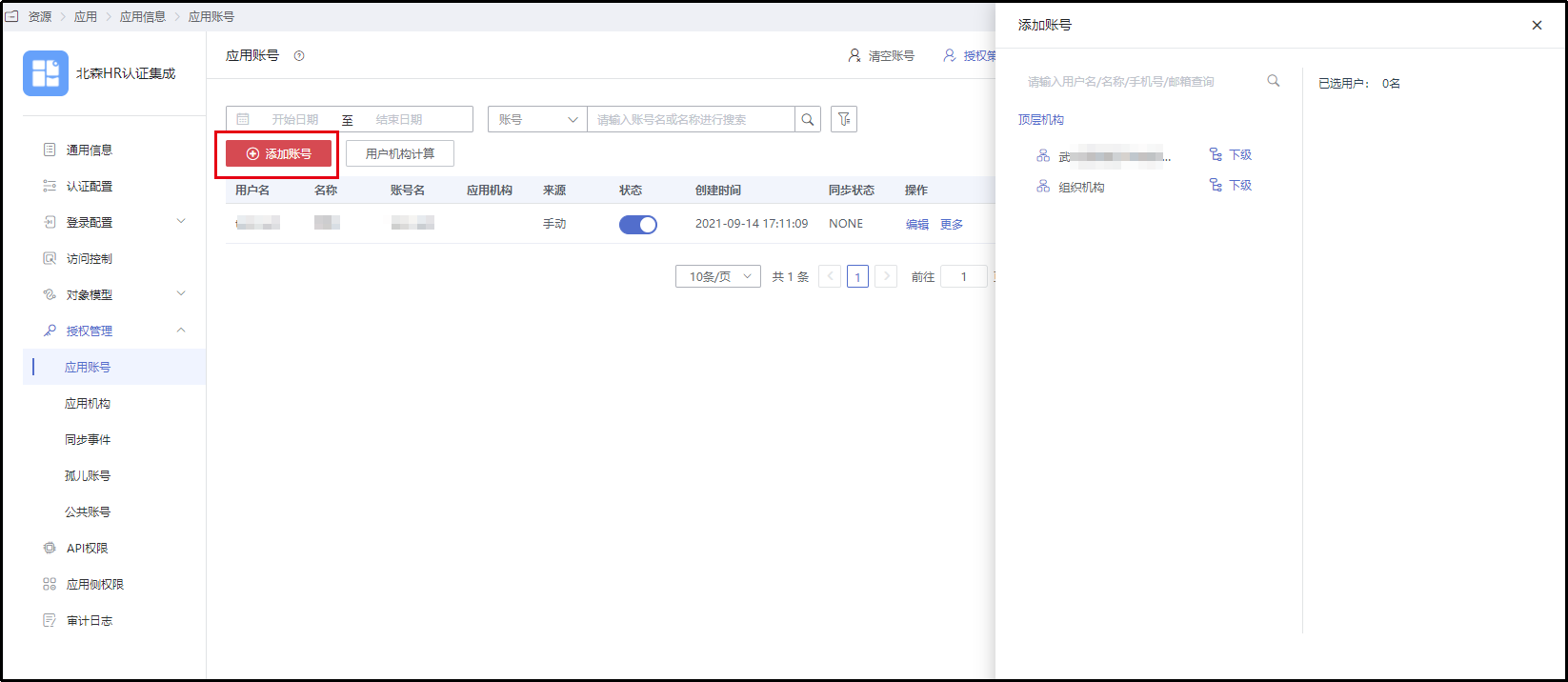
Note: When authorizing application accounts in IDaaS, ensure that the person holding that IDaaS account also has a corresponding user account in the Beisen HR system. The unique identifier for a user in Beisen can be one of the following optional values: Beisen username, Beisen user ID, or Beisen employee number. These three fields correspond to the account's email (email), employee unique identifier ID (userid), and employee job number (jobnumber) respectively.
# Login Verification
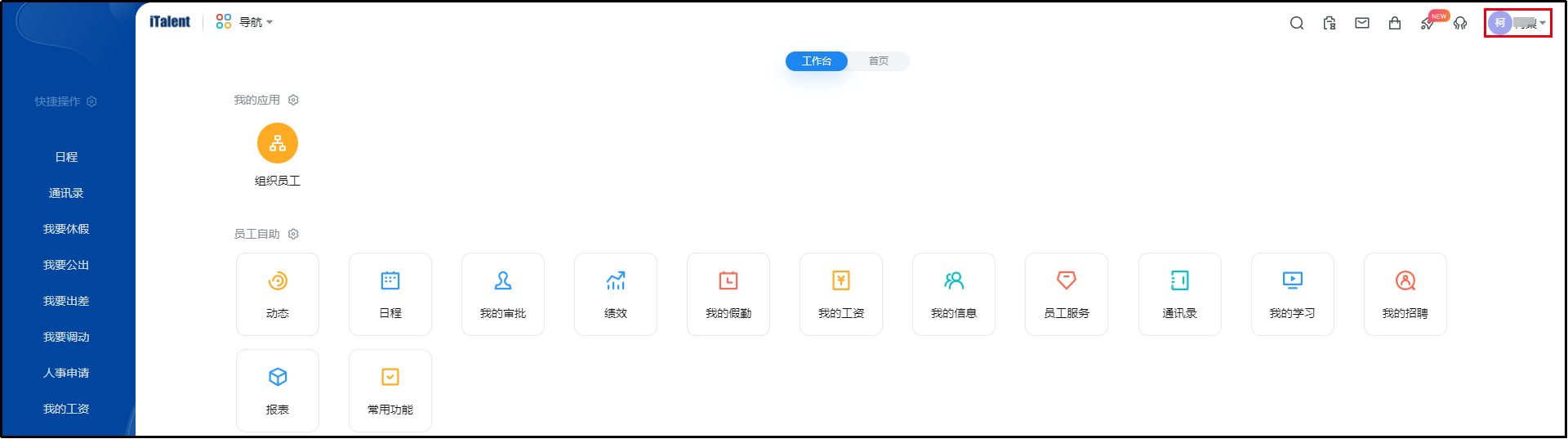
Use the IDaaS account authorized for the Beisen HR system as mentioned above to log in to the tenant's user center. Under this account, you will see the integrated Beisen HR application.
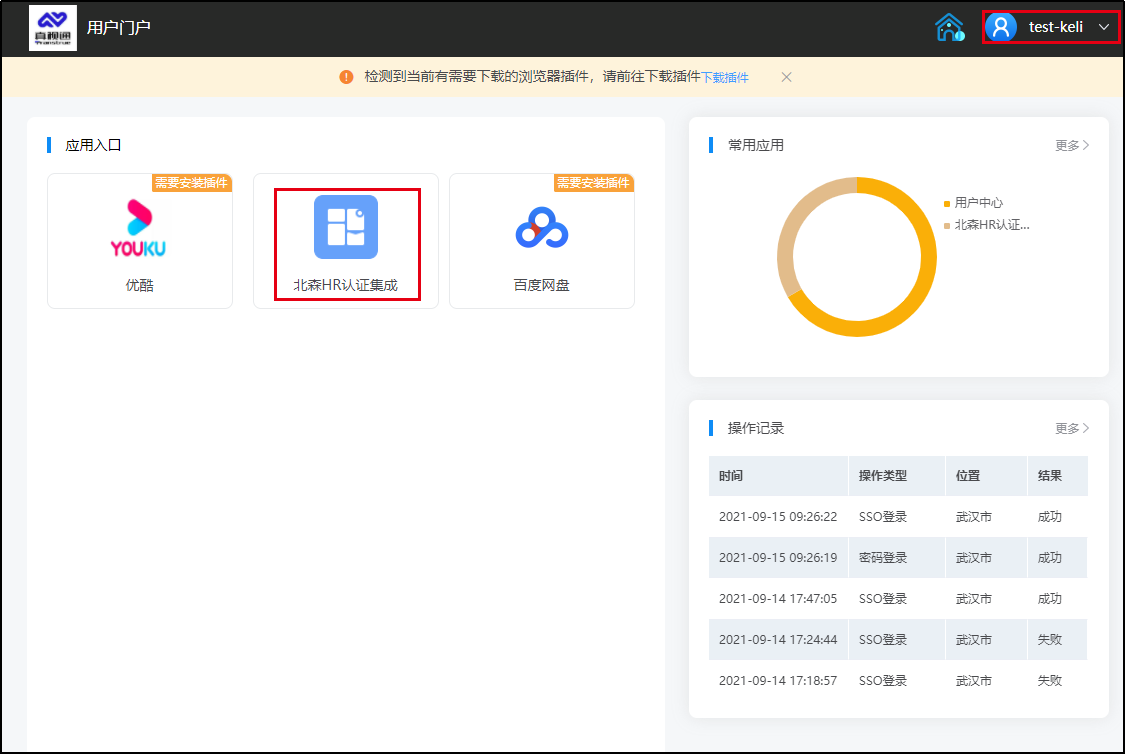
Click "Beisen HR Authentication Integration" to single sign-on into the Beisen HR system, achieving password-free login redirection.