Huawei Cloud Single Sign-On
# Description
This chapter introduces the internal implementation process and configuration steps for federated identity authentication between IDaaS and Huawei Cloud based on the SAML protocol. Huawei Cloud IAM Service Reference Documentation (opens new window)
# Authentication Configuration
# Adding a Huawei Cloud Application on IDaaS
Log in to the Enterprise Center. In the navigation bar, select 【Resources】 > 【Applications】.
On the Enterprise Applications page, click "Add Pre-integrated Application".
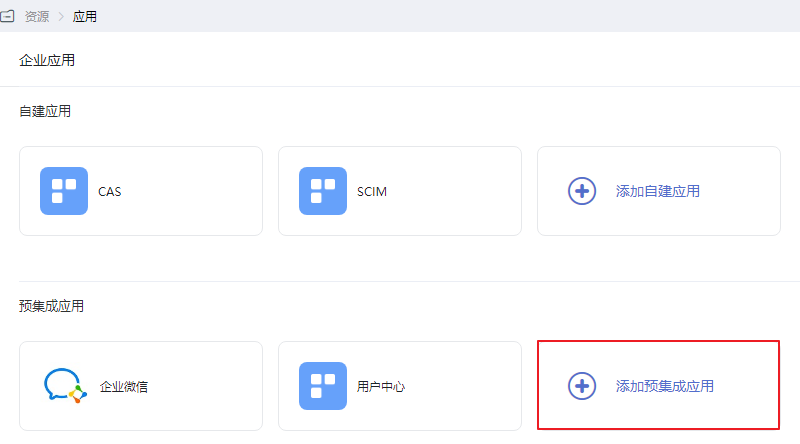
On the Add Pre-integrated Application page, click the "Huawei Cloud" application.

In the pop-up Add Application page, keep the default general information and click "Next".
On the Authentication Parameter Configuration page, select "Import SP Application Metadata > Choose File", and select the Huawei Cloud metadata file. The system will automatically upload the file and extract the metadata.
Download the Huawei Cloud Metadata File (opens new window) and set the file name, for example, "SP-metadata.xml".

When "Choose File" changes to "√", it indicates the system has extracted the metadata. Click "Next" to successfully add the Huawei Cloud application.
# Creating an Identity Provider on the Huawei Cloud Console
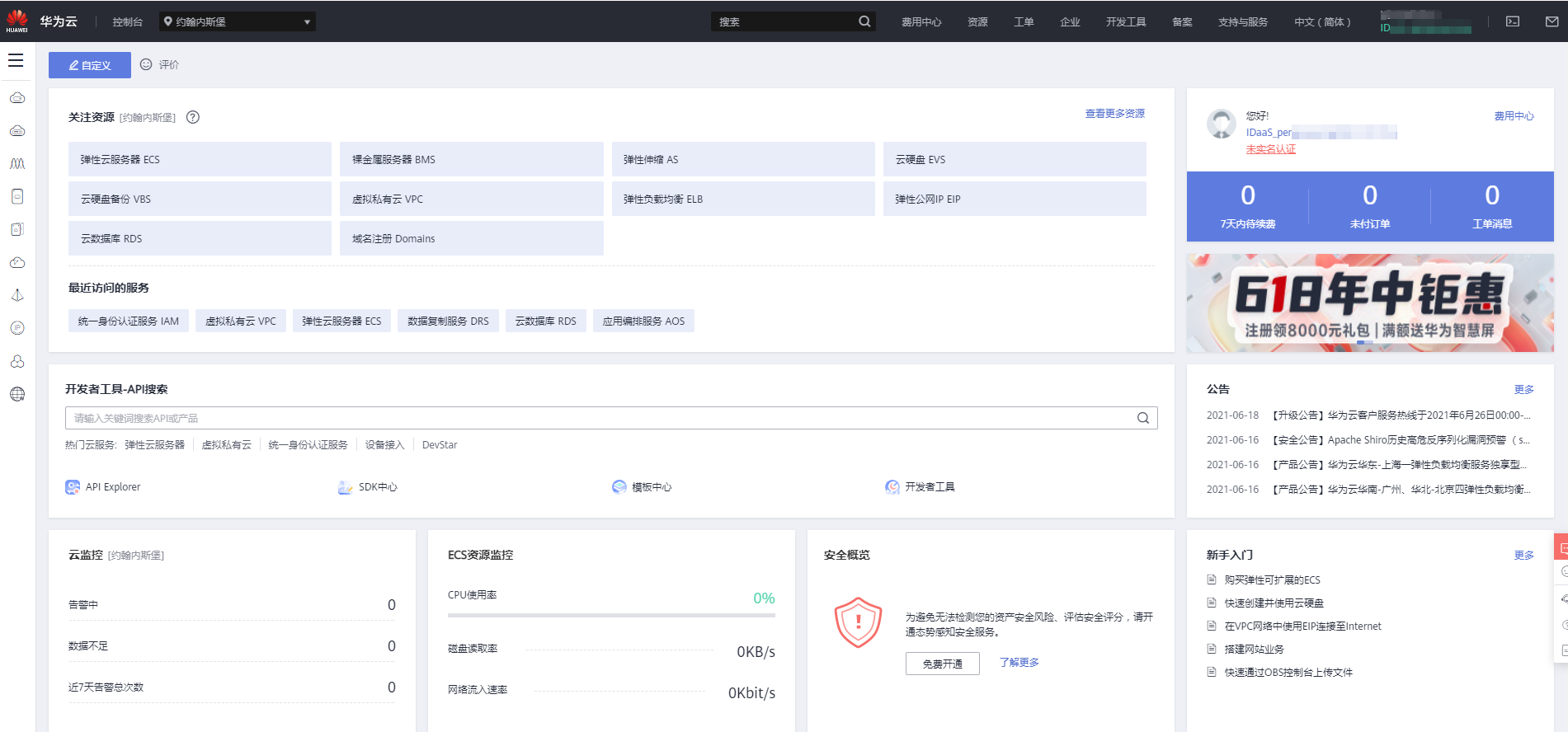
Log in to the Huawei Cloud console as an administrator, navigate to the Unified Identity Authentication Service IAM, and create a SAML protocol identity provider. Refer to Creating an Identity Provider on Huawei Cloud (opens new window).

View the identity provider information and configure the IDaaS metadata. Refer to Configuring the Metadata File on Huawei Cloud (opens new window).
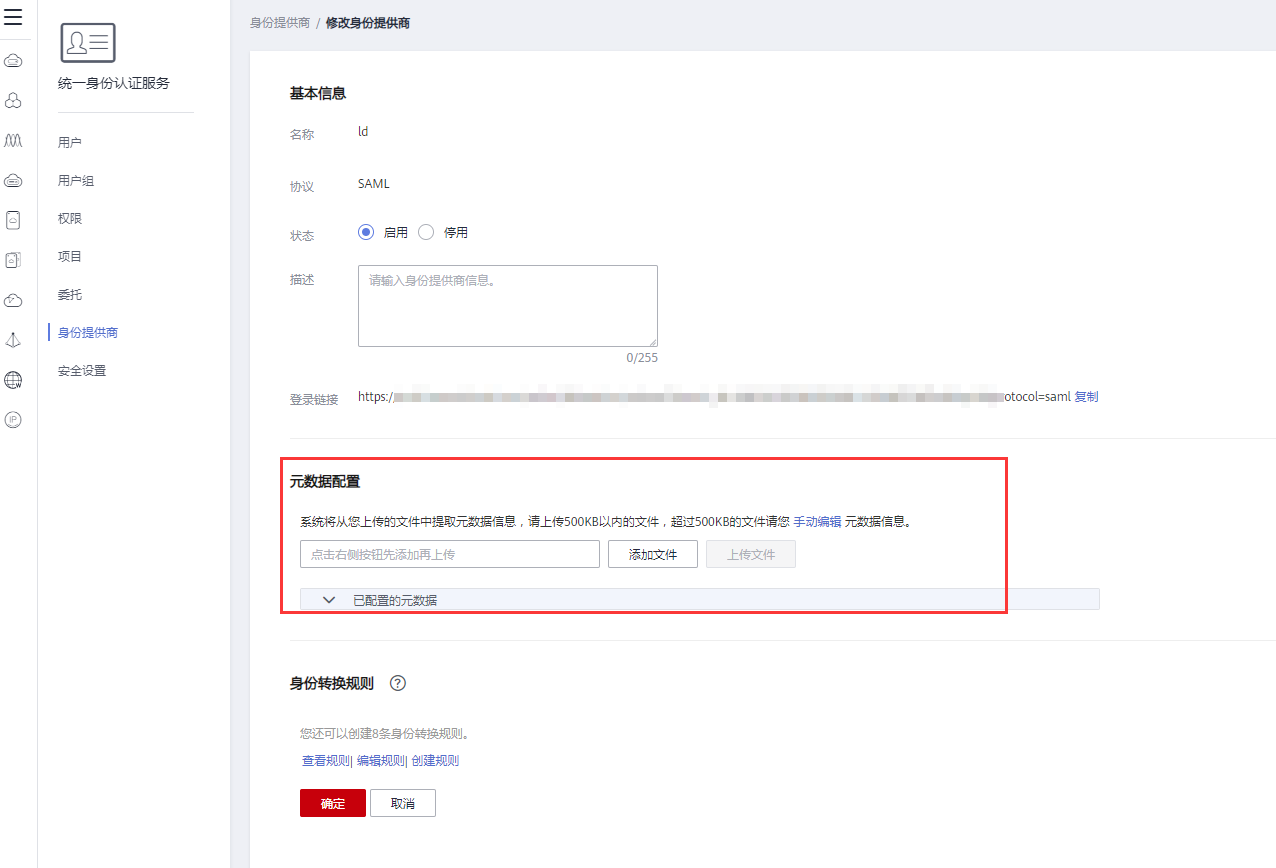
How to obtain IDaaS metadata: Log in to the IDaaS Enterprise Center, in the navigation bar, select "Settings > Service Configuration > IdP Configuration". In the pop-up IdP Configuration page, click "IdP Metadata" in the top right corner. The data will be saved automatically.

Set the identity mapping rules. Refer to Huawei Cloud Identity Mapping Rules Configuration (opens new window).
Rule example:
[
    {
        "remote": [
            {
                "type": "Username"
            }
        ],
        "local": [
            {
                "user": {
                    "name": "IDAAS_{0}"
                }
            },
            {
                "group": {
                    "name": "idaastest"
                }
            }
        ]
    }
1
2
3
4
5
6
7
8
9
10
11
12
13
14
15
16
17
18
19
20Simple rule explanation: The
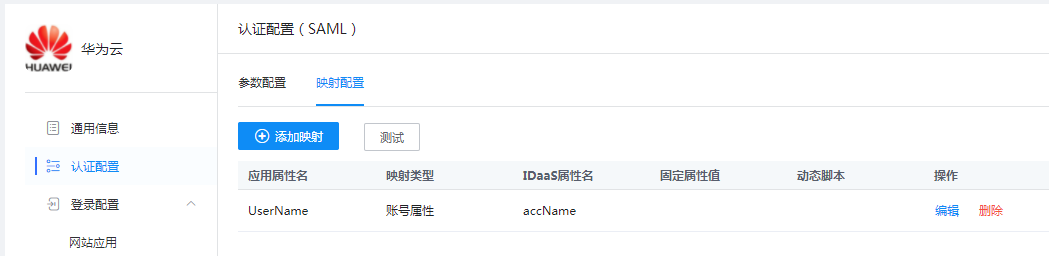
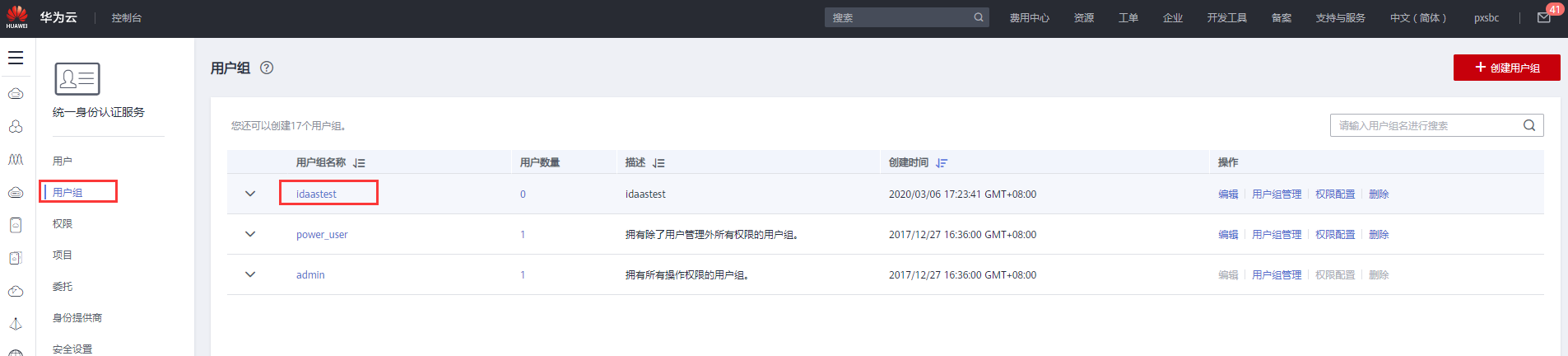
Usernameinremoteis the user attribute passed from IDaaS to Huawei Cloud. After a user authenticates via IDaaS and enters the Huawei Cloud console, the displayed name will beIDaaS_Username, and the user will have the permissions under theidaastestgroup.
Conditions for the rule to take effect:
- Add a mapping with the attribute name
Usernamein the authentication configuration of the Huawei Cloud application on IDaaS. - Add the
idaastestuser group in the Huawei Cloud Unified Identity Authentication Service.
- Add a mapping with the attribute name
# Configuring Huawei Cloud Attachment URL
Huawei Cloud currently only supports login initiated by Huawei Cloud itself. Therefore, it is necessary to obtain the login link from the Huawei Cloud Identity Provider and update it to the Huawei Cloud application attachment URL in IDaaS. This allows logging into Huawei Cloud through the IDaaS User Center.
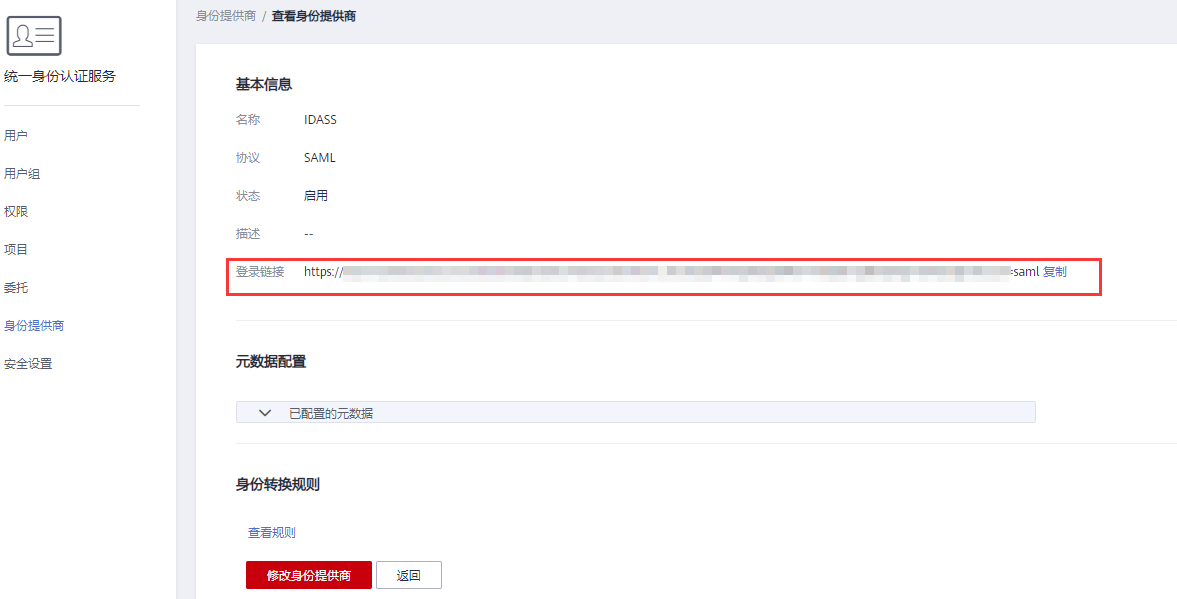
Obtain the Huawei Cloud Identity Provider login link from the basic information in the Huawei Cloud Identity Service Provider.
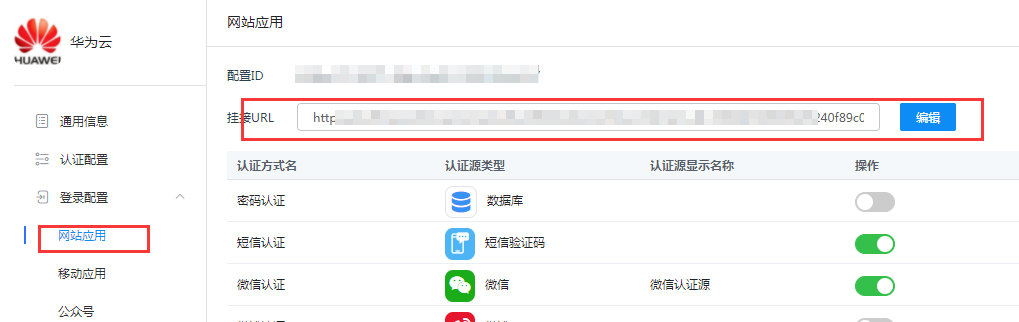
Edit the Login Configuration - Website Application - Attachment URL for Huawei Cloud in IDaaS, replacing it with the Identity Provider login link from the previous step.
# User Authorization
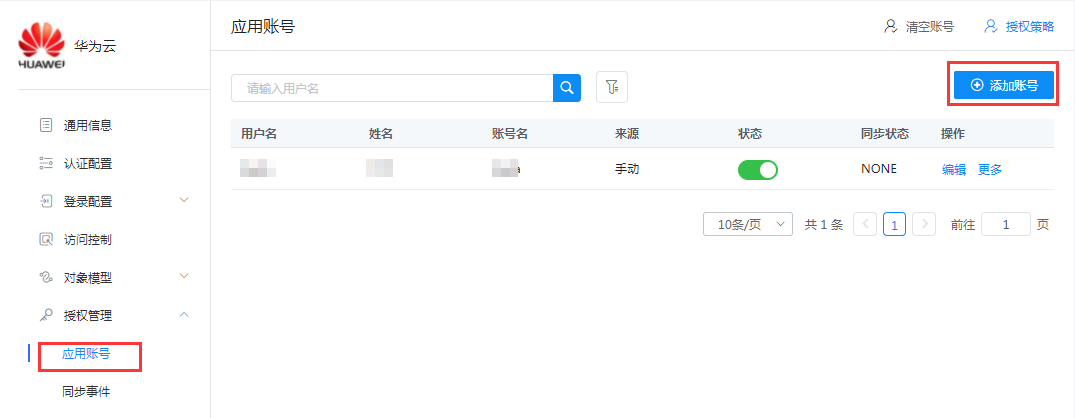
In IDaaS, go to Huawei Cloud's Authorization Management - Application Accounts - Add Account.
# Login Verification
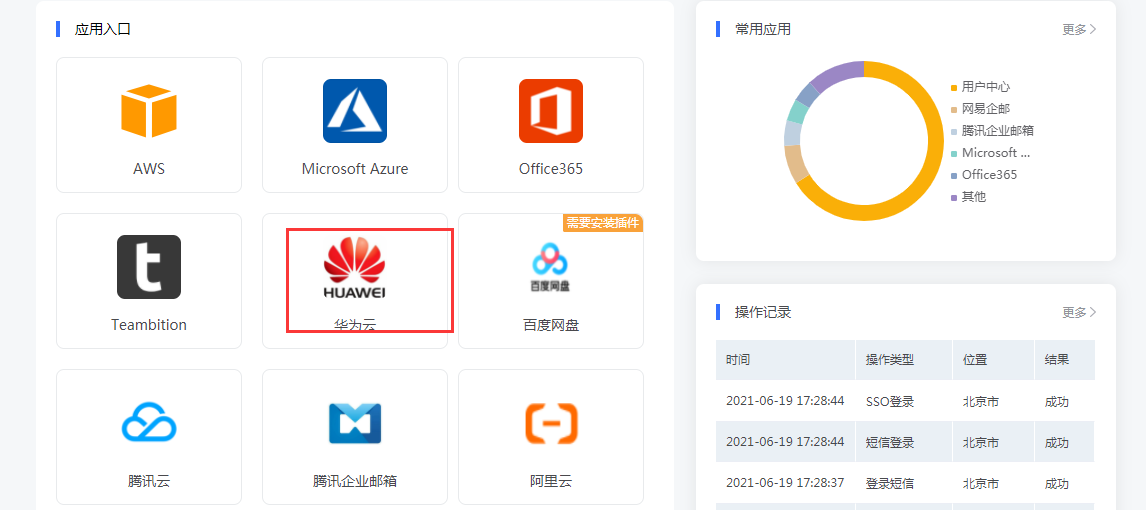
Log in to the IDaaS User Center with an authorized account, click the Huawei Cloud logo to perform single sign-on into the Huawei Cloud system.