Hikvision CloudEye Platform Data Synchronization
# Description
This document describes how to synchronize organization and personnel data from IDaaS to the Hikvision CloudEye platform, enabling data flow from IDaaS to the Hikvision CloudEye platform.
# Prerequisites
Have administrator privileges for the IDaaS Enterprise Center platform.
# Synchronization Configuration
# IDaaS Configuration
Log in to the IDaaS Enterprise Center platform, select "Resources > Applications", add the pre-integrated application Hikvision CloudEye, and configure the application parameters. The key parameters are as follows.
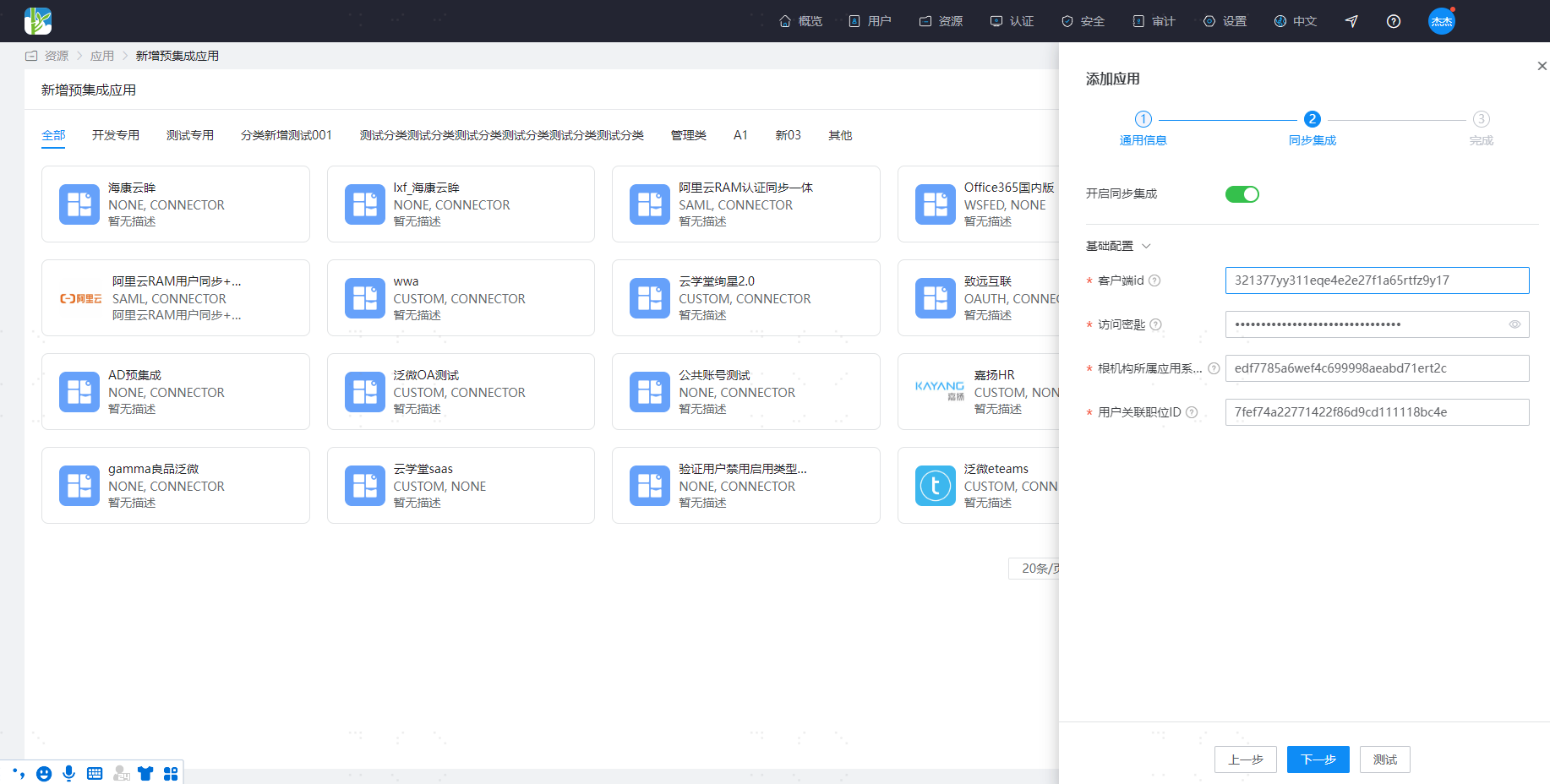
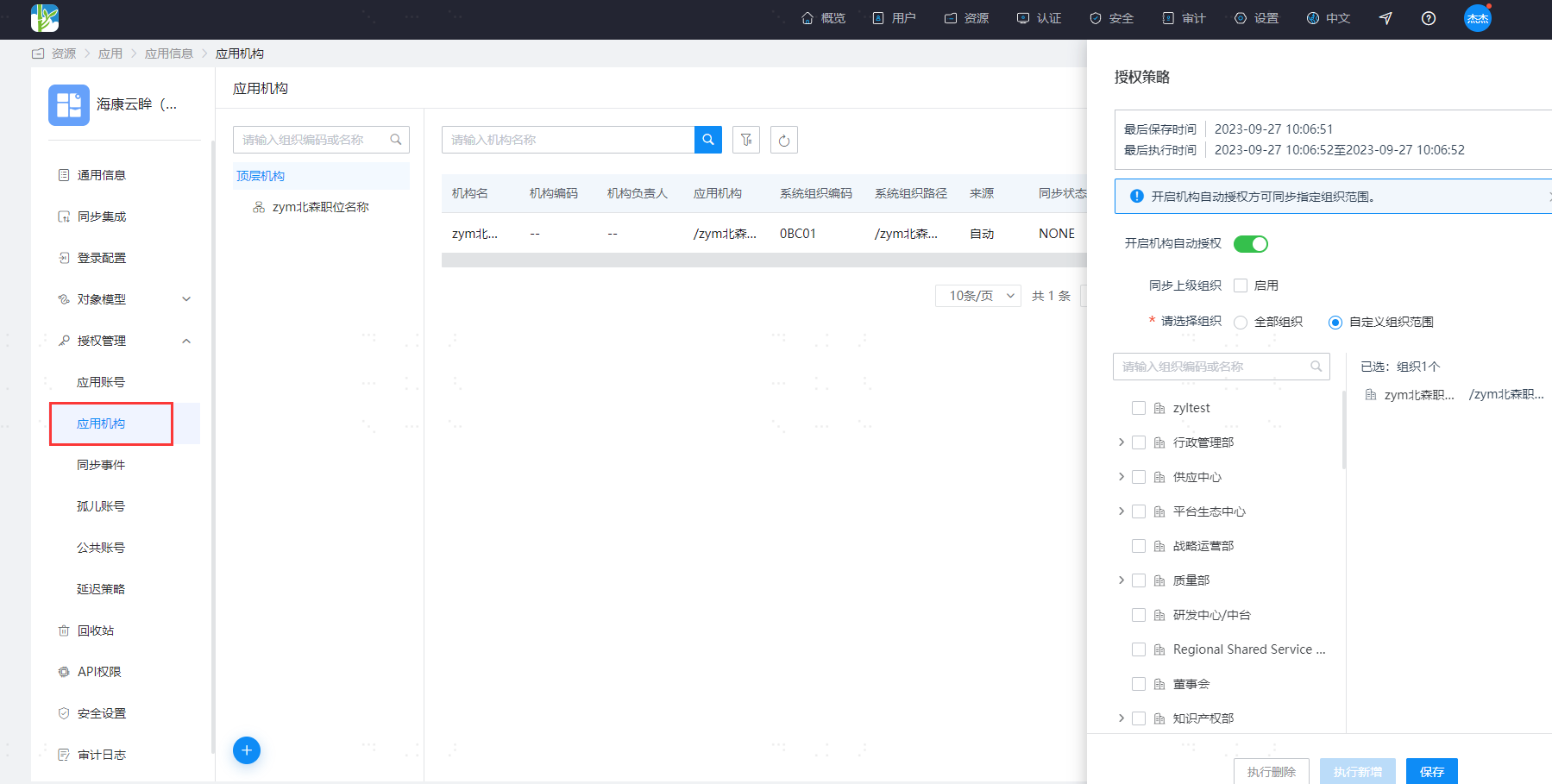
Parameter Description Client ID Log in to the open platform portal website open2.hik-cloud.com using the CloudEye system administrator account, go to the Key Management page to view and obtain Access Key Log in to the open platform portal website open2.hik-cloud.com using the CloudEye account, go to the Key Management page to view and obtain Root Organization's Application System Organization The root organization created through this application will be synchronized under the specified application system's organization User Associated Position ID The default position associated with users created through this application Go to Application Details - Application Organization - Authorization Policy, enable automatic organization authorization, select the organization scope, click the Save button, then click Execute Add to synchronize organizations to the Hikvision CloudEye platform.
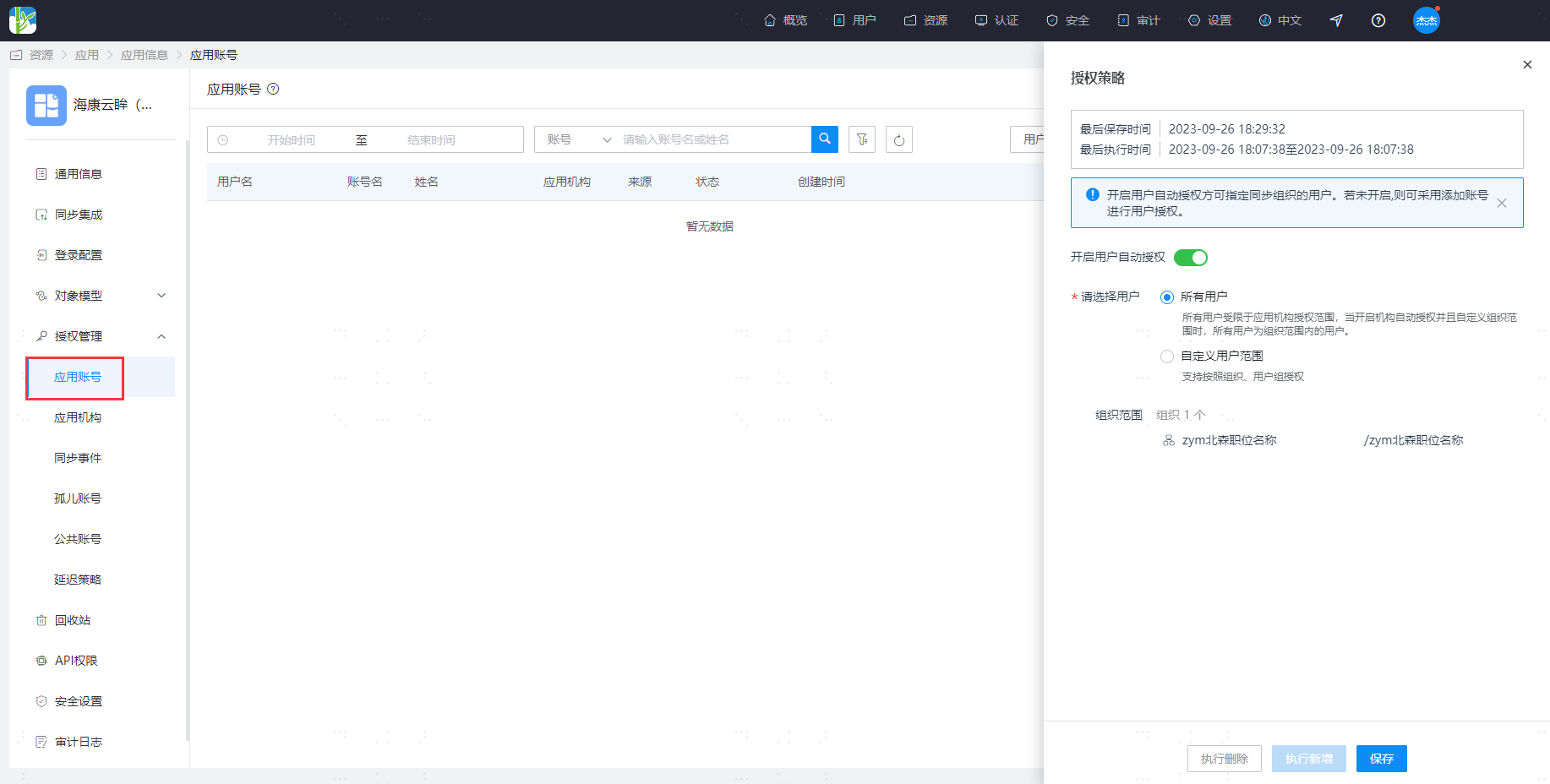
After configuration is complete, go to Application Details, switch to the "Authorization Management > Application Accounts" page, click "Authorization Policy" to enable automatic user authorization, select the user scope, click the Save button, then click Execute Add.
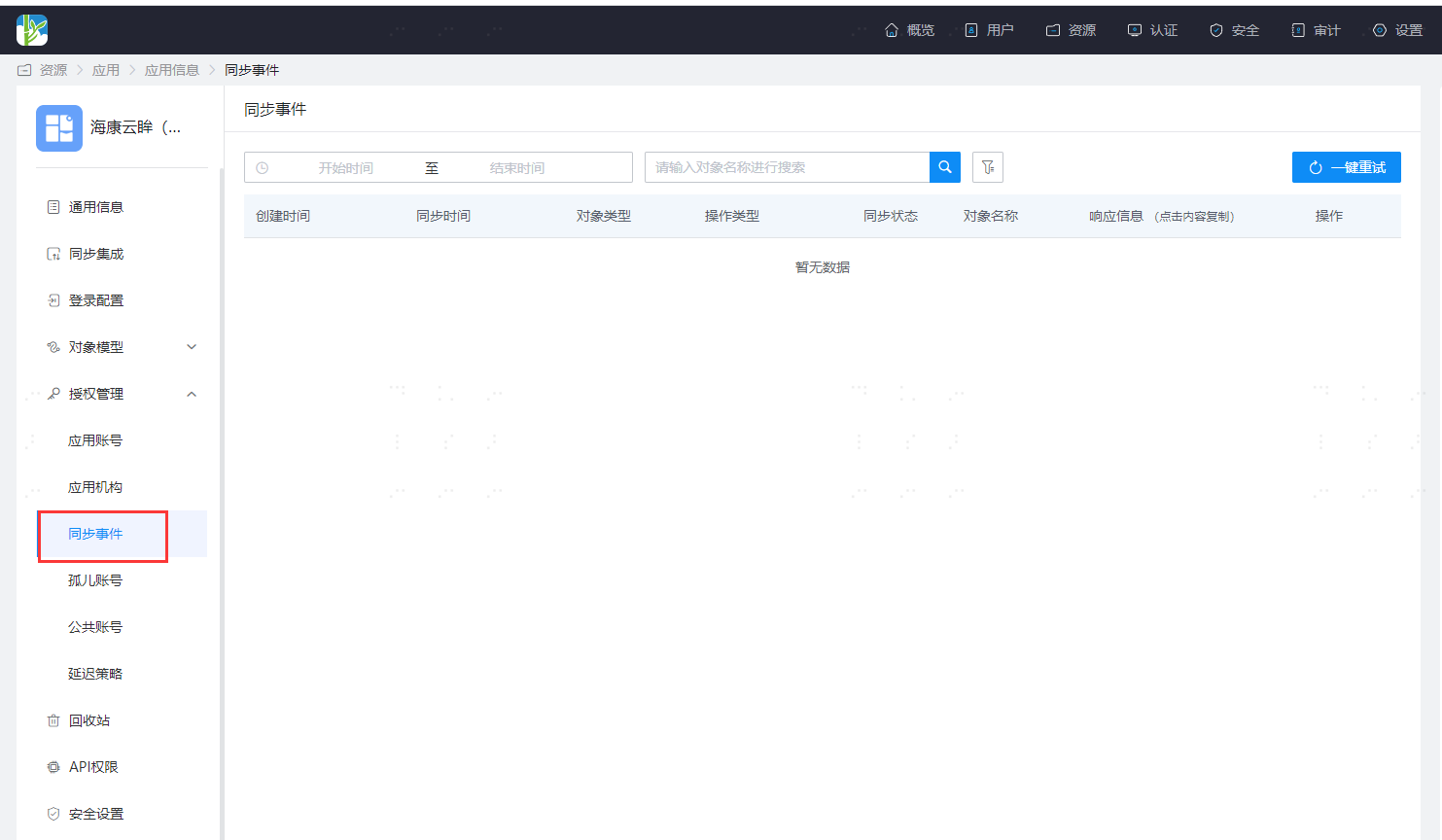
After successful execution, switch to the "Authorization Management > Synchronization Events" page to view the corresponding synchronization event results.