
Grafana Single Sign-On
# Description
This article describes how to configure OAuth authentication integration between IDaaS and Grafana.
Grafana Official Reference Documentation (opens new window)
# Authentication Configuration
# IDaaS Configuration
Administrator logs into the Enterprise Center 》Resources》Applications》Add Pre-integrated Application, search for Grafana.

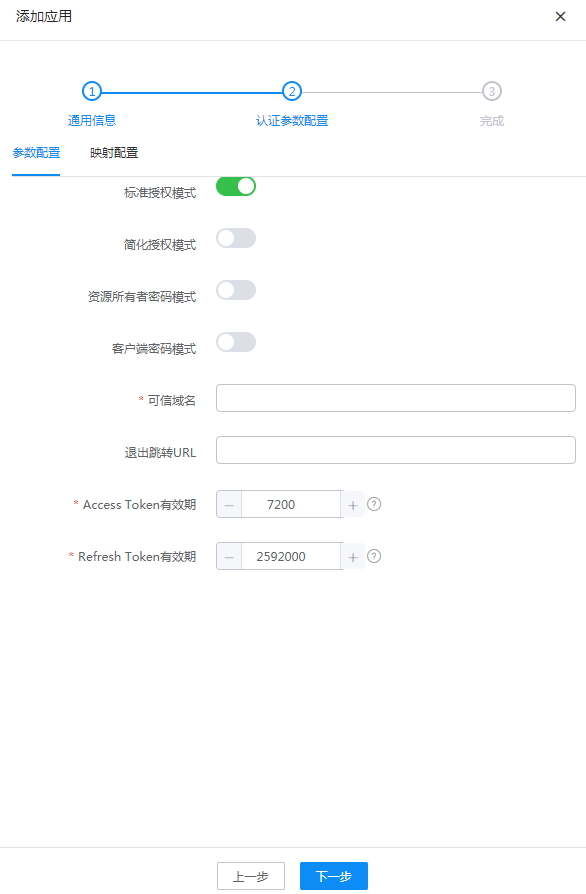
Fill in the trusted domain with Grafana's OAuth callback address: https://{grafana domain}/login/generic_oauth.
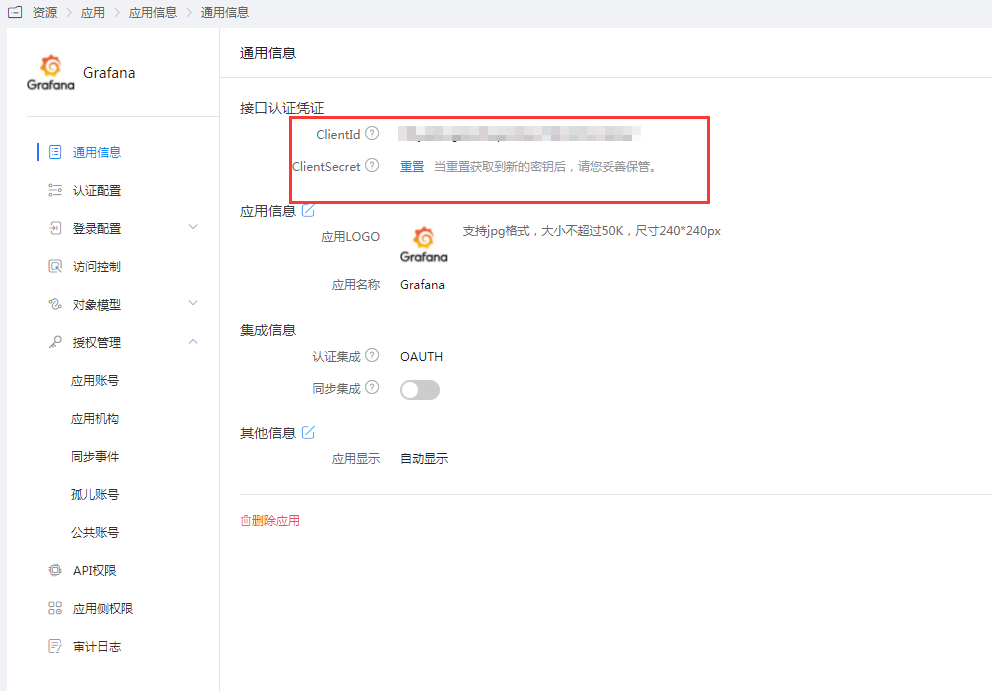
Obtain the application ClientId and ClientSecret.
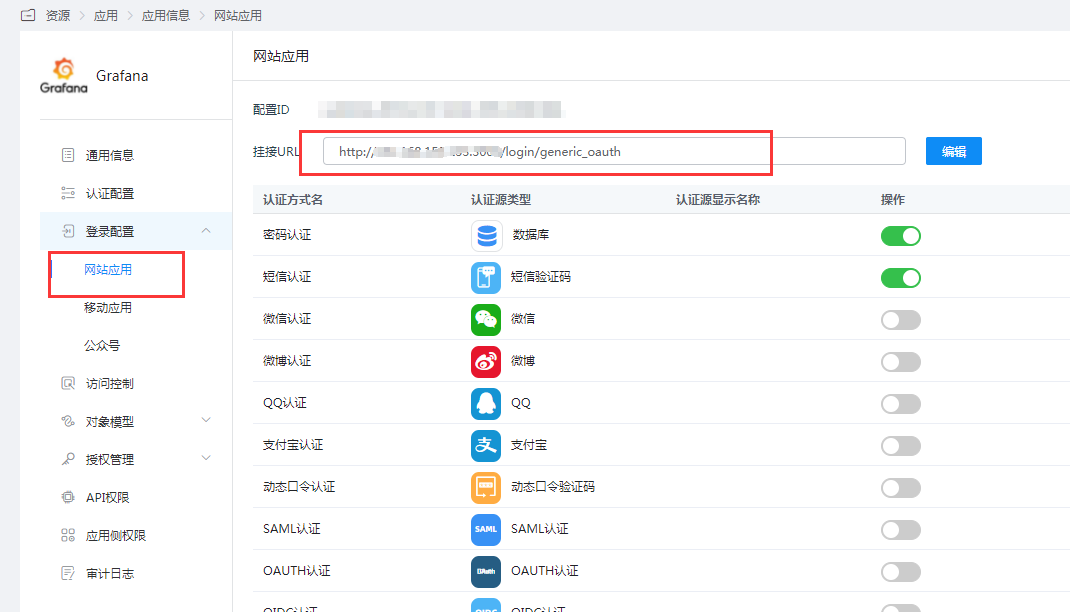
Modify the website application attachment URL (this step is to ensure that direct access to Grafana from the IDaaS User Center does not result in an error).
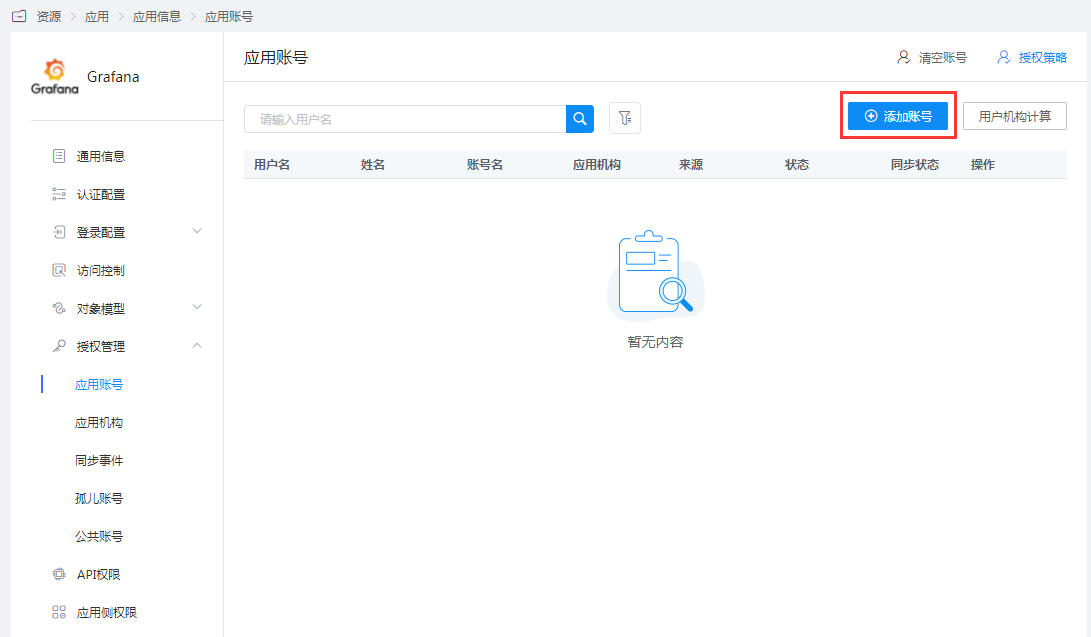
Go to Application Information》Authorization Management》Application Accounts》Add Account.
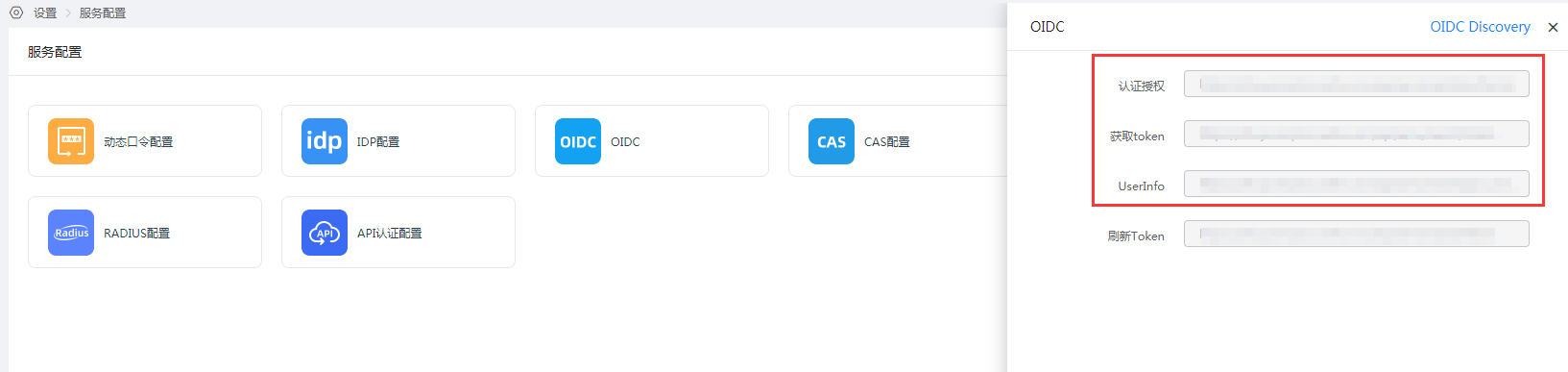
Go to Settings》Service Configuration》OIDC, obtain the relevant configuration addresses for OAuth authentication.
# Grafana Configuration
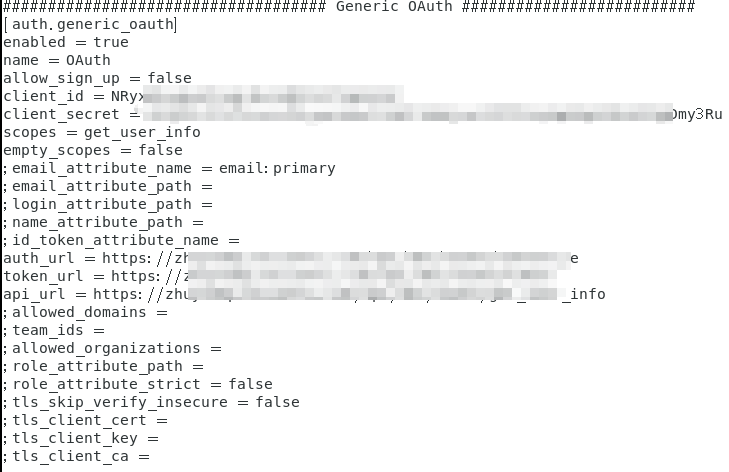
Edit the grafana configuration file grafana.ini, modify the content as follows:
################################### Generic OAuth ##########################
[auth.generic_oauth]
enabled = true
name = OAuth
##Whether to allow automatic registration of new users when logging in via OAuth
allow_sign_up = false
##ClientId for Grafana on IDaaS
client_id =
##ClientSecret for Grafana on IDaaS
client_secret =
##Fill in get_user_info
scopes =
empty_scopes = false
;email_attribute_name = email:primary
;email_attribute_path =
;login_attribute_path =
;name_attribute_path =
;id_token_attribute_name =
##Authentication authorization URL
auth_url =
##Token acquisition URL
token_url =
##UserInfo URL
api_url =
;allowed_domains =
;team_ids =
;allowed_organizations =
;role_attribute_path =
;role_attribute_strict = false
;tls_skip_verify_insecure = false
;tls_client_cert =
;tls_client_key =
;tls_client_ca =
1
2
3
4
5
6
7
8
9
10
11
12
13
14
15
16
17
18
19
20
21
22
23
24
25
26
27
28
29
30
31
32
33Example:
Restart Grafana.
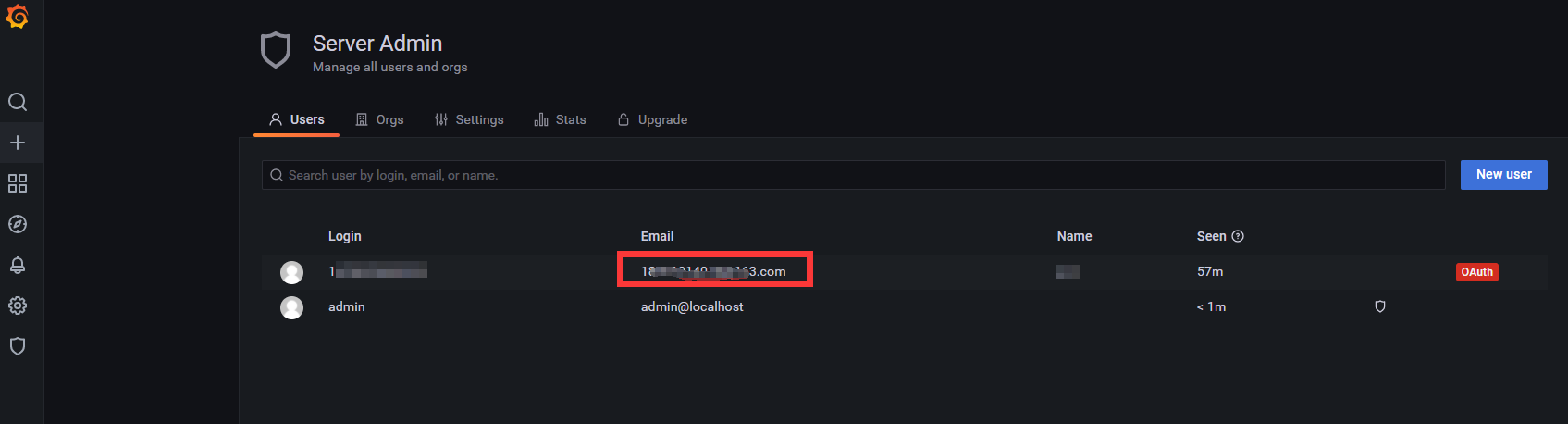
Administrator logs into the Grafana console, adds a user, ensuring the user email matches the authorized user email on IDaaS.
# Login Verification
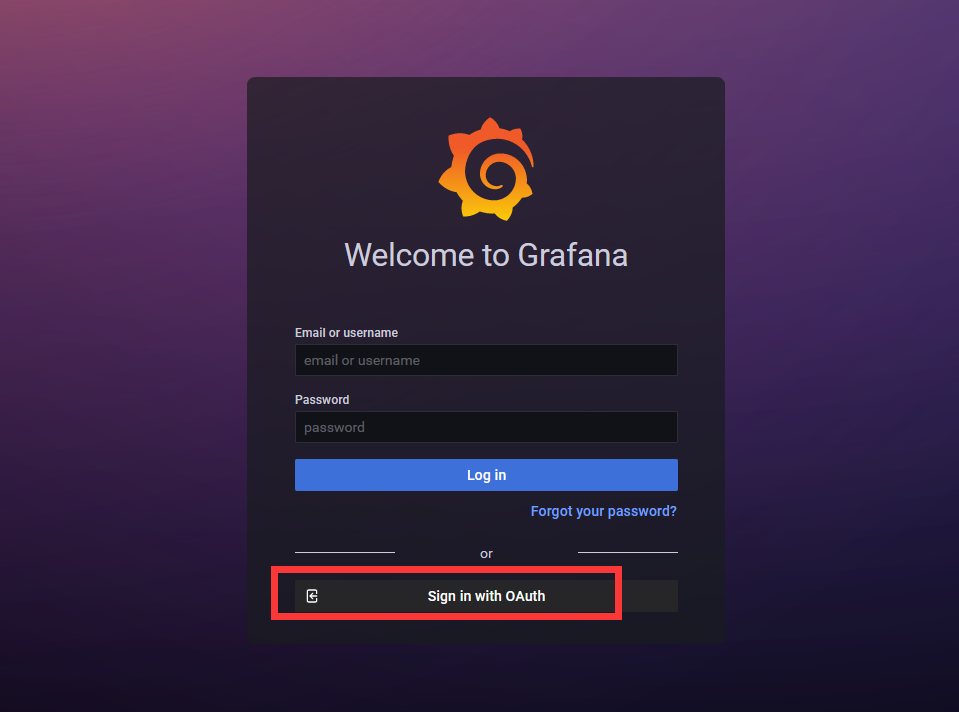
Two login methods, choose one:
- Initiate from the Grafana login page:
- Click the application logo from the IDaaS User Center:
