
Jenkins Single Sign-On
# Description
This document describes how to implement single sign-on for Jenkins based on the Jenkins plugin.
# Operation Process

# Authentication Configuration
# Jenkins Configuration
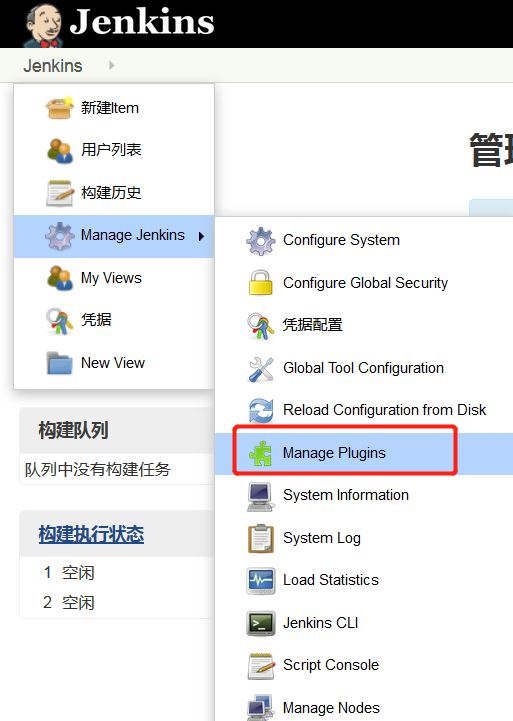
Log in to the Jenkins console, open Plugin Management to add a plugin, and search for the SAML plugin.

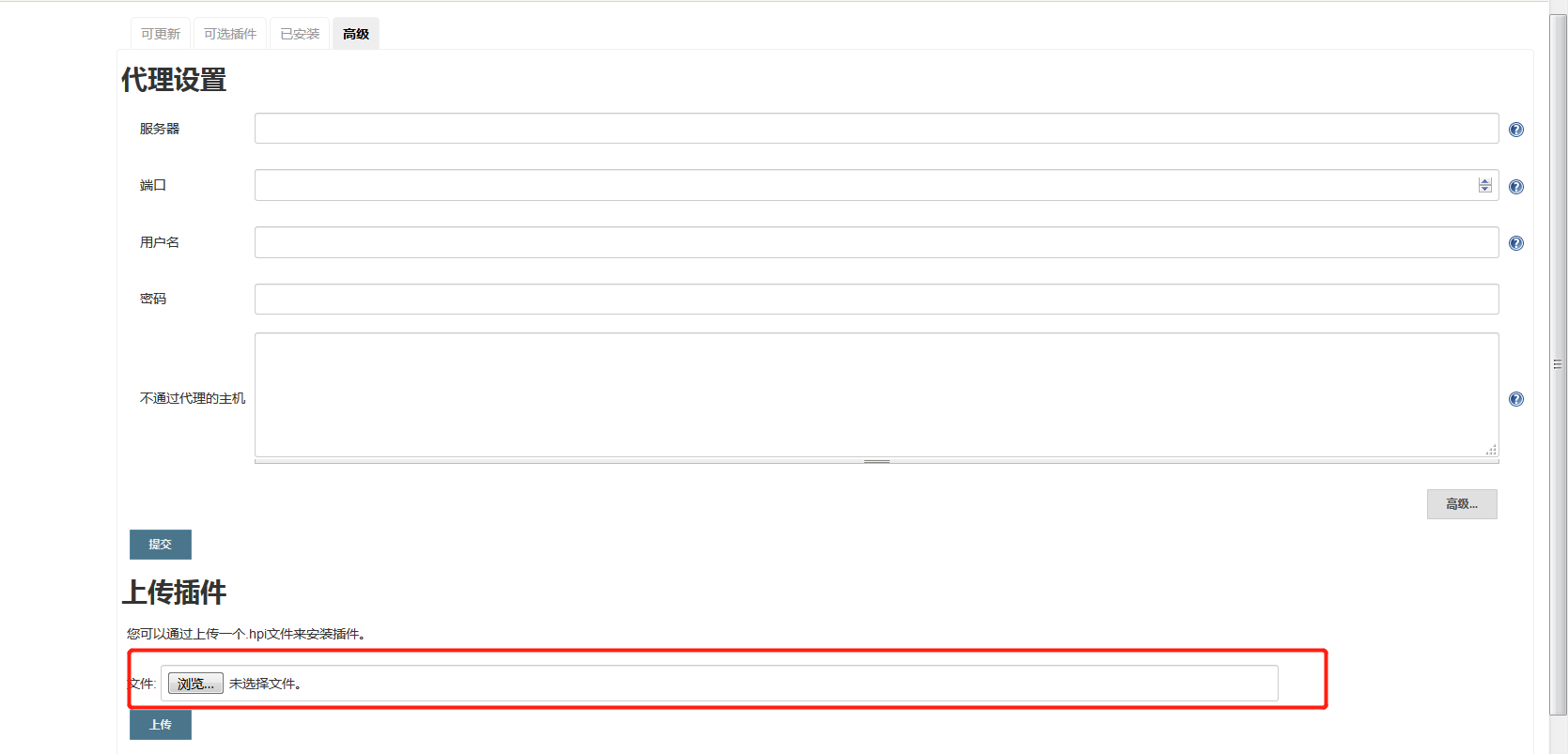
If it cannot be found via search, you can download it from https://plugins.jenkins.io/saml/, then select Advanced - Upload Plugin (the downloaded saml.hpi file).
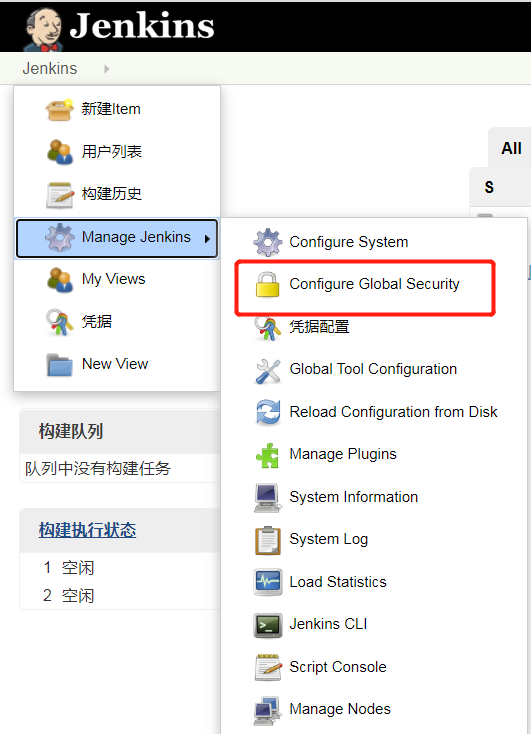
Go to Global Security Configuration.
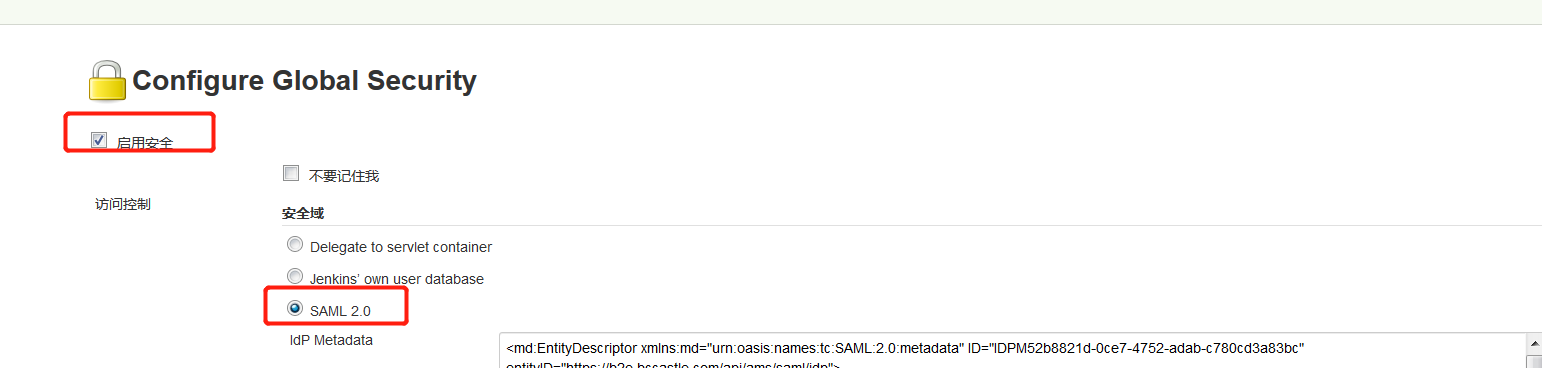
Select Enable, and choose SAML 2.0 for the Security Realm.
After enabling SAML, users from the Jenkins' own database cannot be used for login.
Configure the IdP Metadata. To download IDaaS's IdP metadata, please visit https://{your_domain}/api/v1/saml2/idp/metadata.


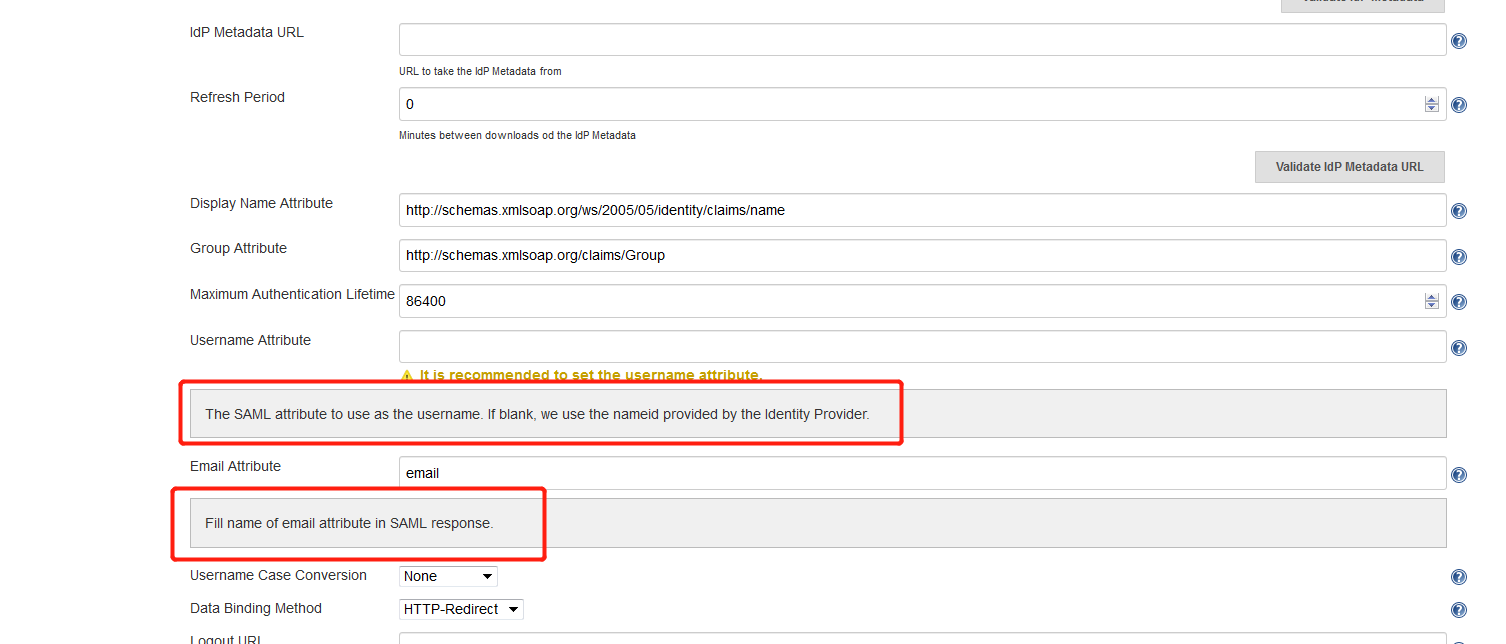
Username Attribute: If left blank, the NameID value is used by default.
Email Attribute: Full email address, fill in 'email'即可.
Data Binding Method: HTTP-Redirect
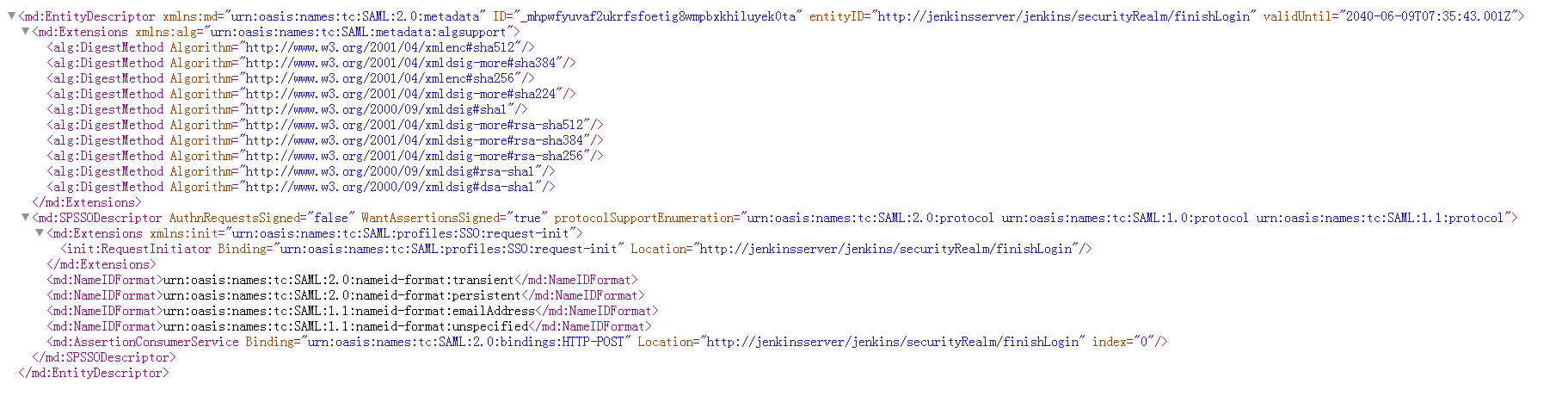
Click the Service Provider Metadata link to obtain Jenkins metadata, save it as an XML file, which will be used in the following IDaaS application configuration.
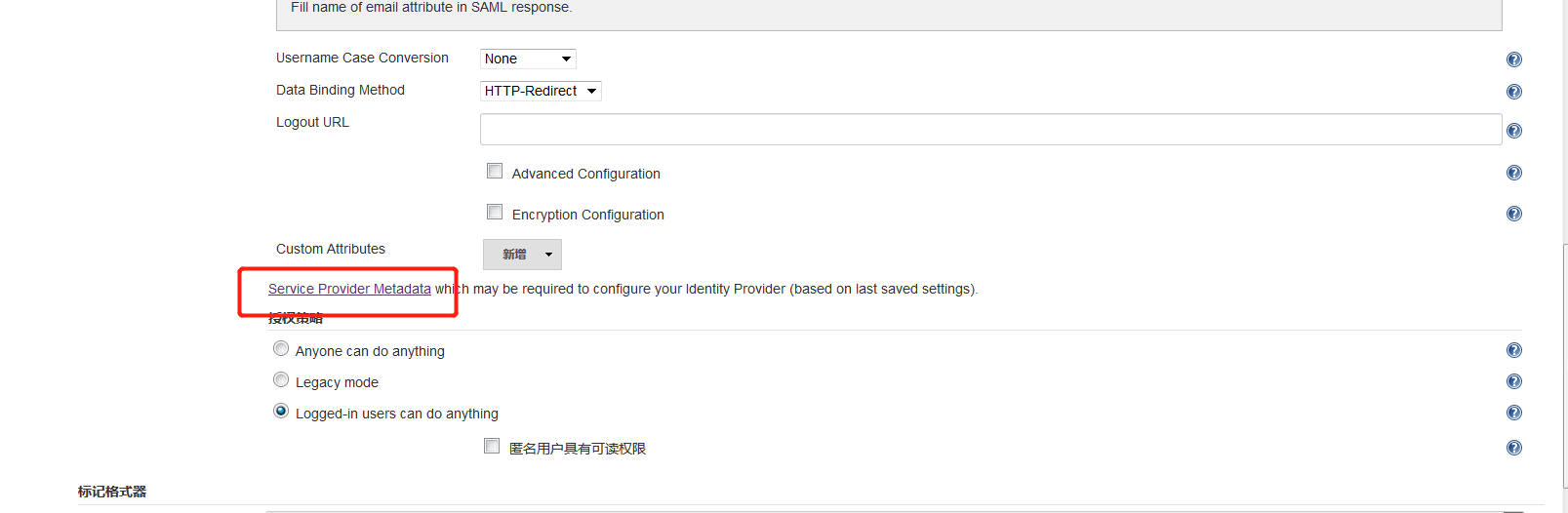
Fill in other parameters as needed, then click Save to complete the configuration.
# IDaaS Configuration
Log in to Enterprise Center - Resources - Applications - Add Pre-integrated Application, and search for Jenkins.
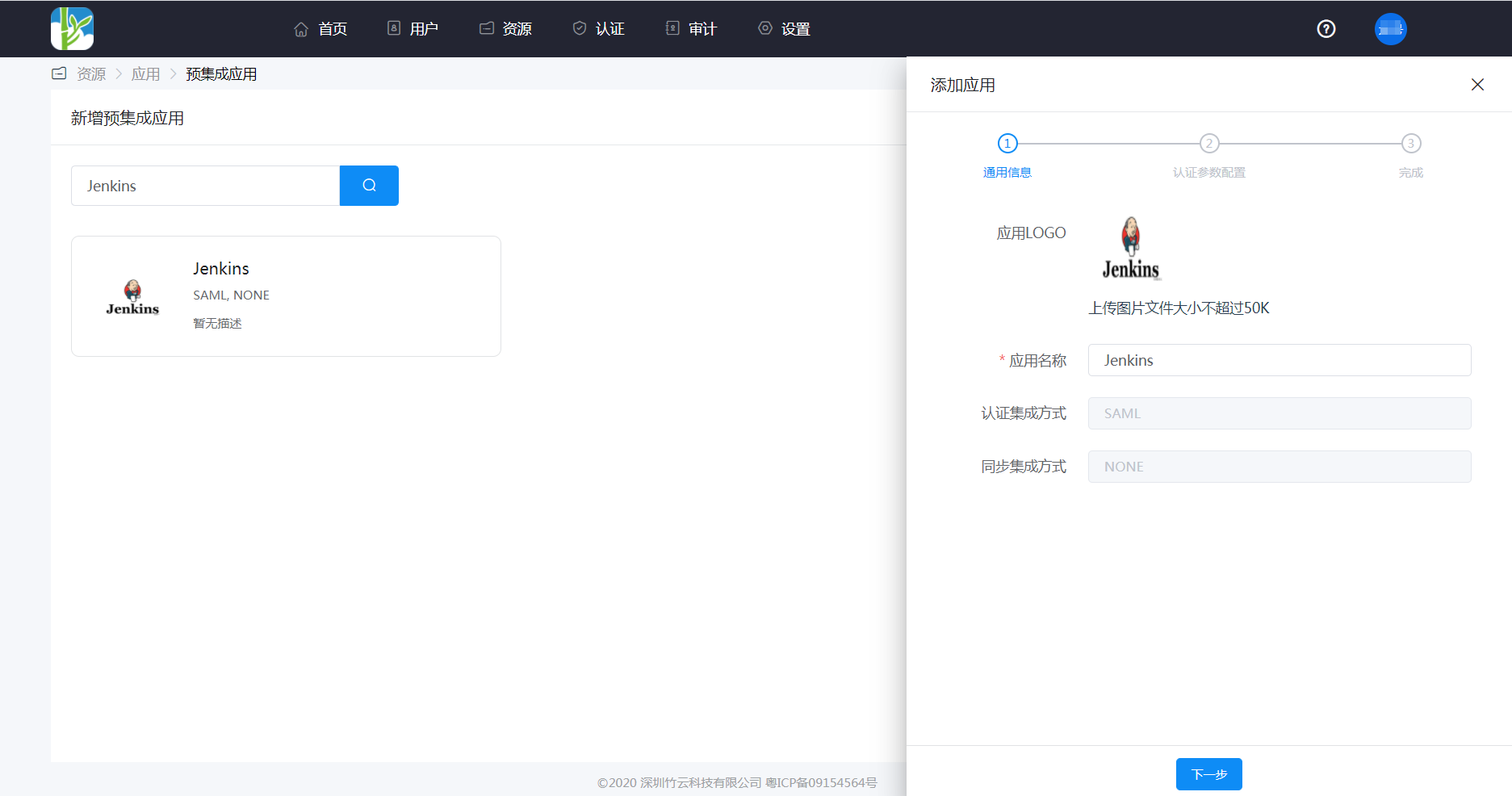
Configure authentication parameters, fill them in according to the Jenkins metadata, or import the metadata file.
SP Entity ID: Jenkins metadata entityID
Assertion Consumer Service (ACS) URL: Jenkins metadata AssertionConsumerService
NameID: Select Account Name, corresponding to the UsernameAttribute in Jenkins configuration.
NameID Format: Default is fine.
Audience URI: Jenkins metadata entityID
Other parameters can remain default.

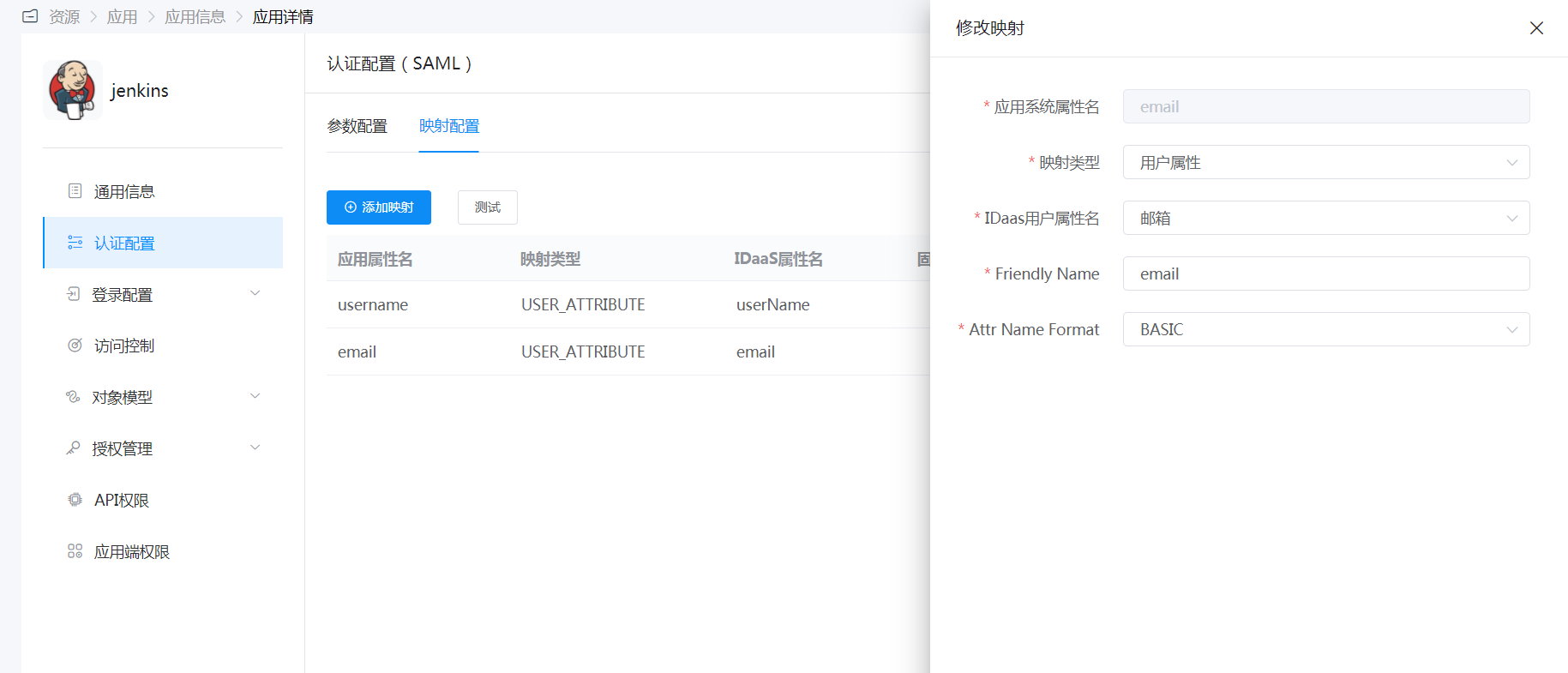
Mapping Configuration: Add the email attribute corresponding to the Email Attribute in Jenkins configuration.
Switch to Authorization Management - Add Account tab, fill in the email address for the application account.
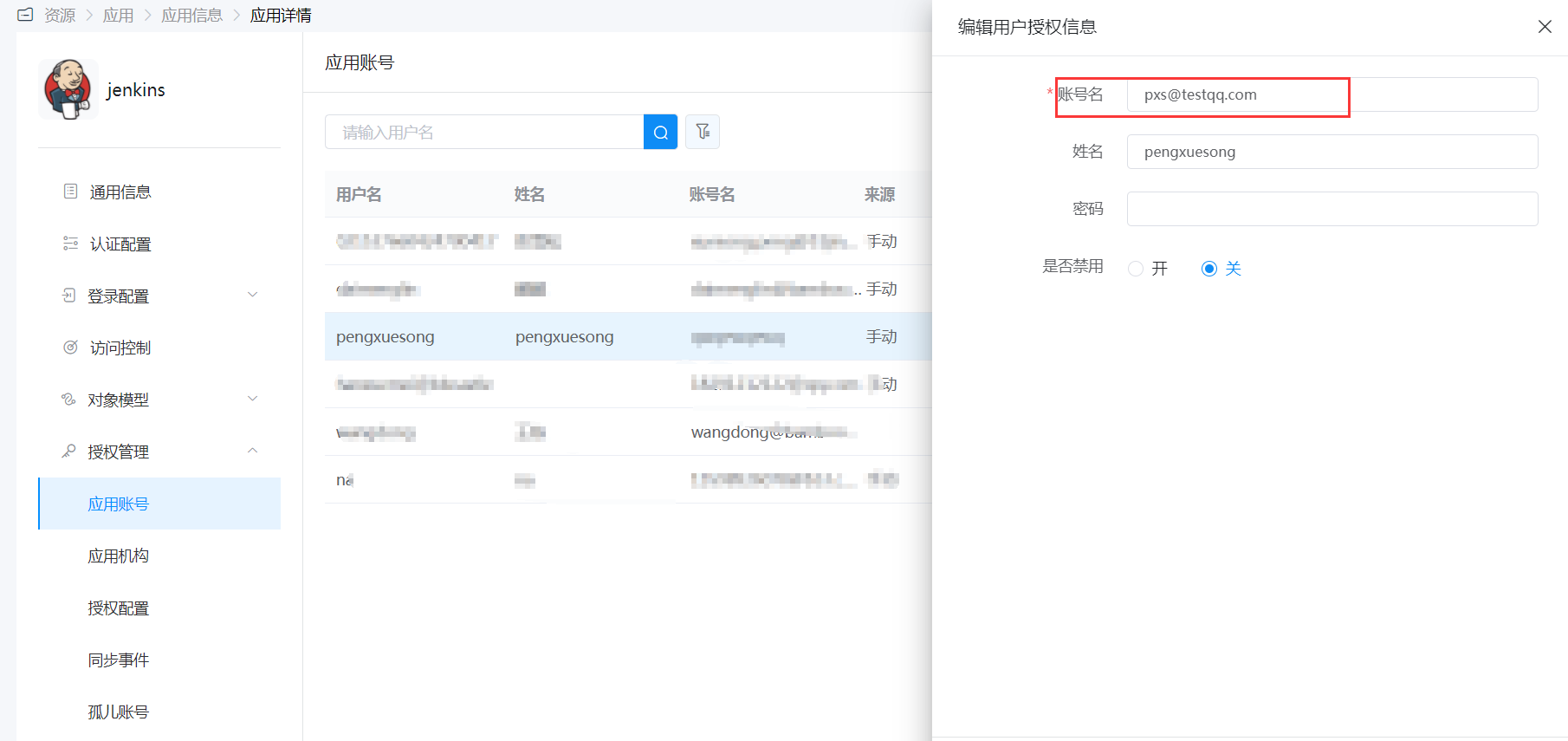
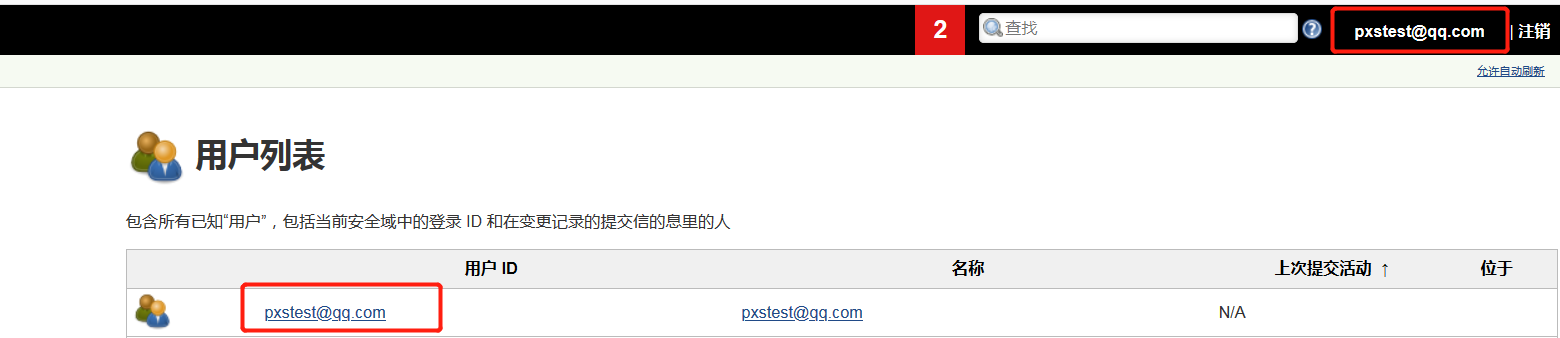
After a user logs in via SAML, this account will be automatically created in Jenkins.
# Login Verification
You can use the following two methods to verify login:
Authorized users accessing the original Jenkins login entry will be automatically redirected to the IDaaS authentication page, and upon successful authentication, they will enter Jenkins.
Log in to the IDaaS User Center and click the Jenkins logo to enter Jenkins.