FineBI OAuth2 Single Sign-On
# Description
This article describes the authentication configuration between FineBI and IDaaS to achieve IDaaS single sign-on to FineBI. Applicable version: FineBI 6.1.
# Authentication Configuration
# IDaaS Configuration
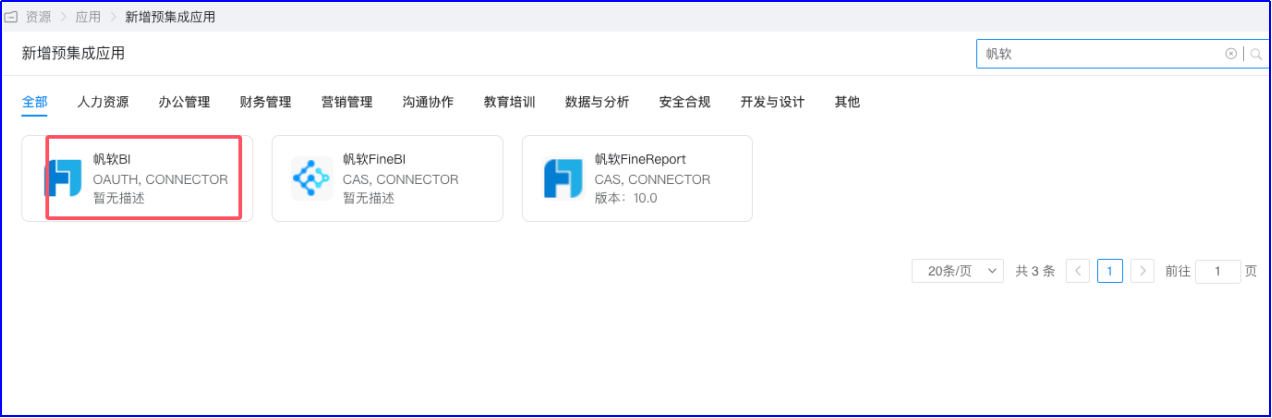
Log in to the IDaaS Enterprise Center and add the FineBI pre-integrated application
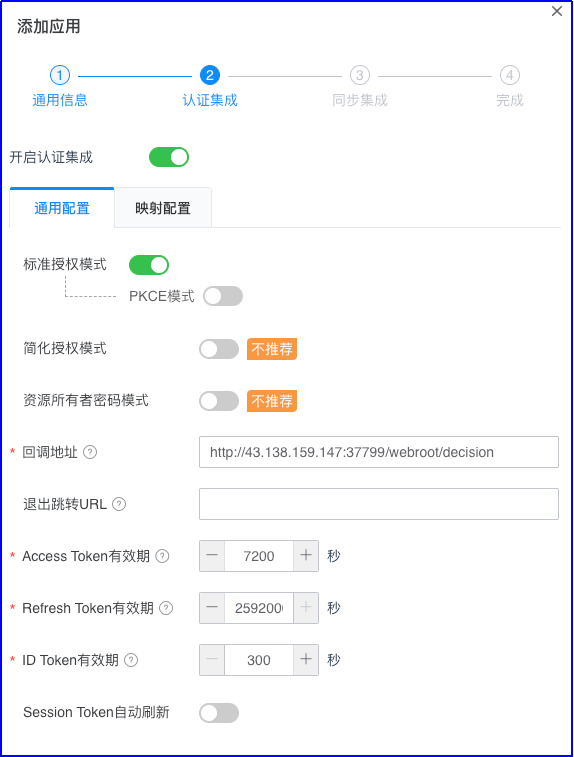
Configure authentication parameters Fill in the callback address with the BI address: http://biserver.com/webroot/decision
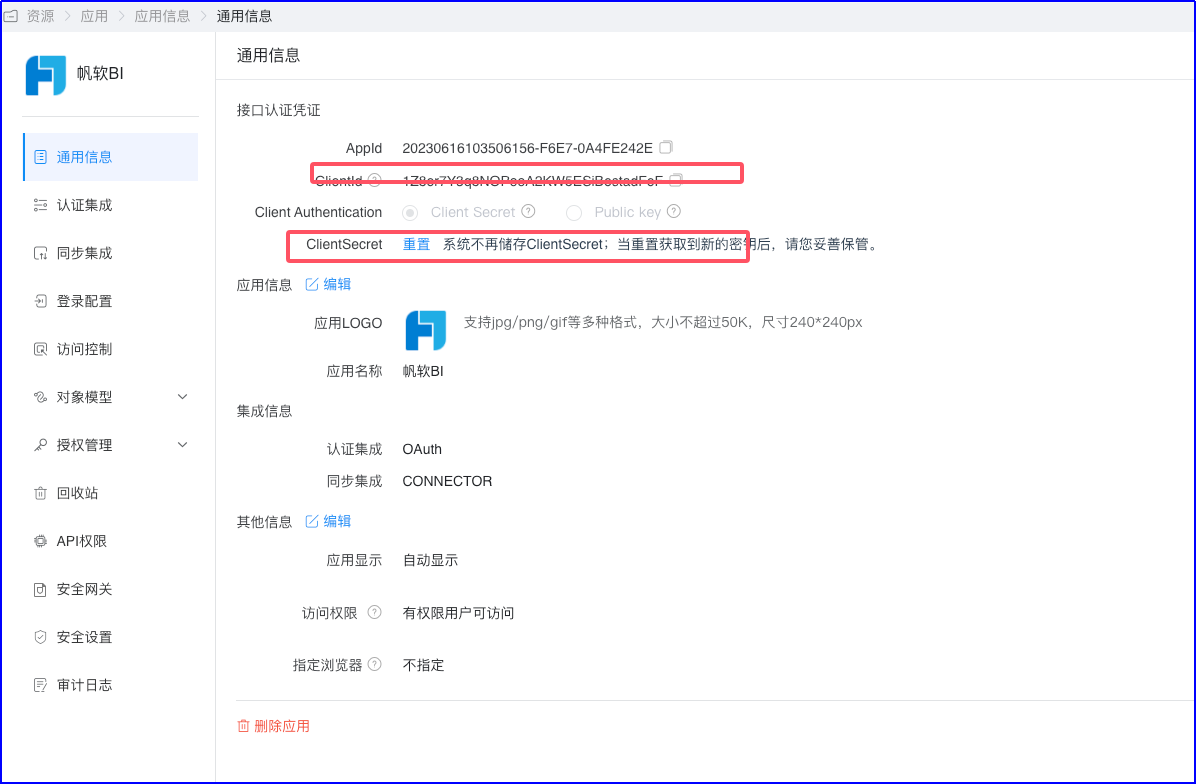
Enter the application details to view the application parameters Obtain the ClientId and ClientSecret.
View the Oauth2 service configuration parameters 【Settings】-【Service Configuration】-【OIDC】 The authentication authorization, token acquisition, and UserInfo interfaces are required for the subsequent FineBI configuration.
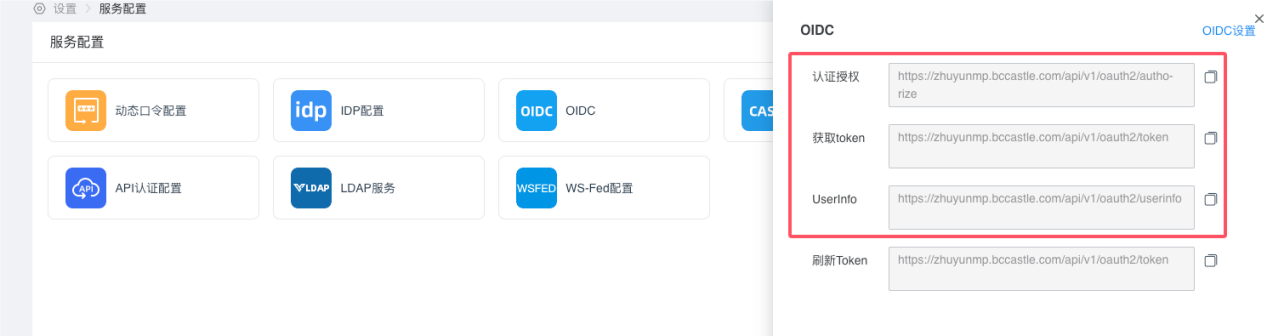
# FineBI Configuration
- Install the Plugin
【System Management】-【Plugin Management】-【App Store】, search for the Oauth2 single sign-on plugin, and click Install.
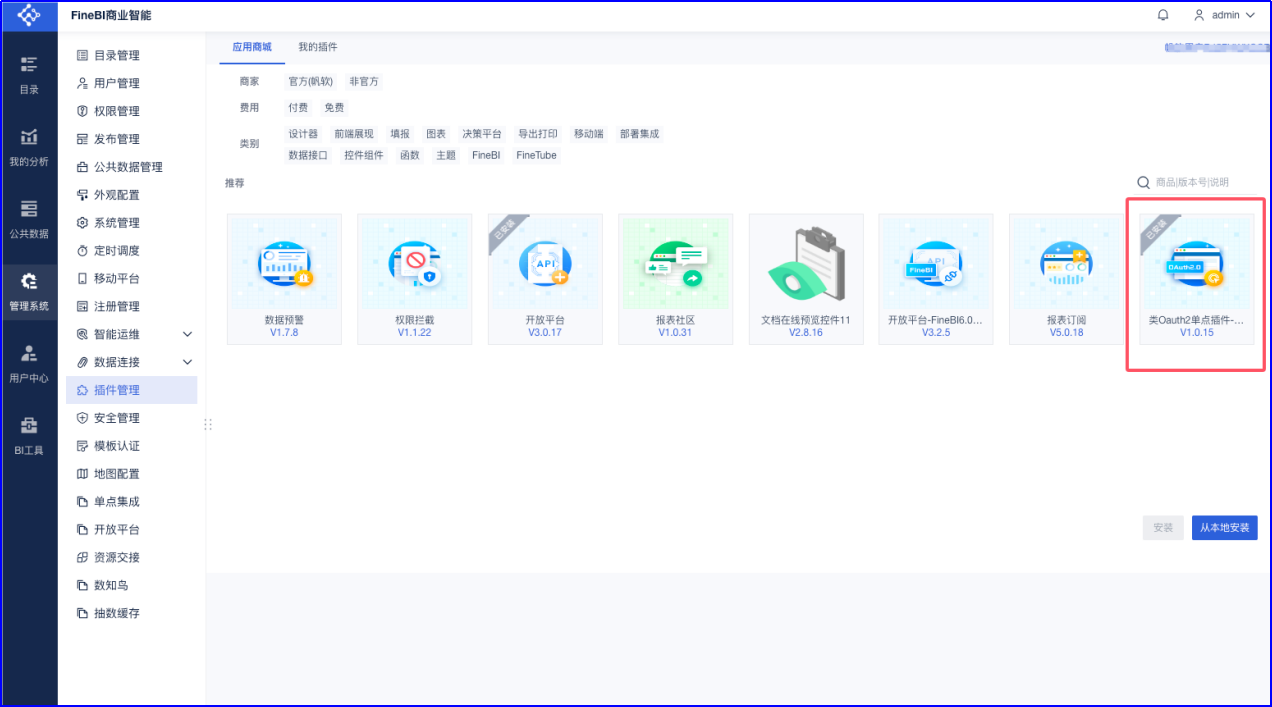
After installation, refresh the page. The 【Single Sign-On Integration】 module will appear under the 【Management System】 menu.
- Configure Single Sign-On
【Management System】-【Single Sign-On Integration】
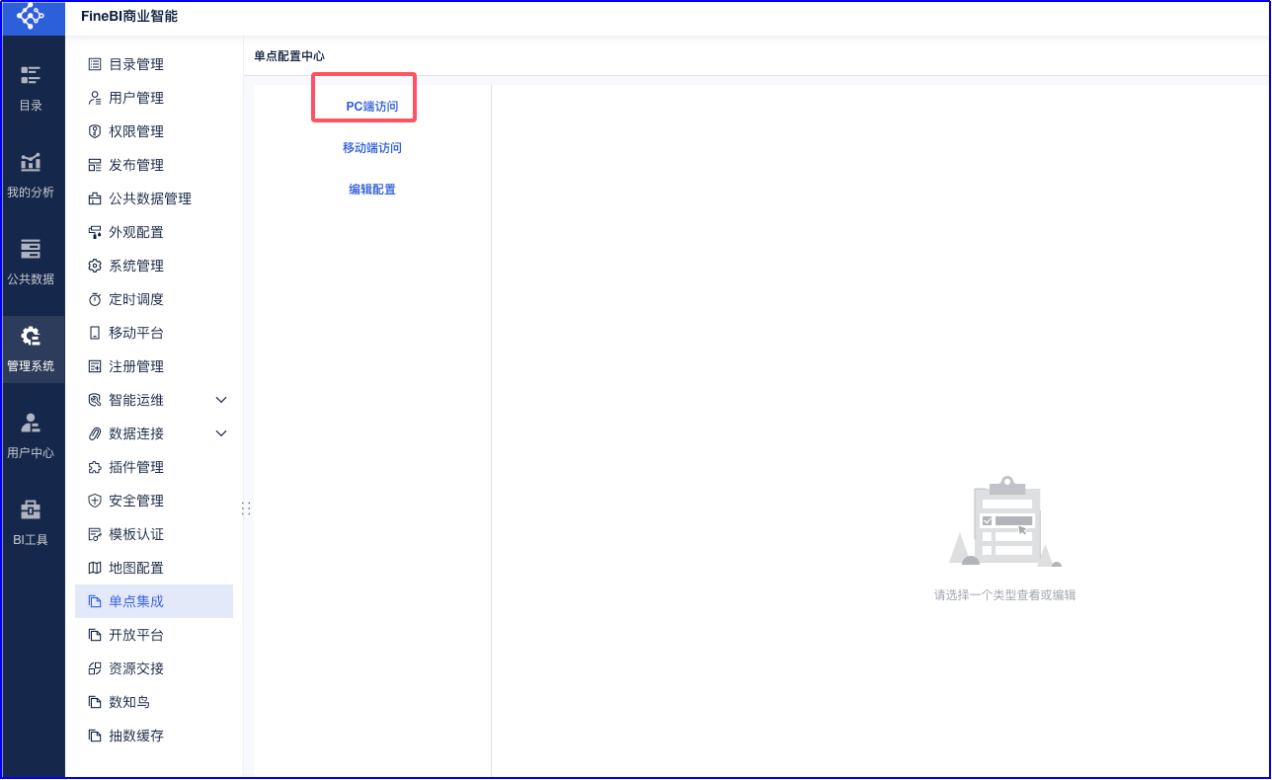
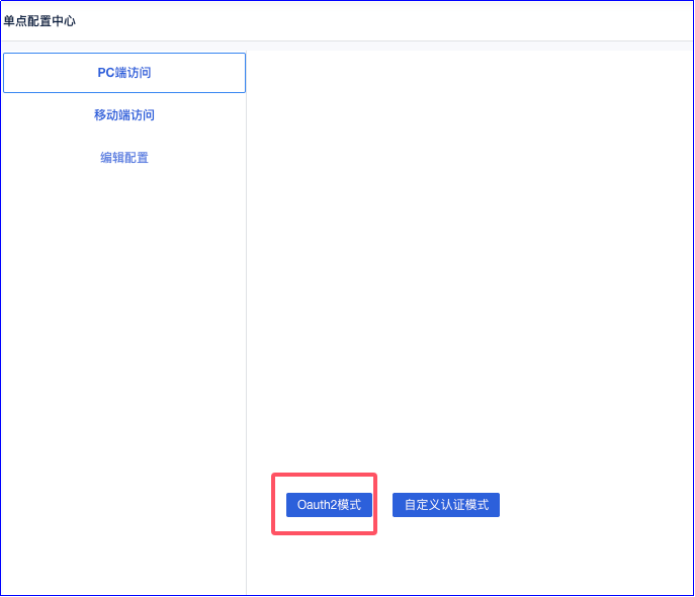
For PC access, click to enable configuration and select Oauth2 mode.
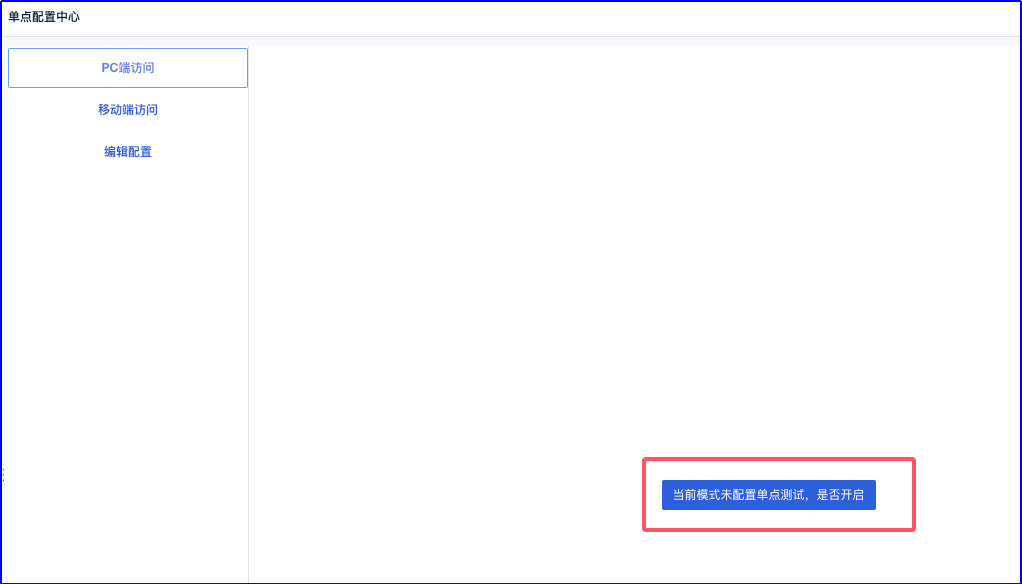
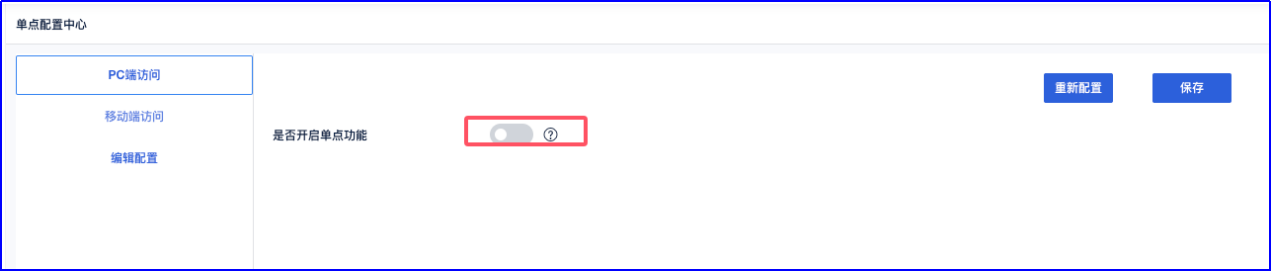
Enable the single sign-on function.
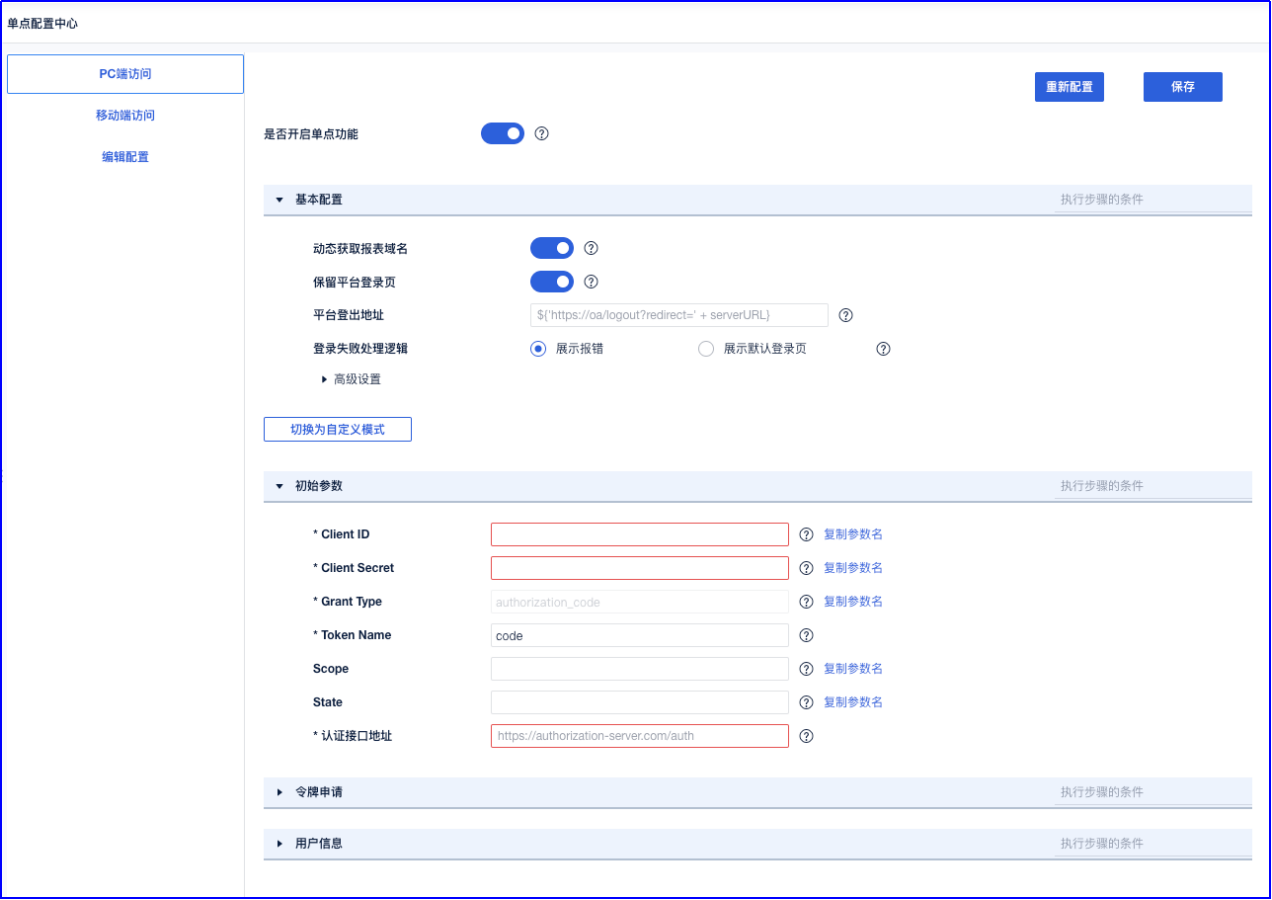
Proceed with parameter configuration.
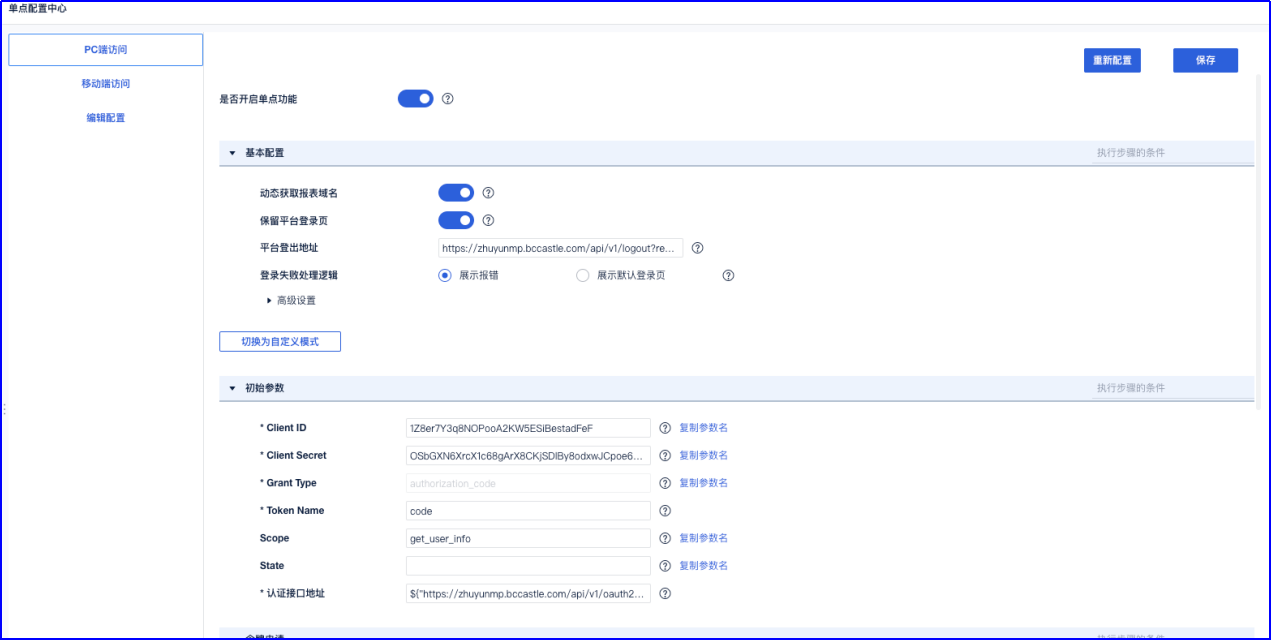
Parameter filling example (Single Sign-On Plugin Configuration Example Help Document: https://help.fanruan.com/finereport/doc-view-5037.html)
- Basic Configuration
| Parameter Name | Filling Example |
|---|---|
| Dynamically Get Report Domain Name | Enable |
| Keep Platform Login Page | Enable |
| Platform Logout Address | https://zhuyunmp.bccastle.com/api/v1/logout?redirect_url=http://biserver.com/webroot/decision |
| Login Failure Handling Logic | Display Error |
| Advanced Configuration | Default |
- Initial Parameters
| Parameter Name | Filling Example |
|---|---|
| ClientID | IDaaS Application ClientID |
| ClientSecret | IDaaS Application ClientSecret |
| Grant Type | authorization_code |
| Token Name | code |
| Scope Name | get_user_info |
| State | |
| Authentication Interface Address | ${"https://zhuyunmp.bccastle.com/api/v1/oauth2/authorize?response_type=code&client_id="+client_id+"&redirect_uri=http://39.102.212.183:37799/webroot/decision"} |
- Token Application Configuration
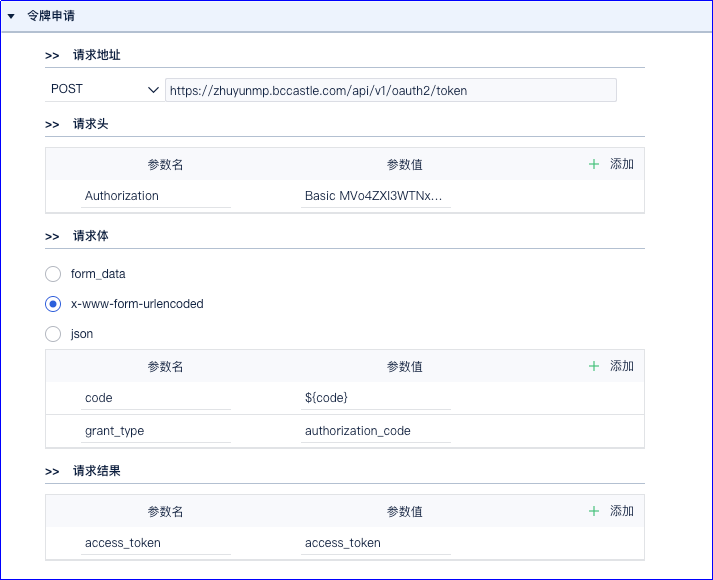
Request URL: POST https://zhuyunmp.bccastle.com/api/v1/oauth2/token
Request Headers:
| Parameter Name | Parameter Value |
|---|---|
| Authorization | Basic MVo4ZXI3WTNxOE5PUG9vQTJLVzVFU2lCZXN0YWRGZUY6T1NiR1hONlhyY1gxYzY4Z0FyWDhDS2pTRGxCeThvZHh3SkNwb2U2OFBMaDRRMTNJM1hsZDJqRGg5SHlwMnJLZA== |
The parameter value format is: base64(client_id:client_secret)
You can use online tools such as https://base64.us/ to generate it based on actual parameters.
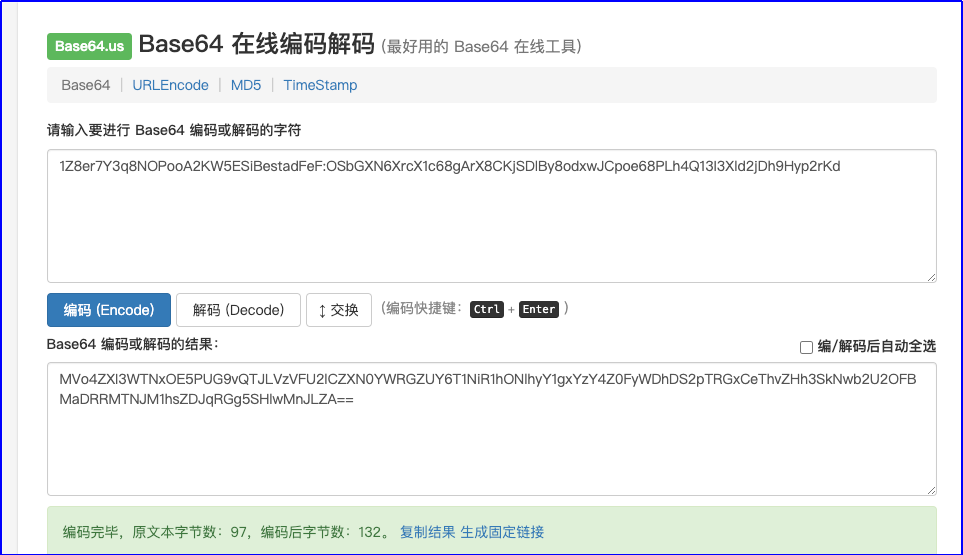
It can also be captured using tools like Postman.
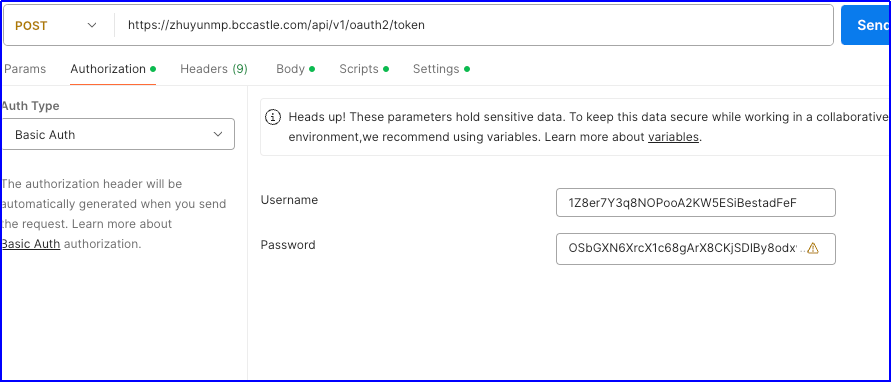

Request Body: x-www-form-urlencoded
| Parameter Name | Parameter Value |
|---|---|
| code | ${code} |
| grant_type | authorization_code |
Request Result:
| Parameter Name | Parameter Value |
|---|---|
| access_token | access_token |
- User Information Configuration
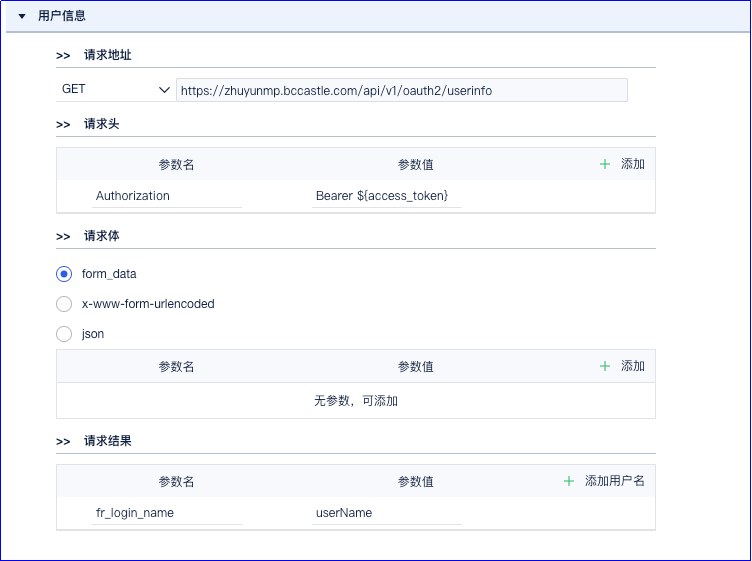
Request URL: GET https://zhuyunmp.bccastle.com/api/v1/oauth2/userinfo
Request Headers:
| Parameter Name | Parameter Value |
|---|---|
| Authorization | Bearer ${access_token} |
Request Body: form_data
Request Result:
| Parameter Name | Parameter Value |
|---|---|
| fr_login_name | userName |
# Login Verification {/examples/}
Access the Fanruan BI address: http://biserver.com/webroot/decision
It will redirect to the IDaaS login interface. Enter the authorized account login information to access BI.