Weaver eteams Data Synchronization
# Description
This article describes the configuration process for data synchronization with eteams OA.
Note: Currently, the data synchronization between IDaaS and Weaver eteams only supports the addition of organizations and users. Updates and deletions of data on the IDaaS side will not be synchronized to Weaver eteams.
# Prerequisites
Have administrator account permissions for the eteams open platform.
# eteams Configuration
- Log in to the eteams Open Platform (opens new window) using the eteams system administrator account.
- After logging into the open platform, confirm whether the logged-in team is the one that needs to be connected. If it is not the team that needs to be connected, click 【Switch】 to change teams. If the status after login is unauthenticated, please first edit and complete the information to pass authentication, then proceed with team connection.
- After developer information is authenticated, the Corpid will be displayed, which will be used for subsequent API calls. Create the required application and wait for the application review to pass. The approved application will display the app_key and app_security, which will be used for subsequent API calls.
- For the complete eteams process, please refer to the eteams Integration Documentation (opens new window).
# IDaaS Configuration
Add the pre-integrated application Weaver eteams.
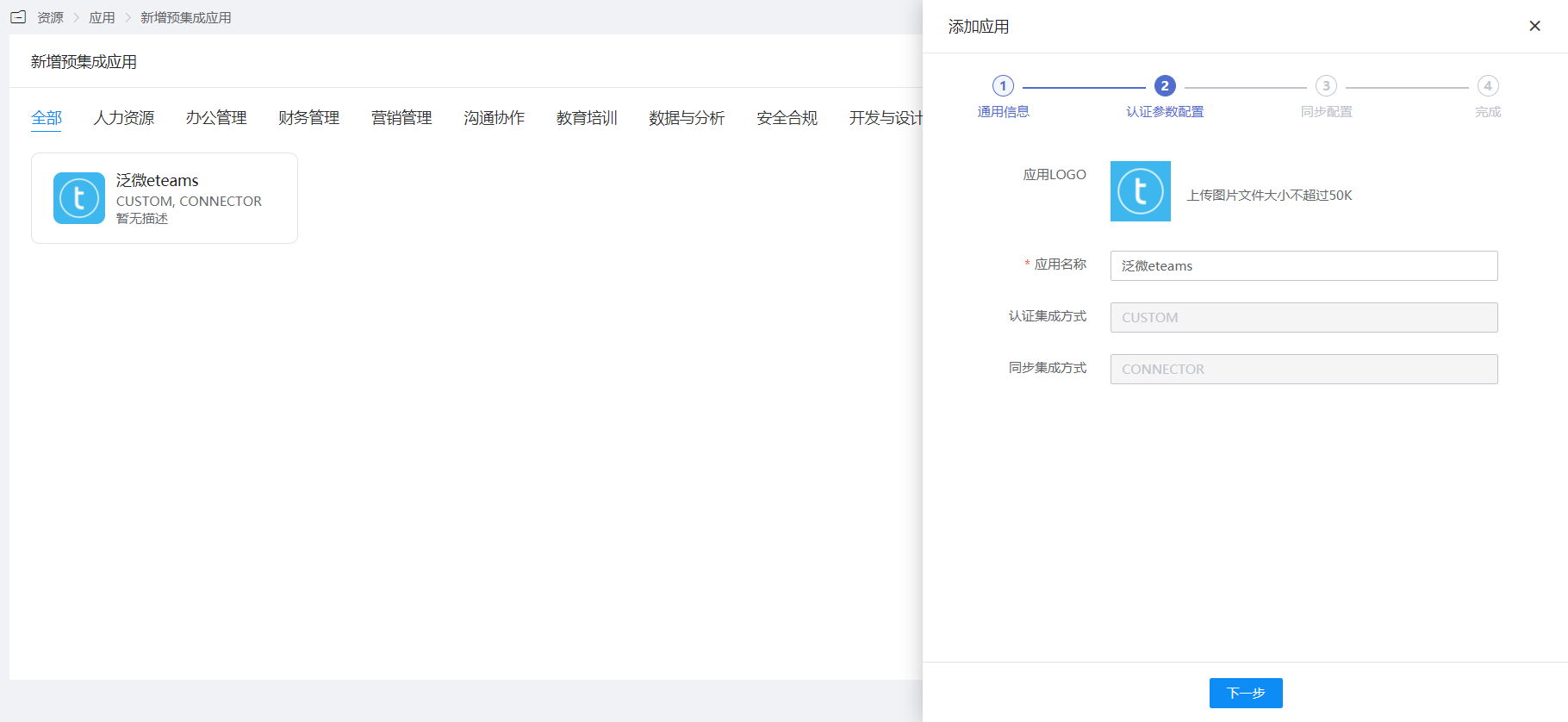
Configure authentication parameters.
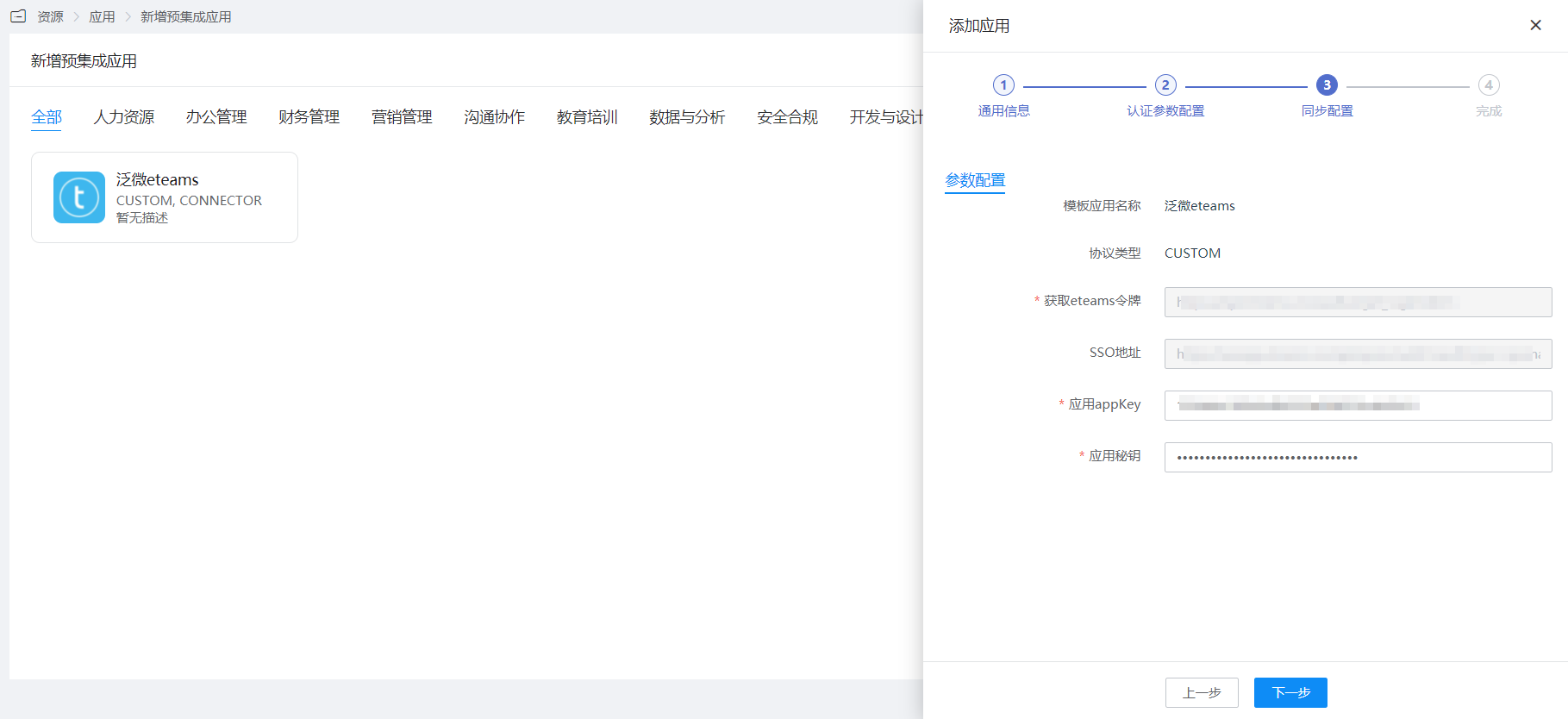
Configure synchronization parameters.

Go to Application Details - Application Organizations - Authorization Policy, enable automatic organization authorization, select the organization scope, click the save button, then click Execute Add.
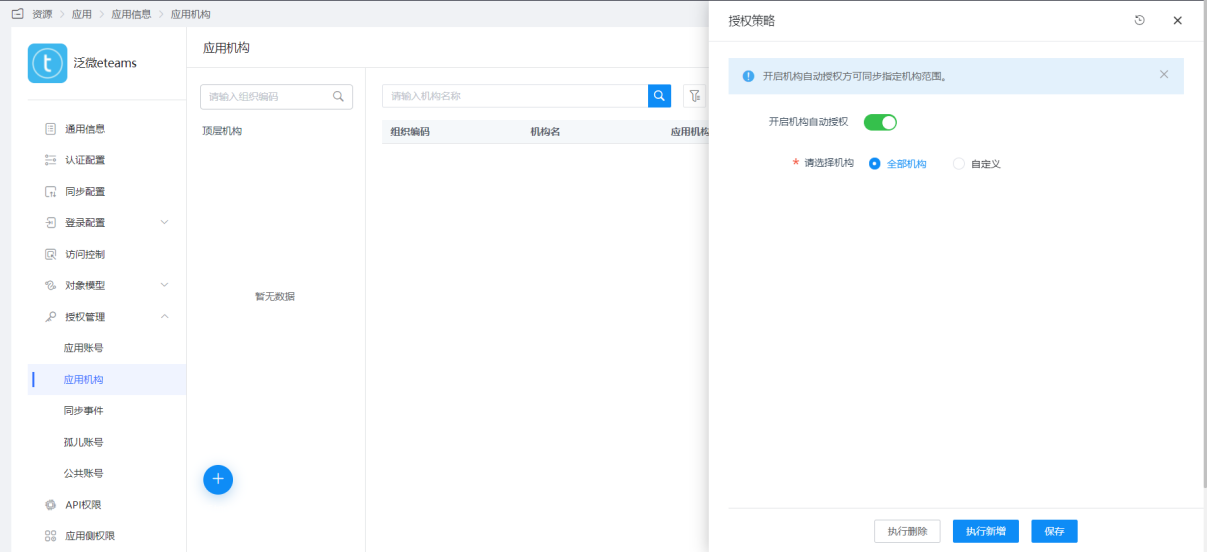
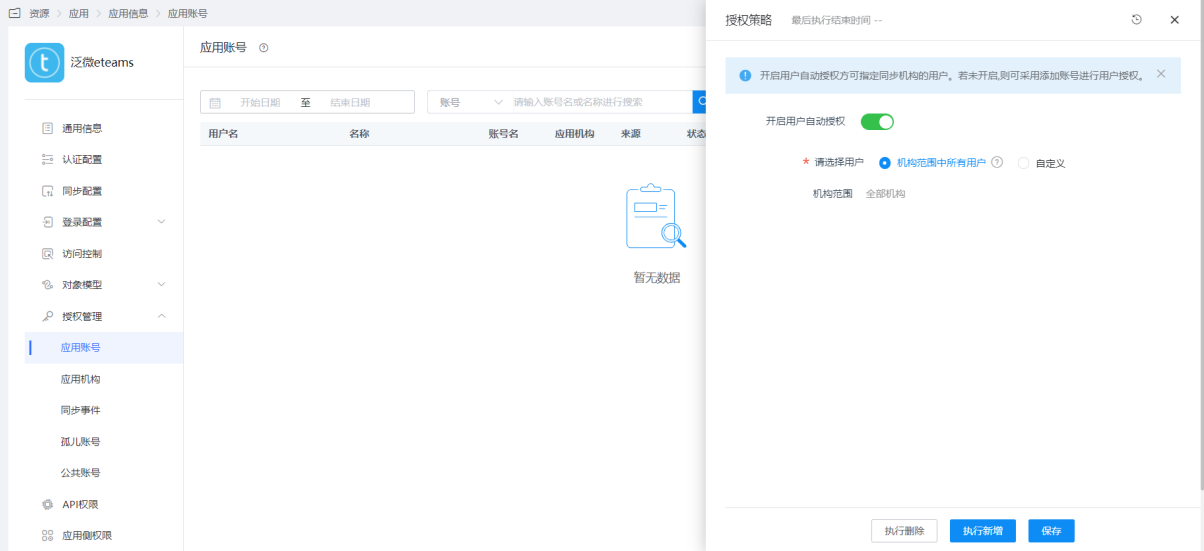
Go to Application Details - Application Accounts - Authorization Policy, enable automatic user authorization, select the user scope, click the save button, then click Execute Add.
Go to Authorization Management - Synchronization Events, view the synchronization events.

# View Synchronization Results
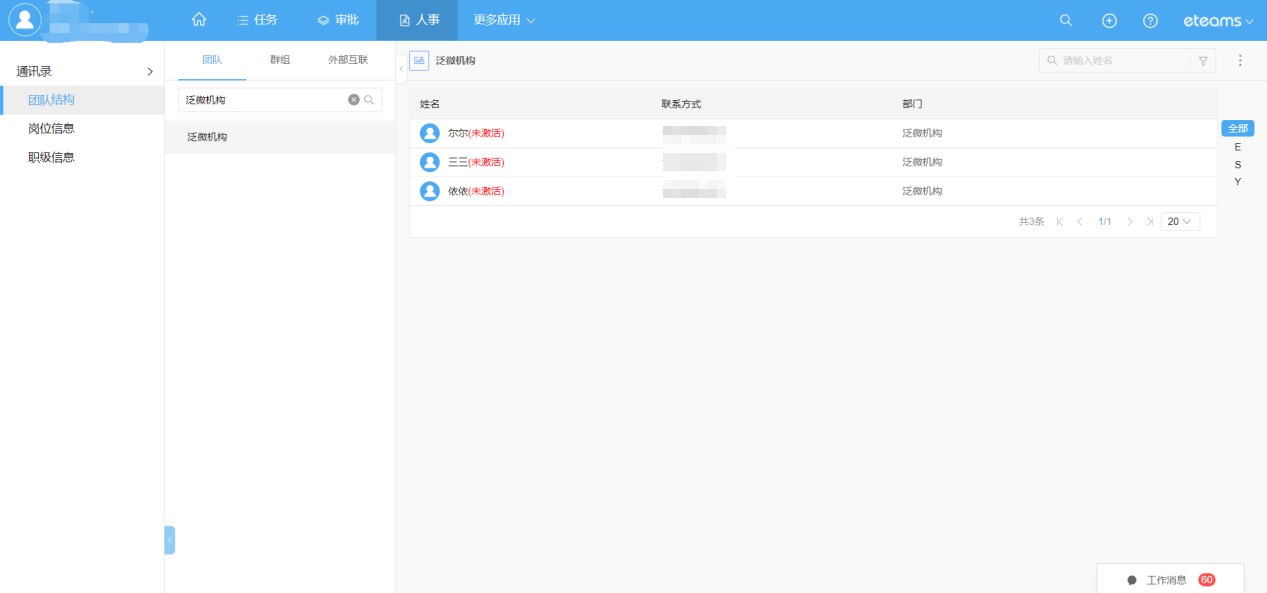
Log in to the Weaver eteams Enterprise Center, go to the Address Book, and view the synchronized organizations and users.