Weaver e-cology Data Synchronization
# Description
This article describes the configuration process for data synchronization between Weaver e-cology 9.0+ and IDaaS based on the OAUTH protocol.
# Synchronization Configuration
# IDaaS Configuration
Add the pre-integrated application Weaver e-cology 9.0+.

Configure authentication parameters.
The trusted domain can be filled with the OA access address, for example: https://oa.xxx.com

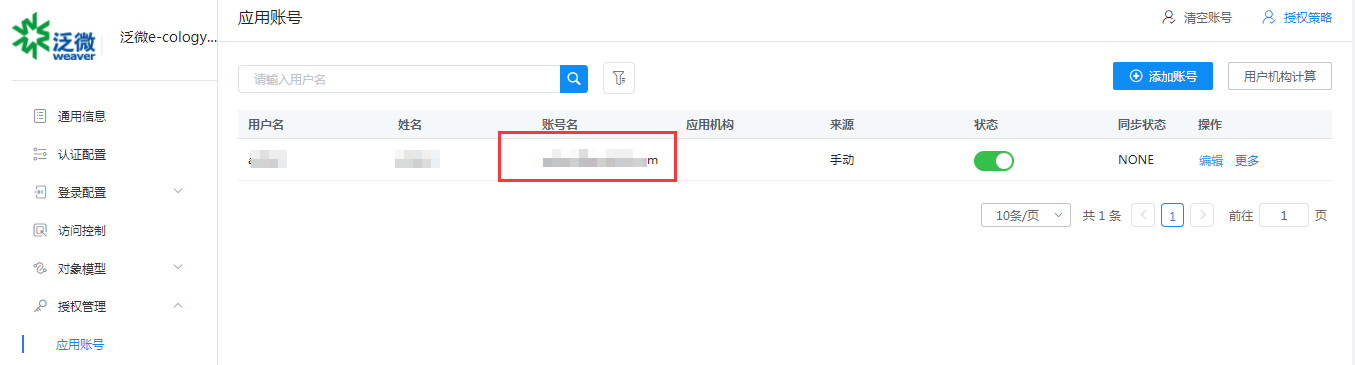
Go to Application Details - Authorization Management - Application Accounts, click the Add Account button, select the authorized user, and edit the application account to be the user's email address in Ecology.
Obtain the application's ClientId and ClientSecret.

# Weaver Ecology Configuration
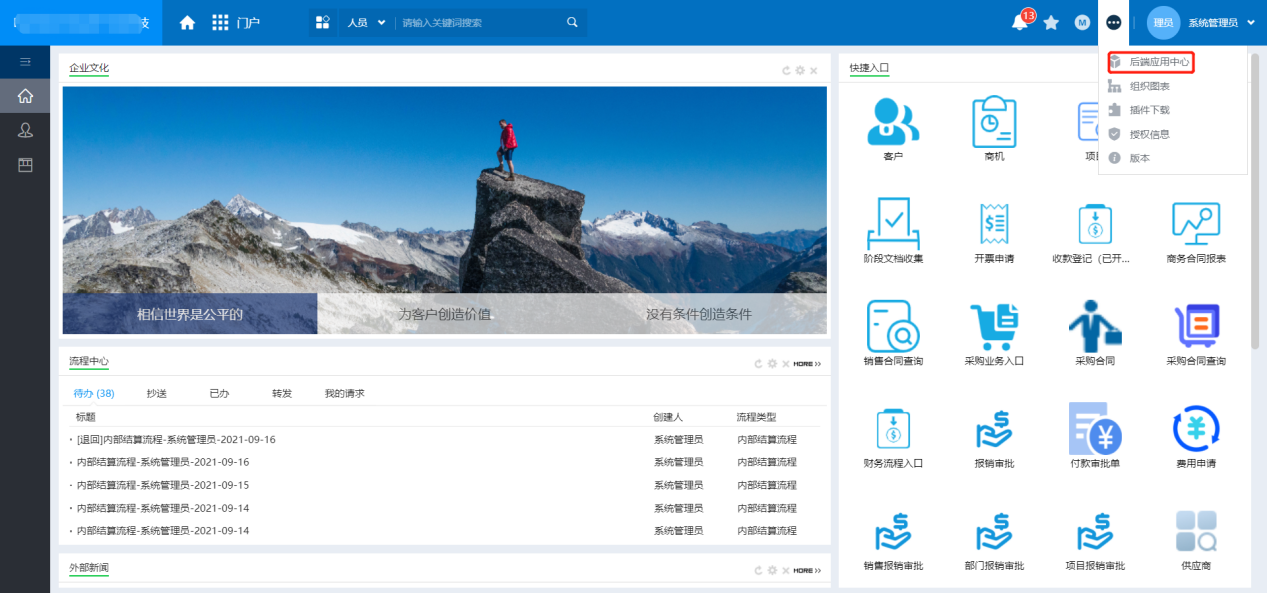
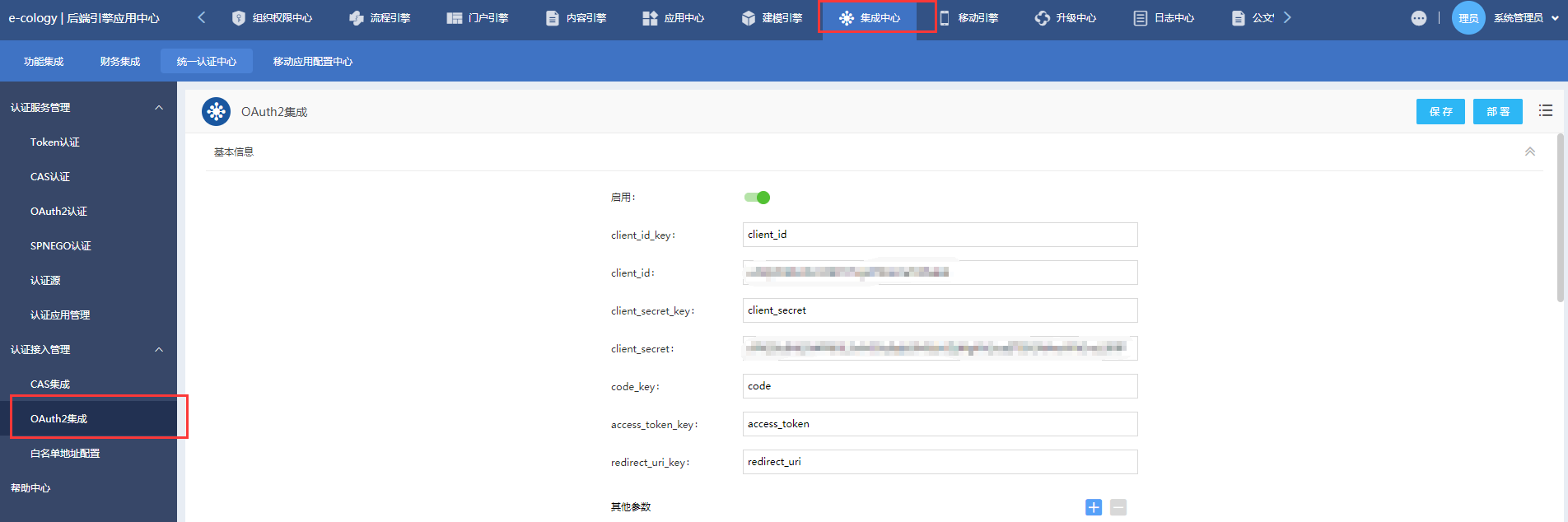
Administrator logs into the Ecology backend engine Application Center - Integration Center - Unified Authentication Center - Authentication Access Management, and enables OAuth2 integration.
Edit integration parameters.
- Basic Information:
- client_id_key: client_id
- client_id: The application ClientId in IDaaS
- client_secret_key: client_secret
- client_secret: The application ClientSecret in IDaaS
- code_key: code
- access_token_key: access_token
- redirect_uri_key: redirect_uri
- Basic Information:
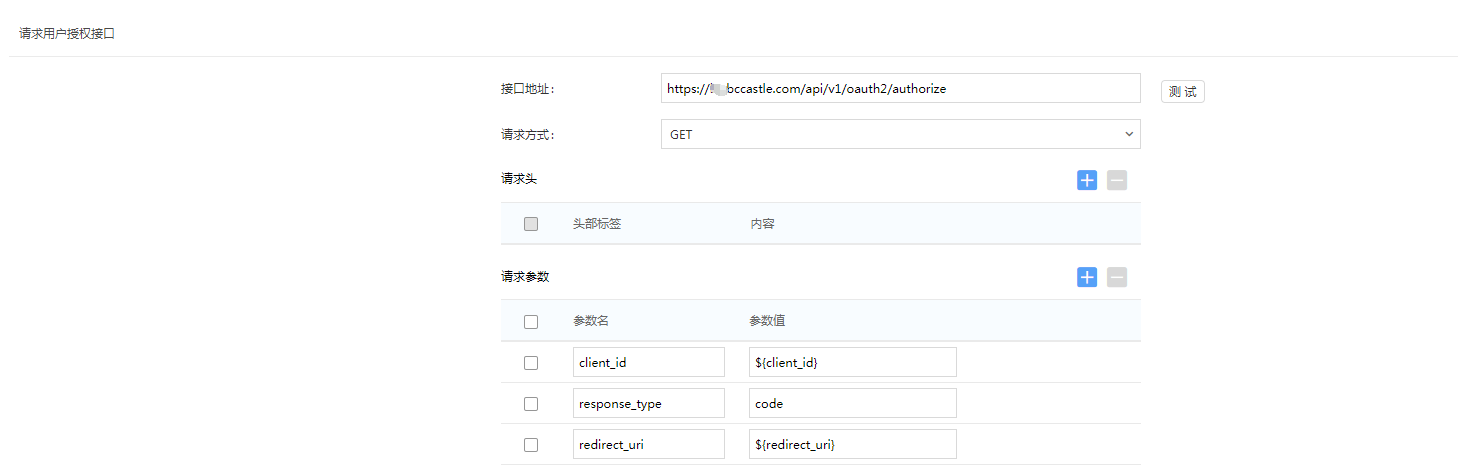
Request User Authorization Interface:
- Interface Address: https://IDaaS tenant domain.bccastle.com/api/v1/oauth2/authorize
- Request Method: GET
- Request Parameters:
- client_id: ${client_id}
- response_type: code
- redirect_uri: ${redirect_uri}
Get Authorization Token Interface:
- Interface Address: https://IDaaS tenant domain.bccastle.com/api/v1/oauth2/token
- Request Method: POST
- Request Parameters:
- client_id: ${client_id}
- client_secret: ${client_secret}
- grant_type: authorization_code
- code: ${code}
- redirect_uri: ${redirect_uri}

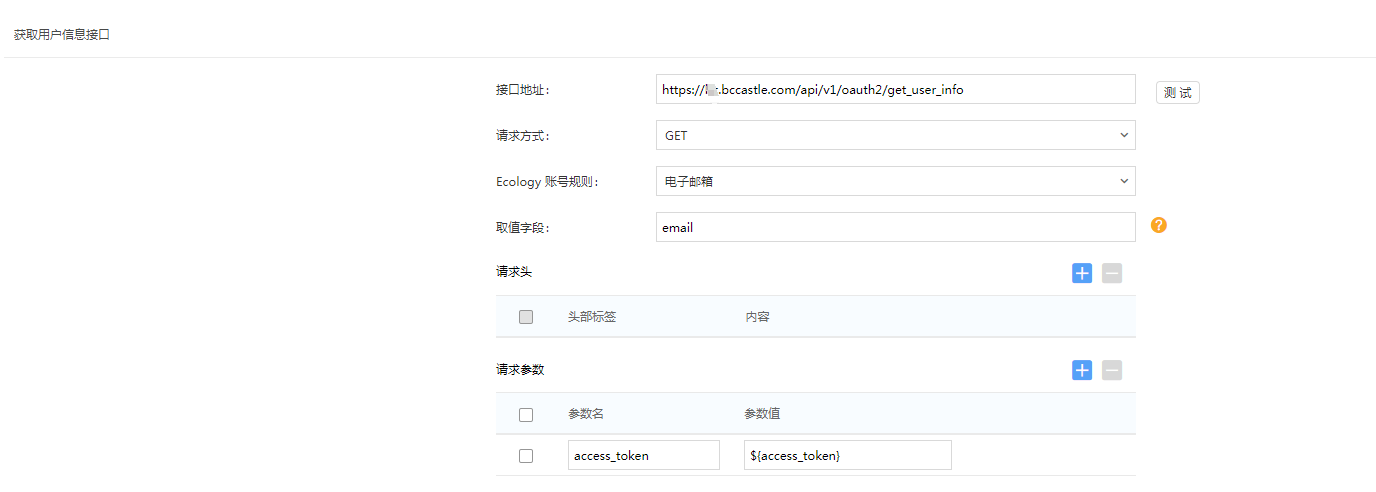
Get User Information Interface:
- Interface Address: https://IDaaS tenant domain.bccastle.com/api/v1/oauth2/get_user_info
- Request Method: GET
- Ecology Account Rule: Email
- Value Field: email
- Request Parameter: access_token: ${access_token}
Unified Logout Interface:
Enable
Interface Address: https://IDaaS tenant domain.bccastle.com/api/ams/logout?redirectToUrl=https://oa.xxx.com/
Request Method: GET
Authentication Method: Enable PC Authentication
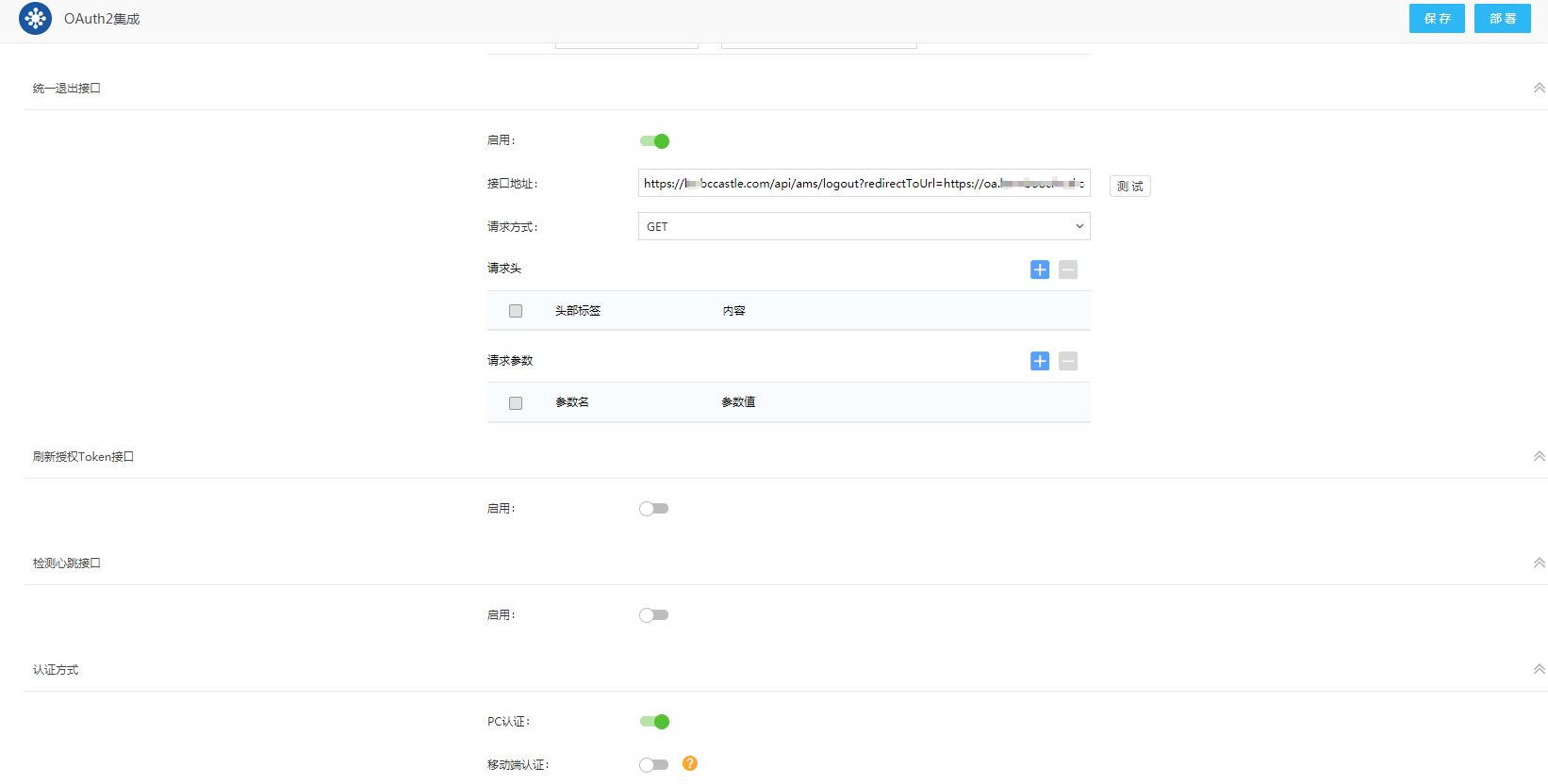
Enabling or disabling OAuth2 integration requires clicking "Deploy" to take effect. After enabling, you only need to click "Deploy" the first time; for other modifications, just "Save".
# Configure Synchronization Parameters
Configure synchronization parameters.
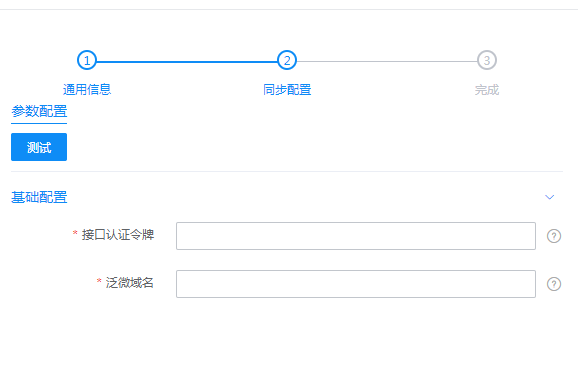
Parameter Description API Authentication Token Weaver Open API call token. You can access the OA address: /hrm/websevice/hrm_webservice_config.jsp to set the authentication method and view authentication parameters. Currently, IDaaS uses the token+MD5 method. Weaver Domain Weaver OA domain, e.g., http://bcfwoa.test.com/ Go to Application Details - Synchronization Configuration. In the General Configuration, you can set the processing logic for synchronized data.
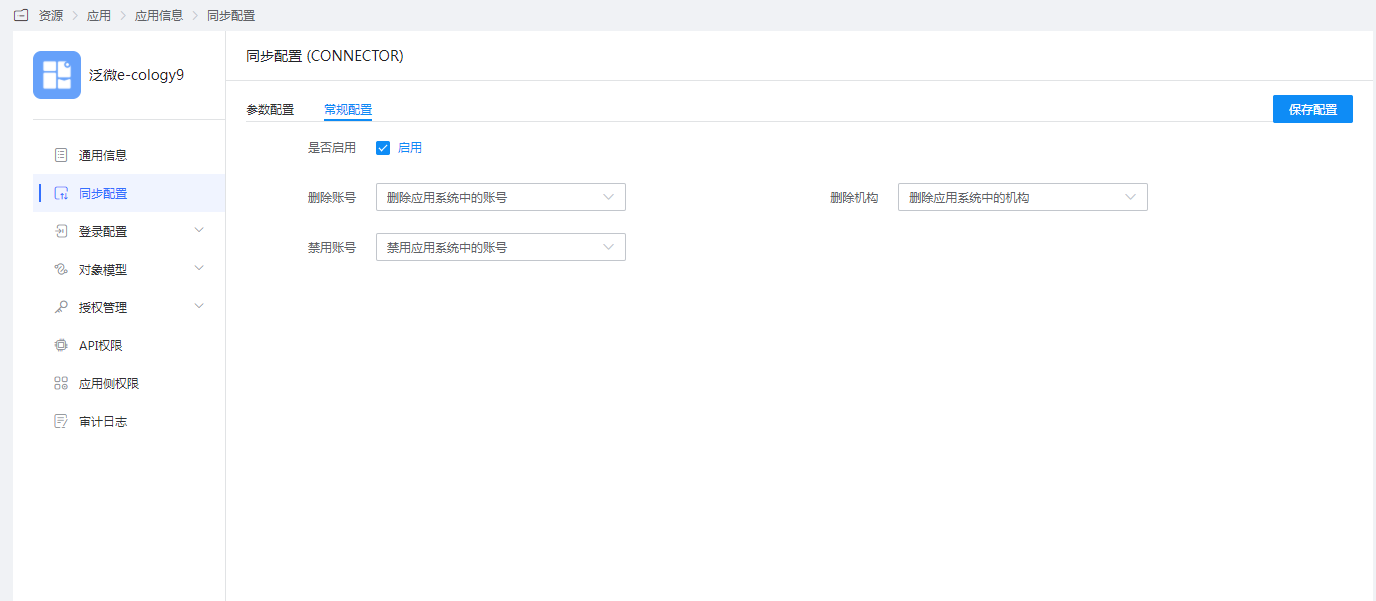
The object model stores the system's default attribute parameters. If you need to synchronize other user attributes, select "Object Model — Application Account Model — Attribute Definition" on the left, click "Add" to add an attribute.
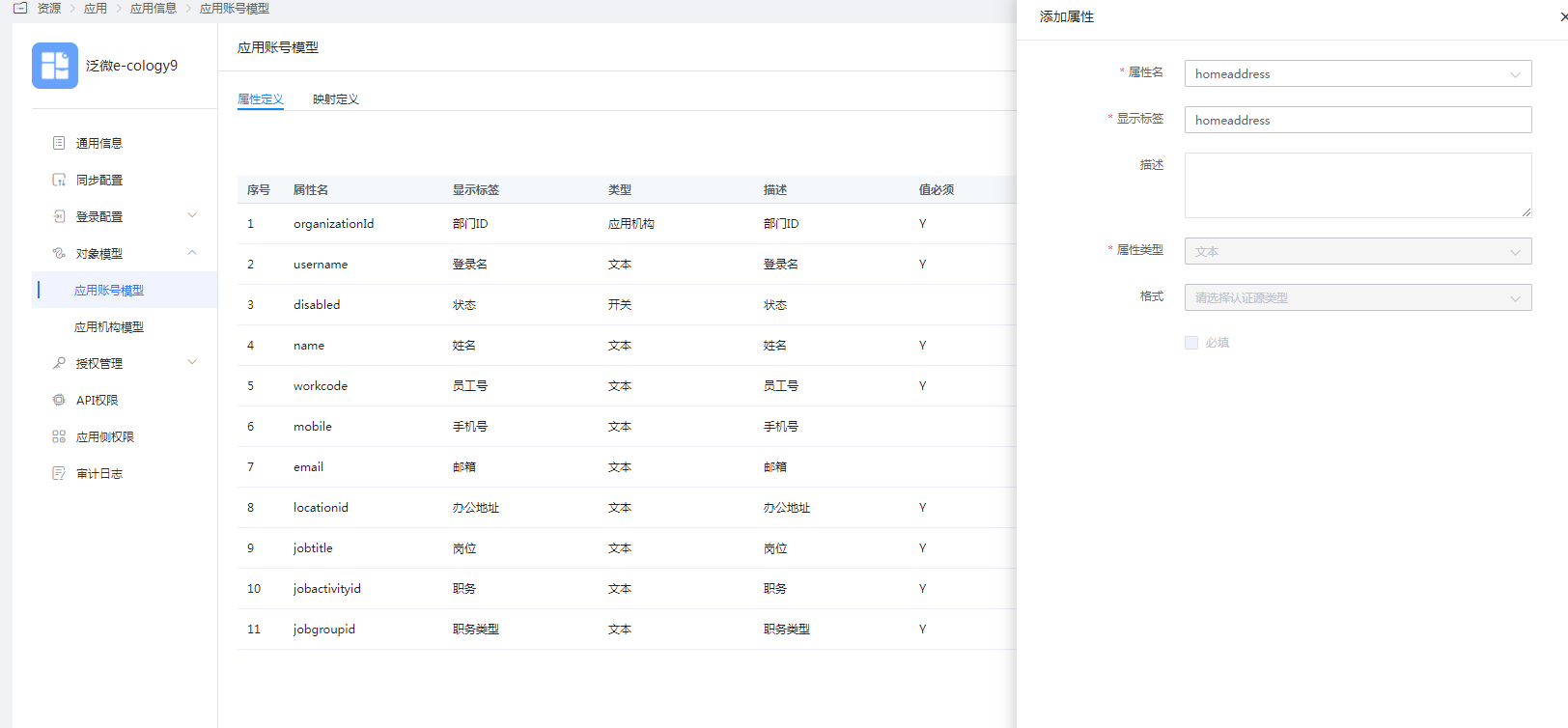
Parameter Description Attribute Name The account attribute of the application system, selectable from the dropdown menu, e.g., homeaddress. Display Label Required, customizable. Description Optional, customizable. Attribute Type Different attribute names correspond to different attribute types, determined by the application system's attributes, cannot be modified. Format System default, cannot be modified. Required System default is not checked. Switch to the Mapping Definition tab, click "Edit" to configure attribute mapping.
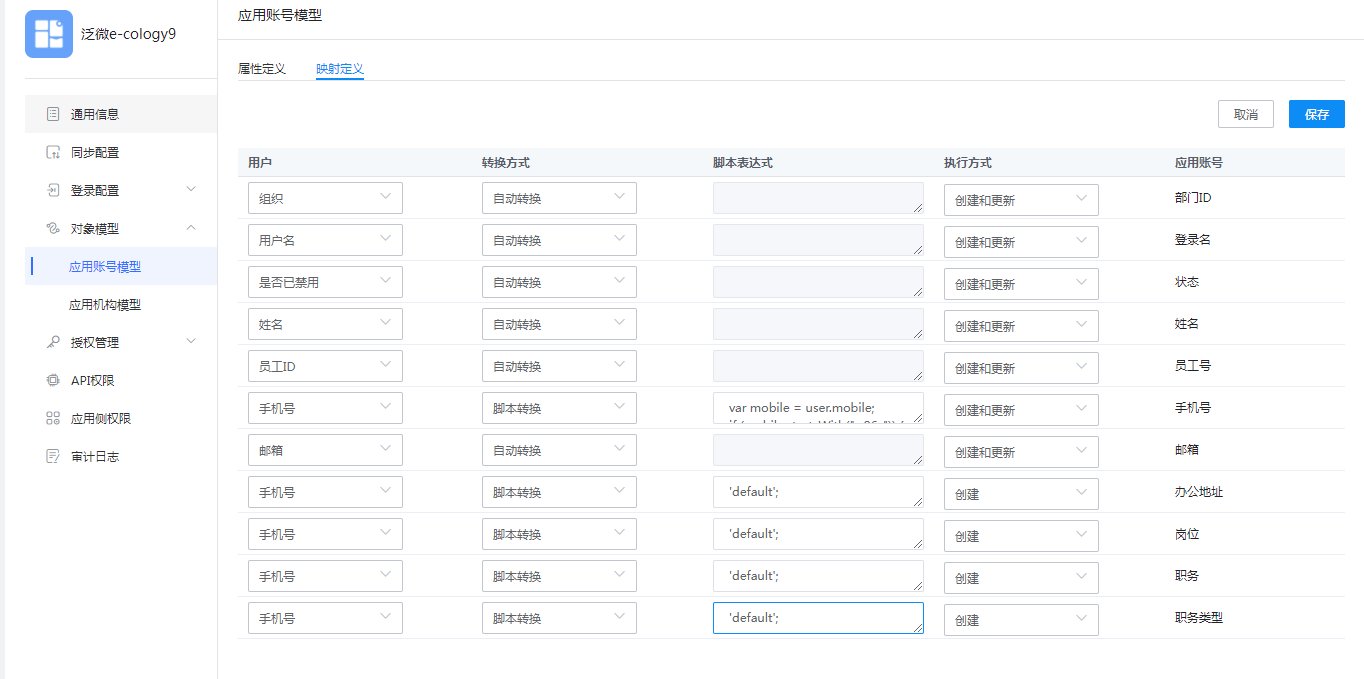
Parameter Description User Attribute mapped from IDaaS to the application, e.g., mobile phone number. Conversion Method Mapping method for attributes between IDaaS and the application. Script Expression When the conversion method is set to Script Conversion, this input field becomes active. For mapping scripts, please refer to: How to Develop Mapping Scripts. Execution Method The method used when IDaaS synchronizes user data to the target application. Application Account The account attribute of the application. If you need to synchronize other attributes of the organization, select "Object Model — Application Organization Model — Attribute Definition" on the left, click "Add" to add an attribute.
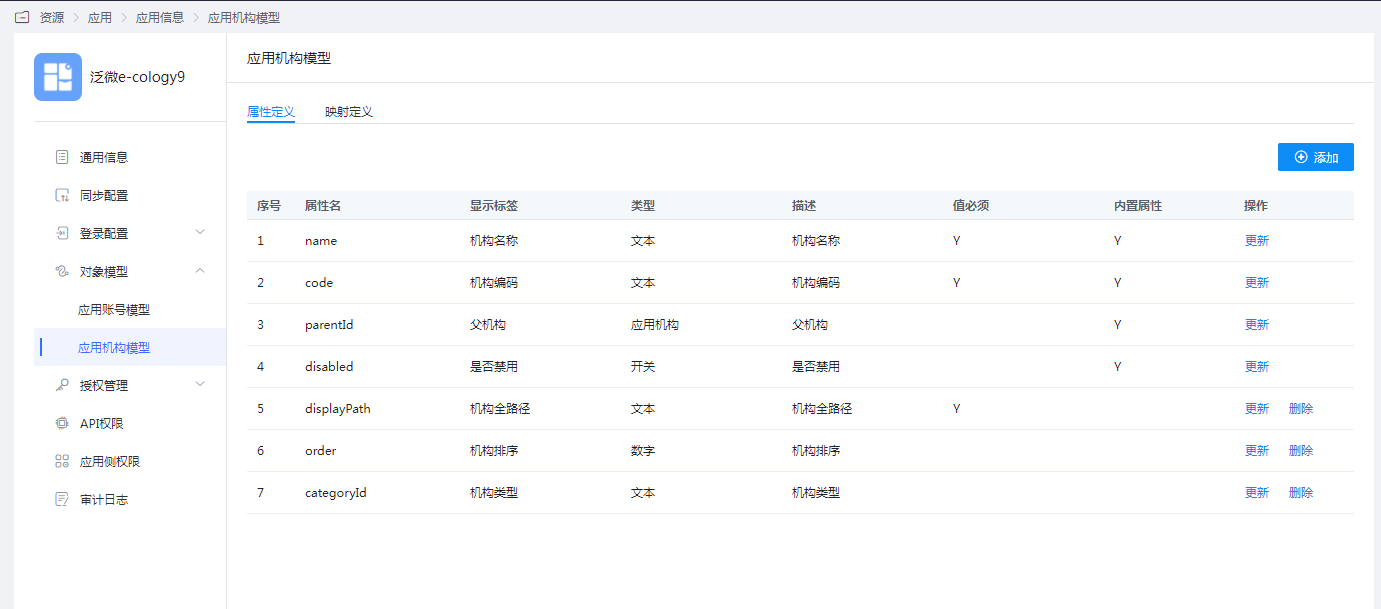
Parameter Description Attribute Name The organization attribute of the application system, selectable from the dropdown menu. Display Label Required, customizable. Description Optional, customizable. Attribute Type Different attribute names correspond to different attribute types, determined by the application system's attributes, cannot be modified. Format System default, cannot be modified. Required System default is not checked, cannot be modified. Switch to the Mapping Definition tab, click "Edit", and configure attribute mapping.

| Parameter | Description |
|---|---|
| Organization | The organizational attribute mapped from IDaaS to the application. |
| Conversion Method | The mapping method for attributes between IDaaS and the application. |
| Script Expression | This input field is activated when the conversion method is set to script conversion. For mapping scripts, please refer to: How to Develop Mapping Scripts. |
| Execution Method | The method by which IDaaS synchronizes organizational data to the target application. |
# Verify Synchronized Data
- Go to "Application Organization - Authorization Policy", enable automatic organization authorization, select the organization scope, click the Save button, and then click Execute Add to see the synchronized organizations.

Synchronization Rules Explanation:
- Departments are allowed to have sub-departments.
- Directly attaching departments under the root organization on the Weaver side is not allowed. Therefore, when creating an organization in 【User】-【Organization and User】, select the organization type as Company, and then add sub-organizations as departments under the created organization.
- Except for the Department ID, which cannot be modified, all other attributes are allowed to be modified. :::
- Go to "Application Account - Authorization Policy", enable automatic user authorization, select the user scope, click the Save button, and then click Execute Add to see the synchronized users.
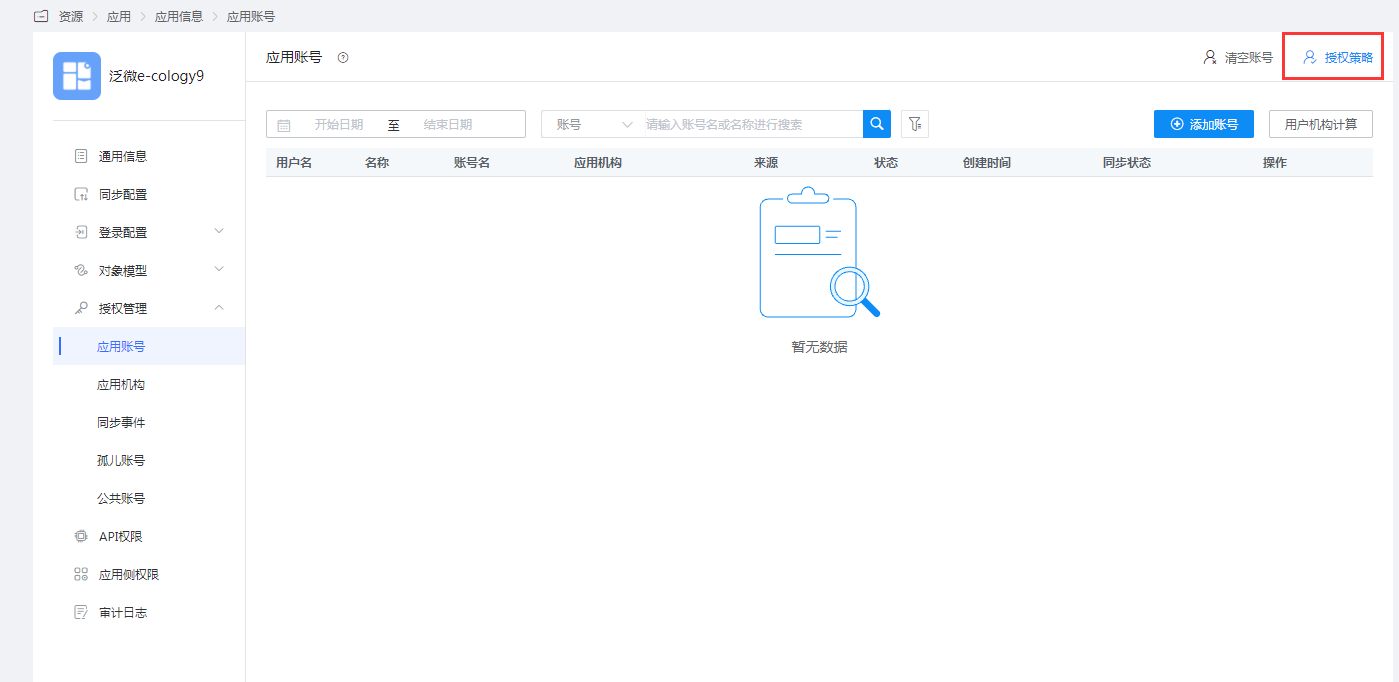
Synchronization Rules Explanation: When synchronizing user data, by default, the IDaaS user's 【Employee ID】 is converted to the employee number in ecology. Therefore, the user's 【Employee ID】 attribute is mandatory.
- View Synchronization Events. Select "Authorization Management - Synchronization Events" on the left to view the above synchronization records. Additionally, operations such as editing and deleting organizations and users can also be viewed and filtered.
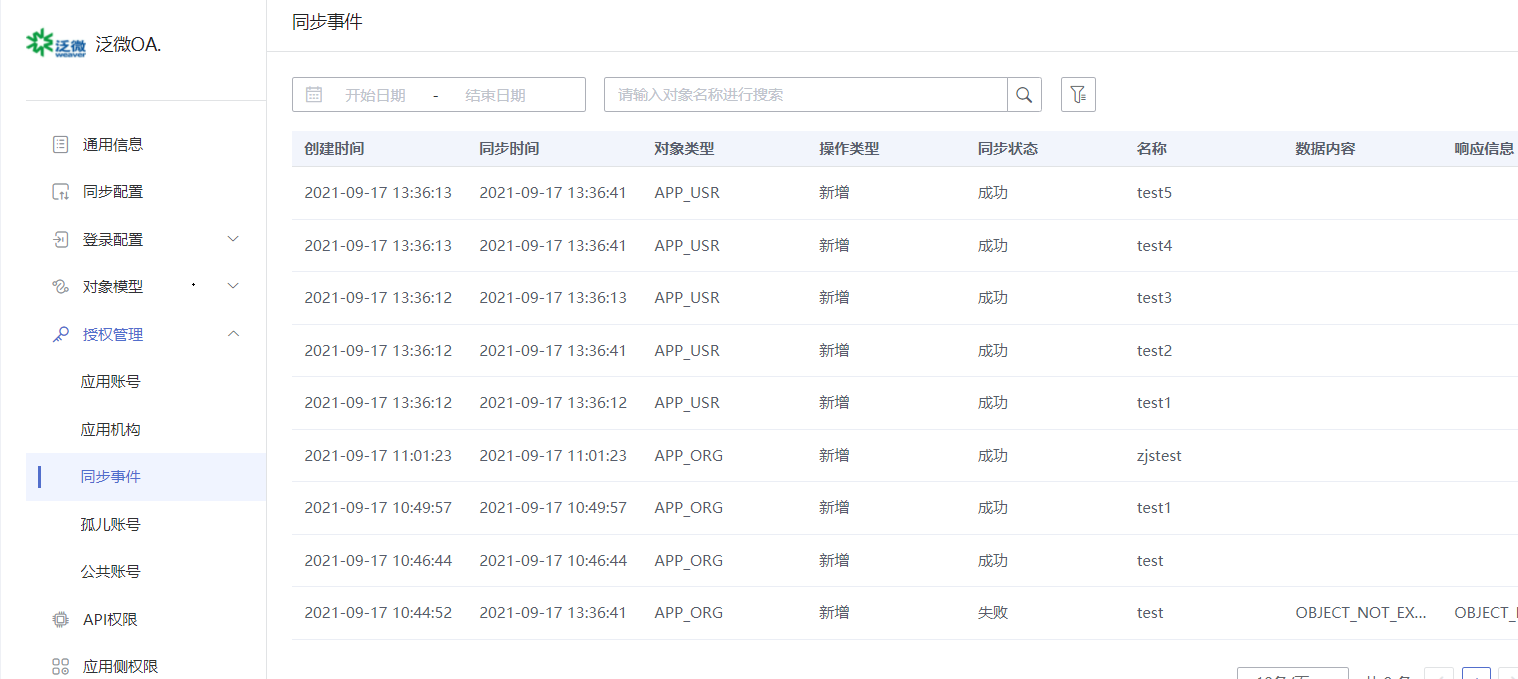
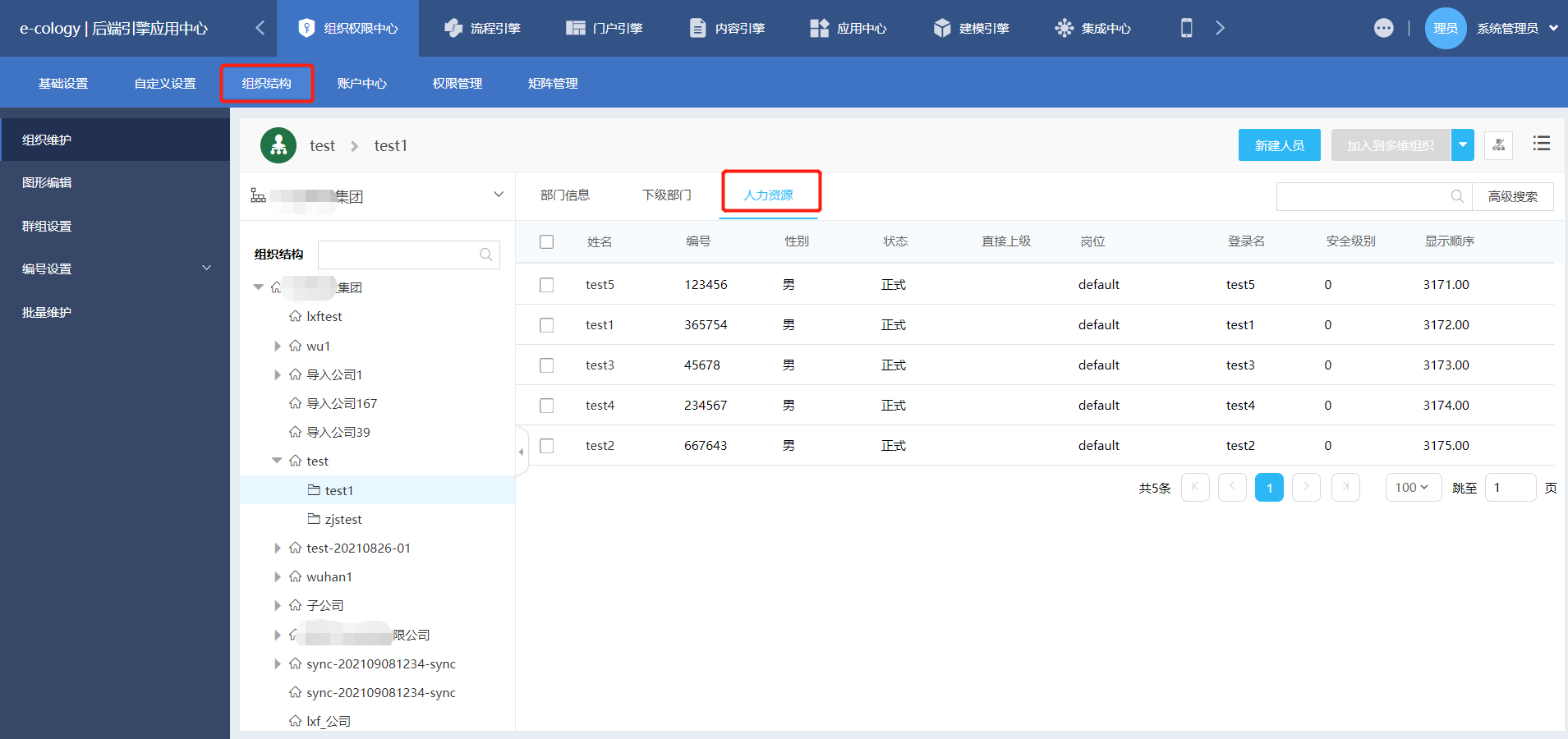
- Log in to the Weaver OA management console to view the synchronized organizations and users.