
Dynamic Password OTP Authentication
# Documentation Description
This document introduces how to integrate the OTP authentication function into the Android client. The OTP function, after being activated in the user center, allows users to obtain dynamic passwords on mobile apps or mini-programs to ensure account security. In the OTP usage scenario, users log into the user center, enter account settings, account security, and dynamic password settings. They follow the page prompts to activate the dynamic password. At the next login requiring OTP secondary authentication, they can use the app or mini-program to enter the dynamic password to complete authentication.
# Process Description
Integration Process Description
The app client builds the scan function page. The scanned string is passed to the IDaaS SDK for addition. Upon successful addition, it returns to the OTP list.
The app client builds the OTP password list and uses the IDaaS SDK to obtain the currently added OTP password list.
In the OTP list, the app client queries the current dynamic password code for a single OTP from the IDaaS SDK every 30 seconds or 1 minute, then refreshes that single otp password in the list.
In the OTP list, the app client builds the animation effect for deleting a single OTP password. In the response event, it calls the IDaaS SDK method to delete a single OTP password and refreshes the UI.
# Preparations
Log in to the IDaaS Enterprise Center platform, click "Settings --> Service Configuration --> Dynamic Password Configuration", and configure the password encryption algorithm, digits, and time interval. The algorithms currently supported by the SDK are HMACSHA1, HMACSHA256, and HMACSHA512.

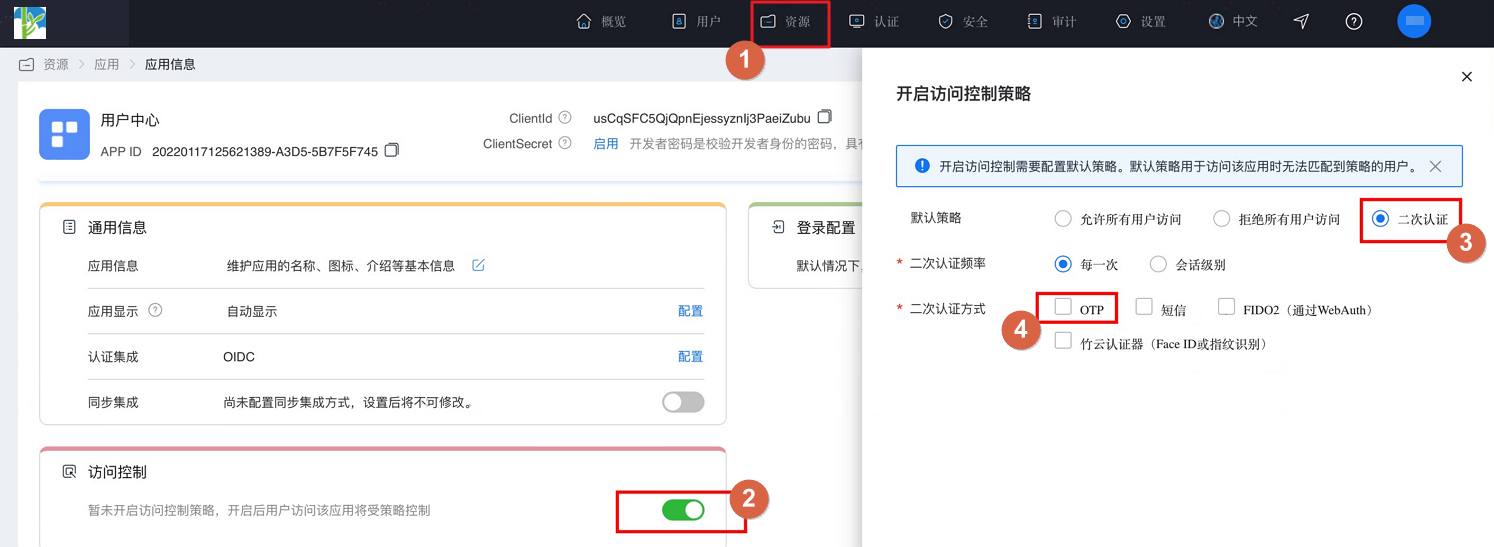
After configuration, click "Resources --> Applications", find the enterprise application and enter the application panel. Turn on the "Access Control" switch. On the pop-up settings page, select secondary authentication and check OTP as the secondary authentication method.
# Import Dependencies
AuthnCenter_Common-1.5.3.aar //Common package
AuthnCenter_MFA_OTP-1.5.3.aar //OTP authentication SDK
2
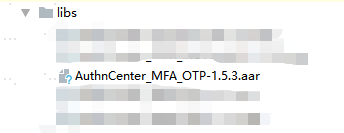
Import the aar packages into lib, as shown below:
# Configure build.gradle
implementation 'AuthnCenter_MFA_OTP:1.5.3'
implementation 'com.google.zxing:core:3.5.1'
implementation 'com.google.code.gson:gson:2.10'
implementation 'com.squareup.picasso:picasso:2.8'
implementation 'io.fotoapparat.fotoapparat:library:1.4.1'
2
3
4
5
# Configure AndroidManifest
  <!--Permissions-->
    <uses-permission android:name="android.permission.INTERNET" />
    <uses-permission android:name="android.permission.WRITE_EXTERNAL_STORAGE" />
    <uses-permission android:name="android.permission.READ_EXTERNAL_STORAGE" />
    <uses-permission android:name="android.permission.CAMERA" />
    <uses-feature android:name="android.hardware.camera" android:required="false" />
    <uses-feature android:name="android.hardware.camera.autofocus" android:required="false" />
2
3
4
5
6
7
# Development Integration
# SDK Initialization
AuthnCenterSDK.Builder()
                .init(this)
                .setBaseUrl("https://xxx.xxx.com")      //Tenant domain
                .setClientId("xxxx") //Application client-id from the tenant backend
                .isCheckSSL(false) //Whether to check SSL certificate
                .logEnable(false).build(); //Whether to enable http request log. It is recommended to turn it off after going live.
2
3
4
5
6
# Interface Call Instructions
Generate Random Code
        TokenPersistence tp = new TokenPersistence(this.getContext());
        Token token = tp.get(position);
        TokenCode codes = token.generateCodes();
        new TokenPersistence(this.getContext()).save(token);
        codes.getCurrentCode();//Get the code
2
3
4
5