WPS Office/Kingsoft Docs Single Sign-On
# Description
This document introduces the authentication integration configuration between Kingsoft Docs and IDaaS.
# Authentication Configuration
# WPS Configuration
Log in to the WPS Open Platform (opens new window) and submit an application to become a service provider as required by the platform.
After the service provider application is approved, create an application.
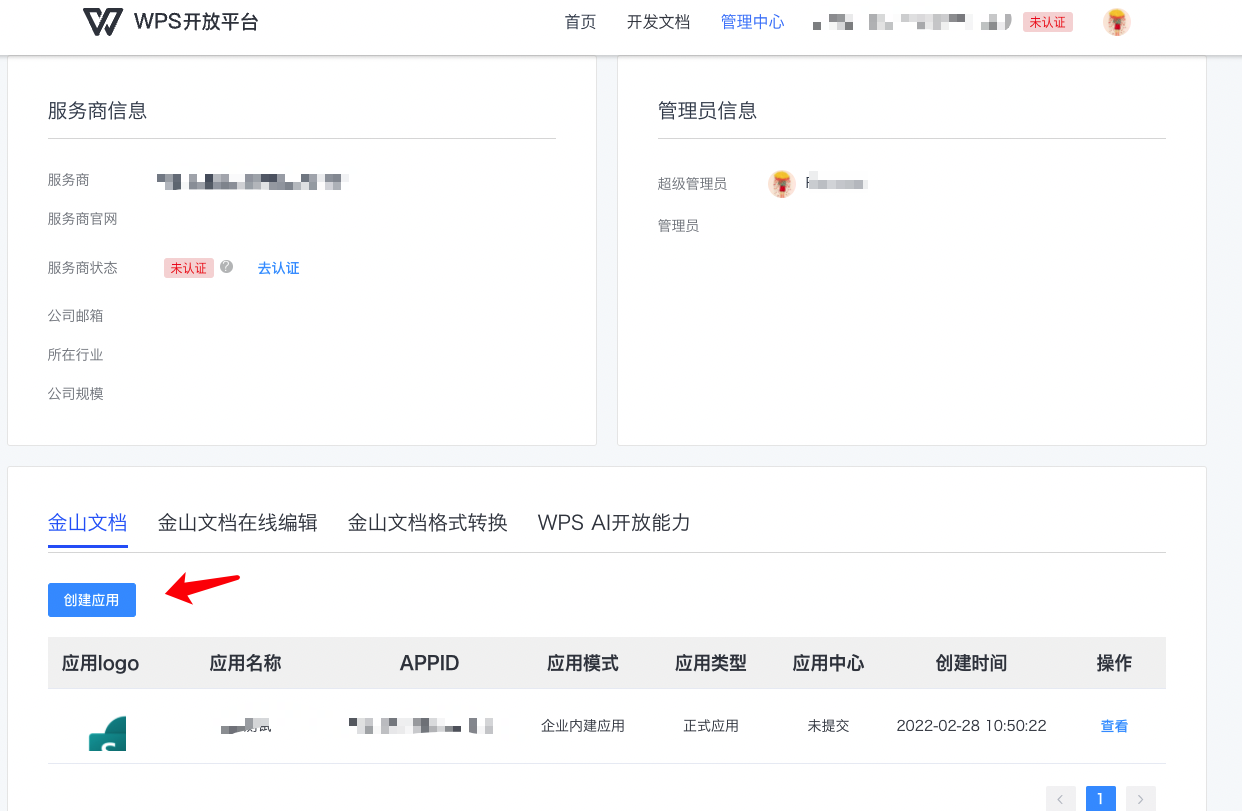

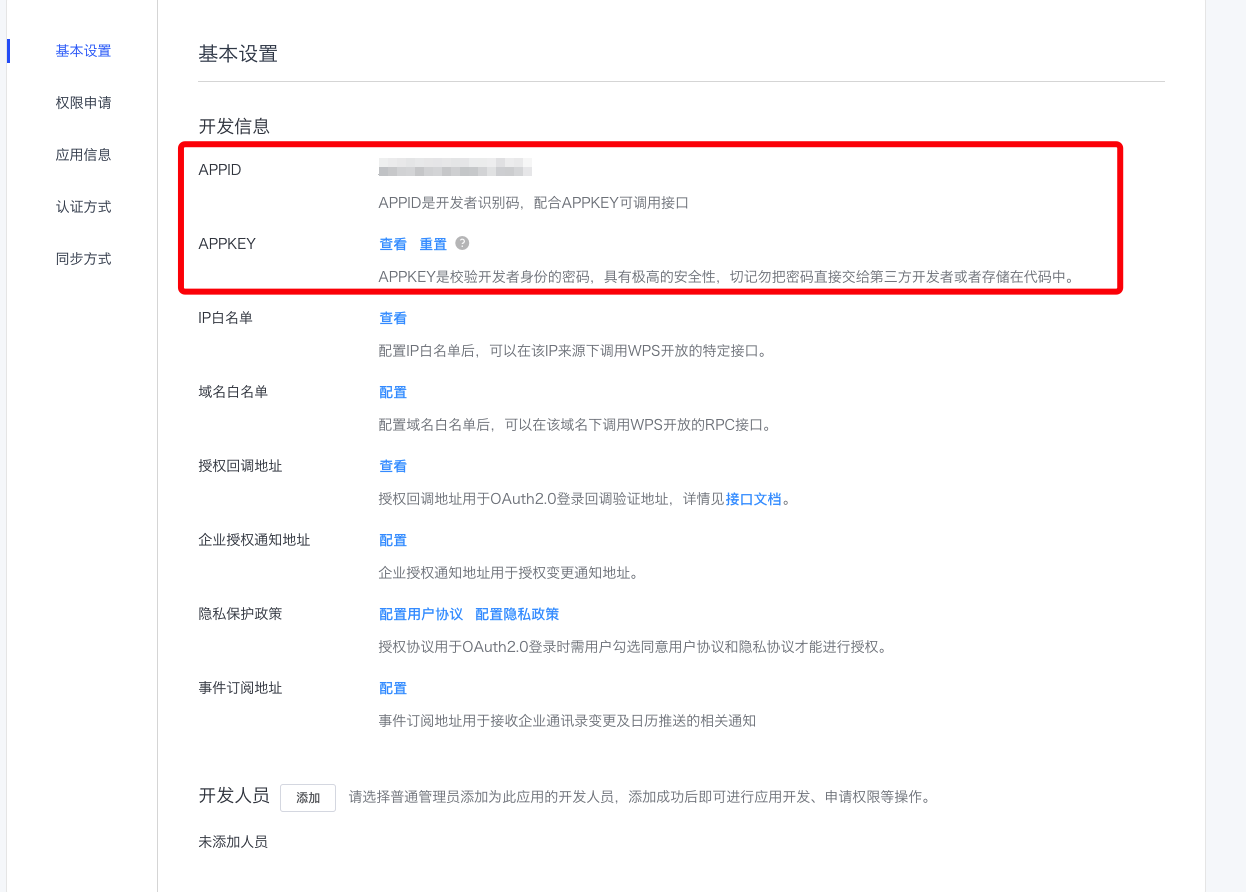
Enter the application details, view the basic application information, and obtain the APPID and APPKEY.
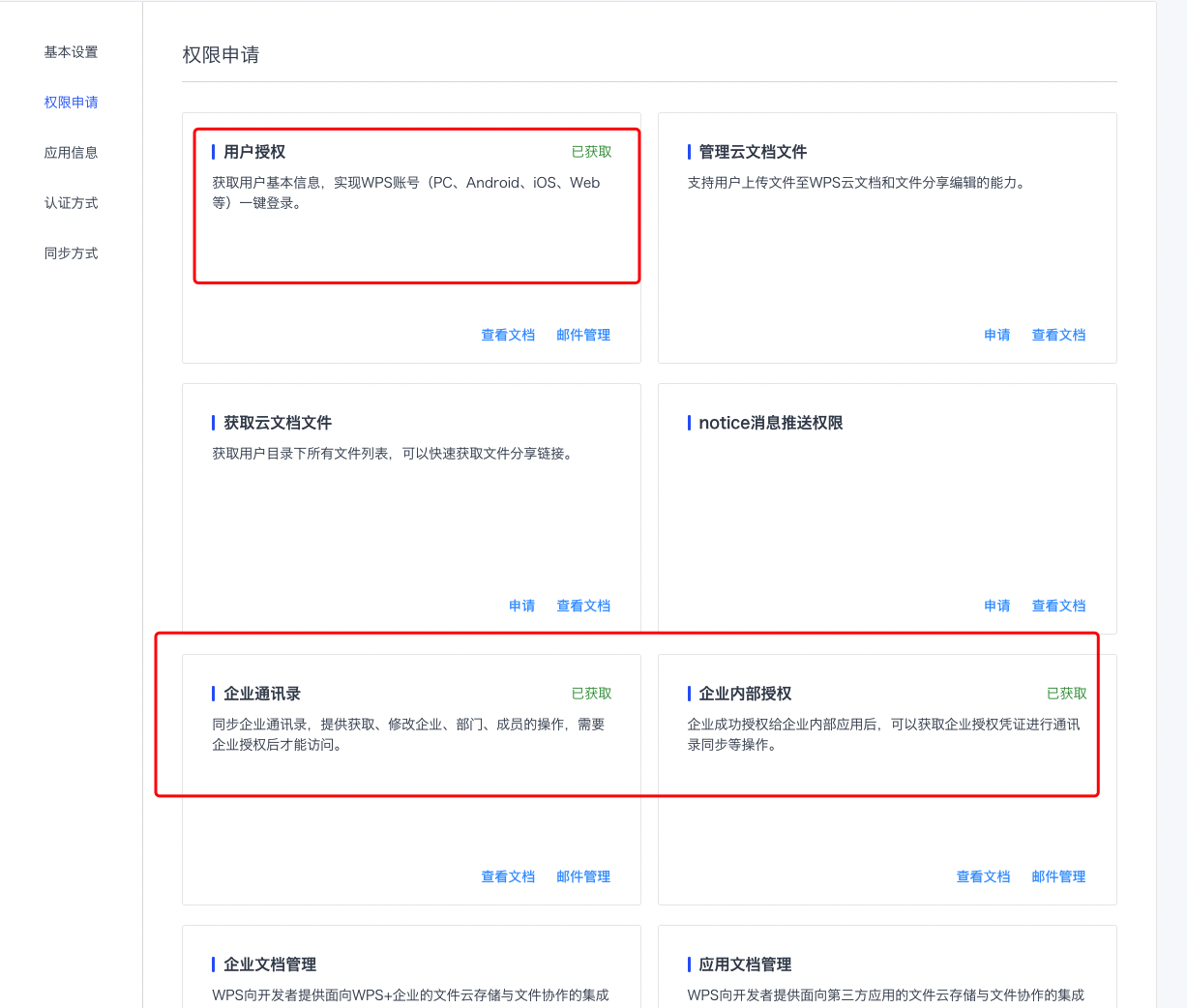
Go to Permission Application and apply for user authorization and enterprise address book permissions.
Configure authentication parameters.
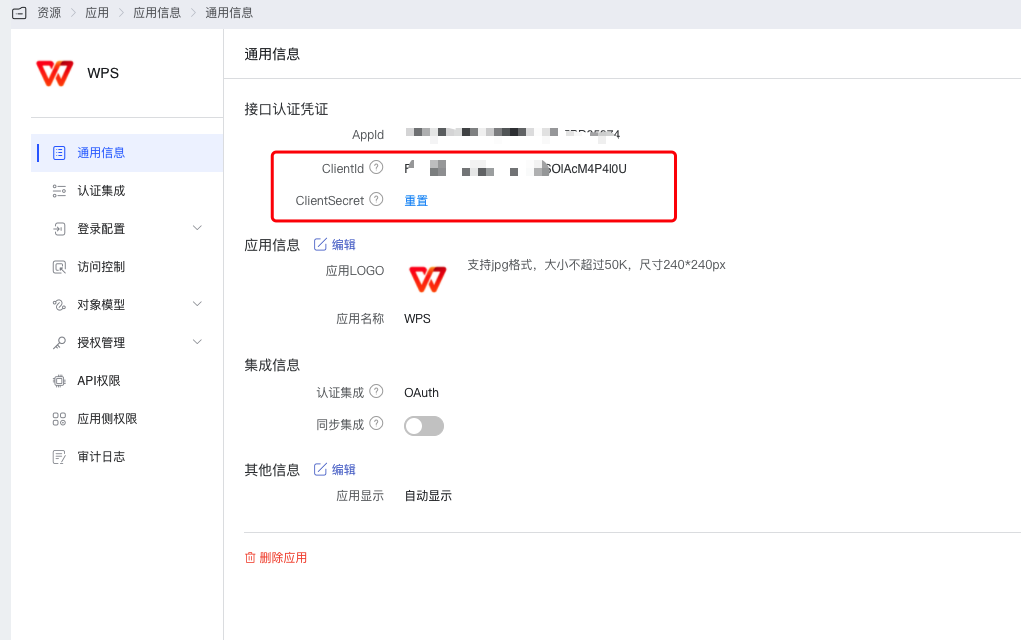
Perform this step after adding WPS Office in IDaaS and obtaining the ClientId and ClientSecret.
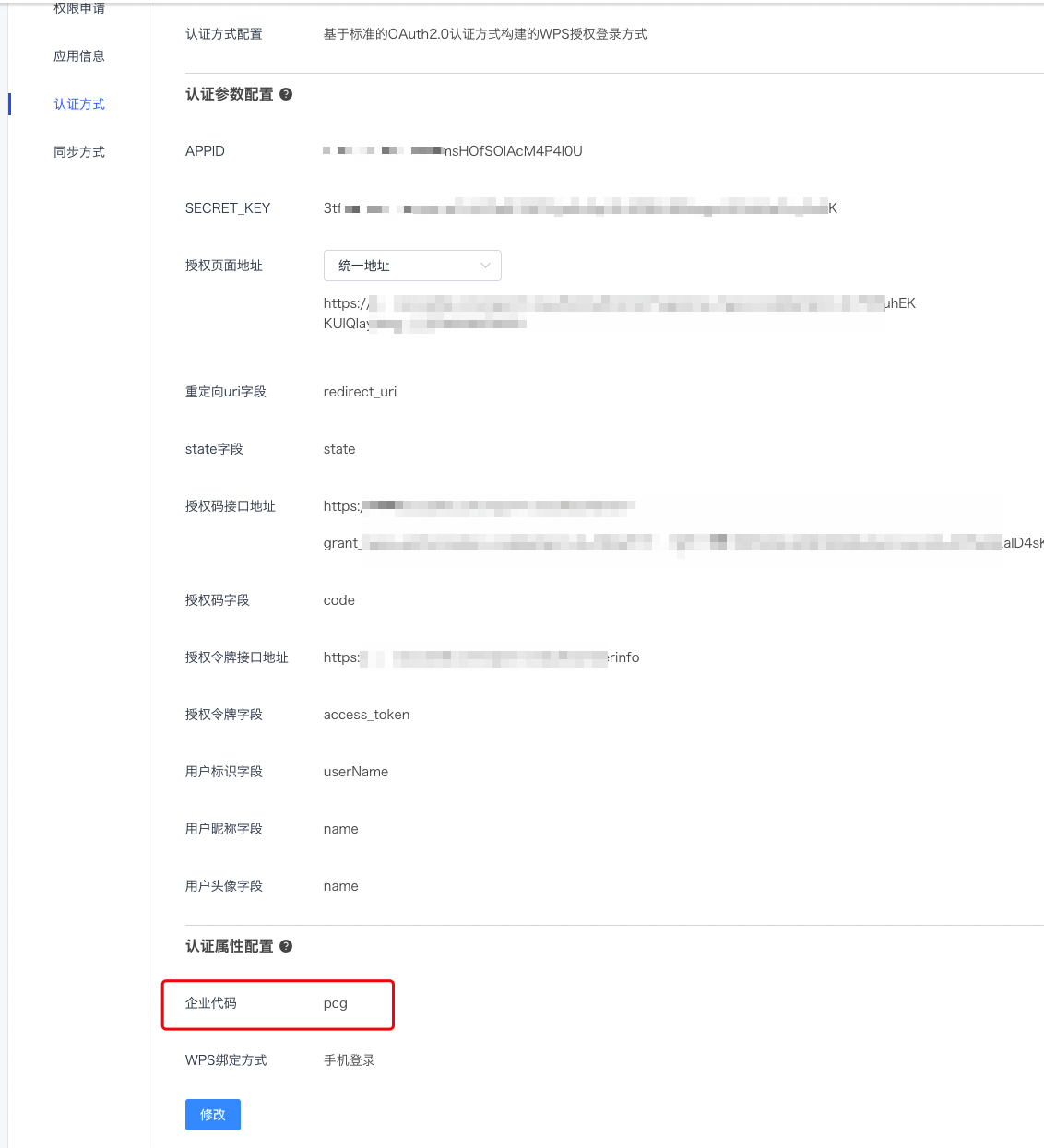
Parameter Description APPID IDaaS Application ClientId SECRET_KEY IDaaS Application ClientSecret Authorization Page Select the unified address: https://IDaaS tenant domain.bccastle.com/api/v1/oauth2/authorize?response_type=code&client_id={IDaaS Application ClientId} Redirect URI Field redirect_uri State Field state Authorization Code Interface Address https://IDaaS tenant domain.bccastle.com/api/v1/oauth2/token?grant_type=authorization_code&client_id={IDaaS Application ClientId}&client_secret={IDaaS Application ClientSecret} Authorization Code Field code Authorization Token Interface Address https://IDaaS tenant domain.bccastle.com/api/v1/oauth2/userinfo Authorization Token Field access_token User Identifier Field userName User Nickname Field name User Avatar Field name Enterprise Code Custom WPS Binding Method Mobile Login
# IDaaS Configuration
The administrator logs into the IDaaS Enterprise Center. In the Enterprise Center, go to Resources -> Applications -> Pre-integrated Applications -> Add Pre-integrated Application, search for WPS, WPS Office.
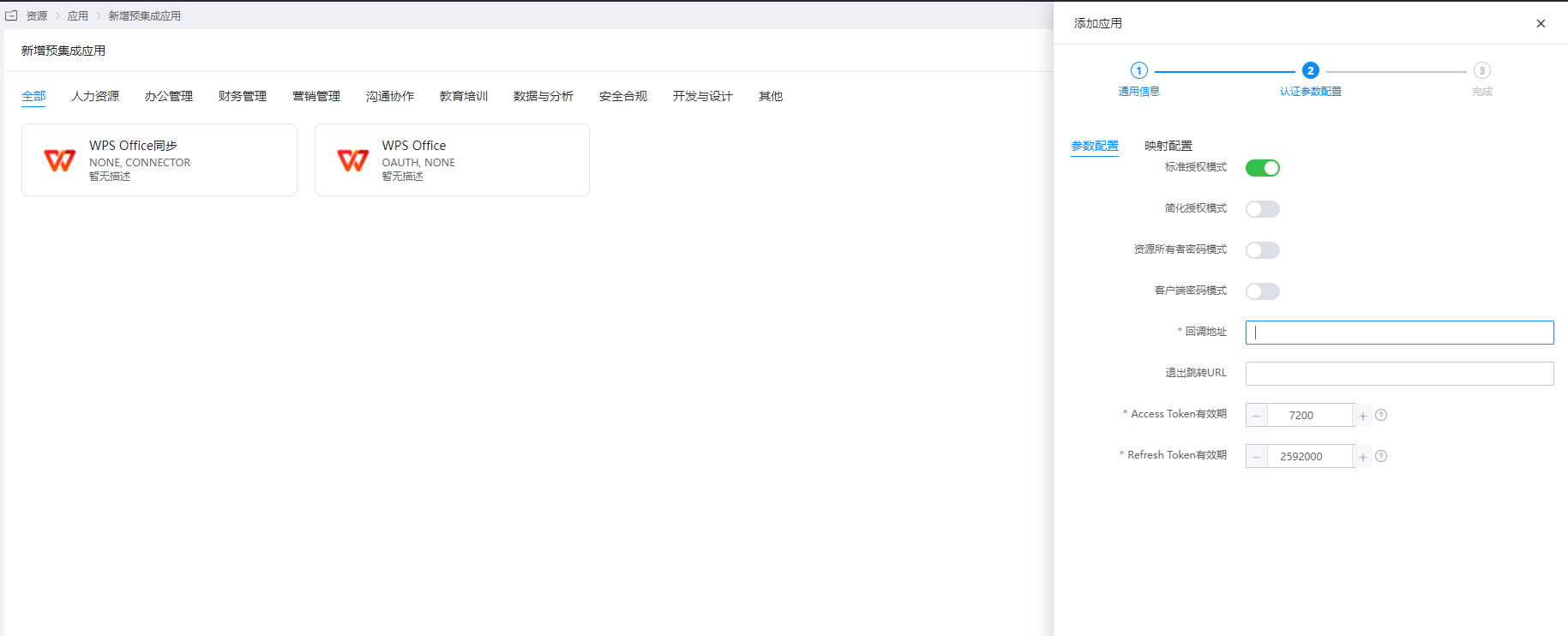
For authentication configuration, fill in the callback address as https://open.wps.cn/oauth/v1/code.
Go to the application details, view the General Information, and obtain the ClientId and ClientSecret.
For user authorization, go to Authorization Management -> Application Accounts -> Add Account.
# Login Verification
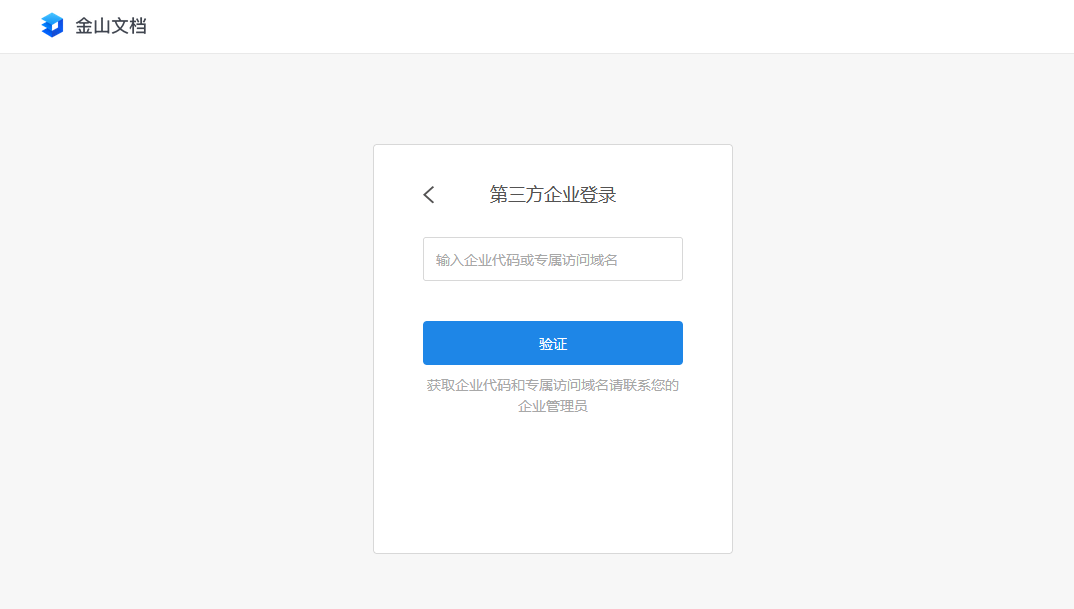
Access https://www.kdocs.cn/ from the web.

Select More, then Third-party Enterprise Login.
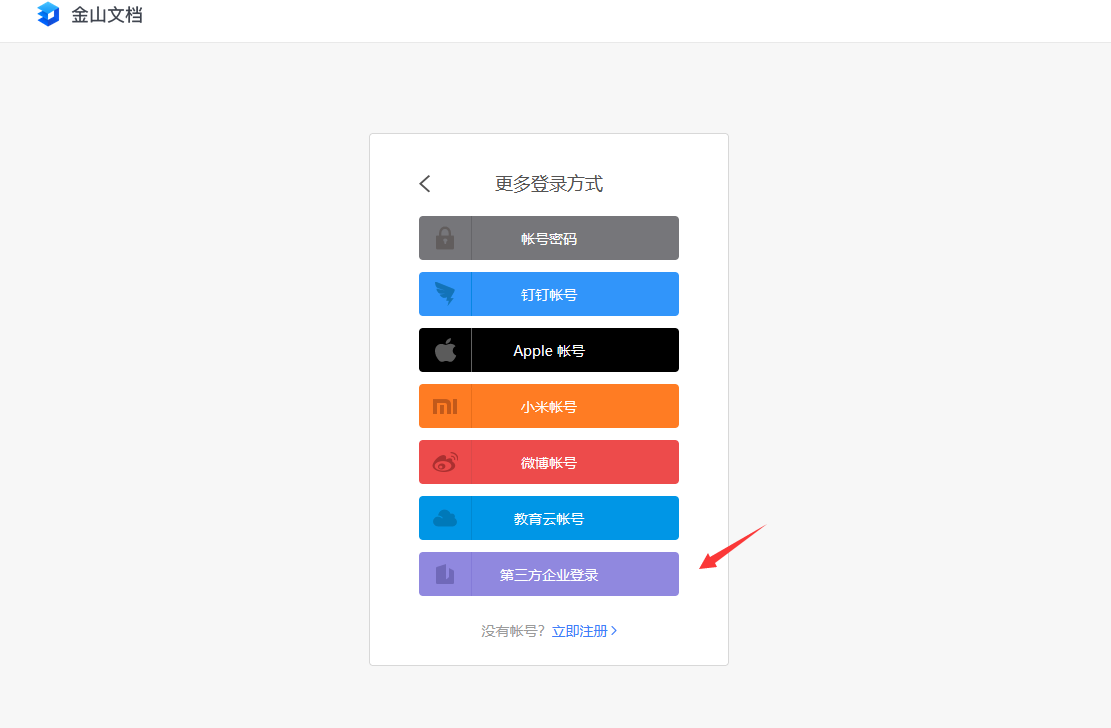
Enter the enterprise code, which will redirect to the IDaaS login page. Input the authorized user credentials to enter Kingsoft Docs.