
Shuyun Kirin CRM Single Sign-On
# Description
This document describes how to configure the SAML authentication integration between IDaaS and Shuyun Kirin CRM.
# Authentication Configuration
# Kirin CRM Configuration
Administrator logs into the CRM backend and enters the system configuration management.
Select 【Login Strategy】-【Third-party Login】-SAML2.0.
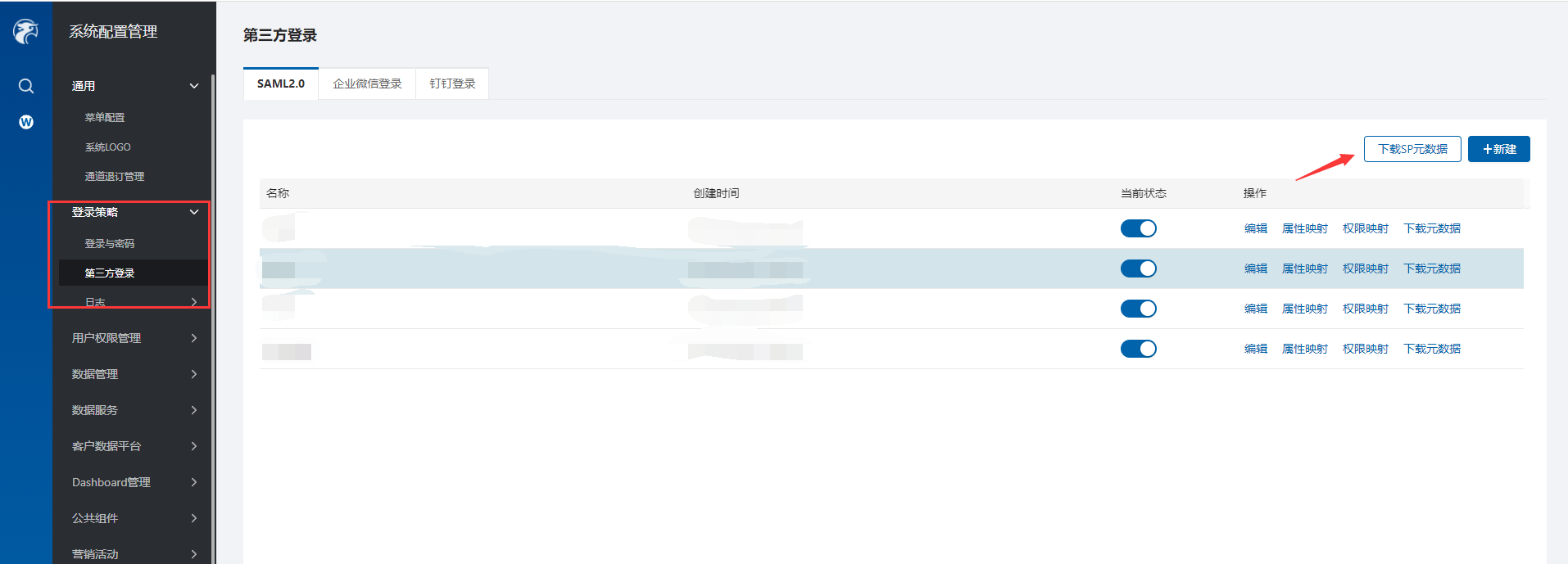
Download the SP metadata.
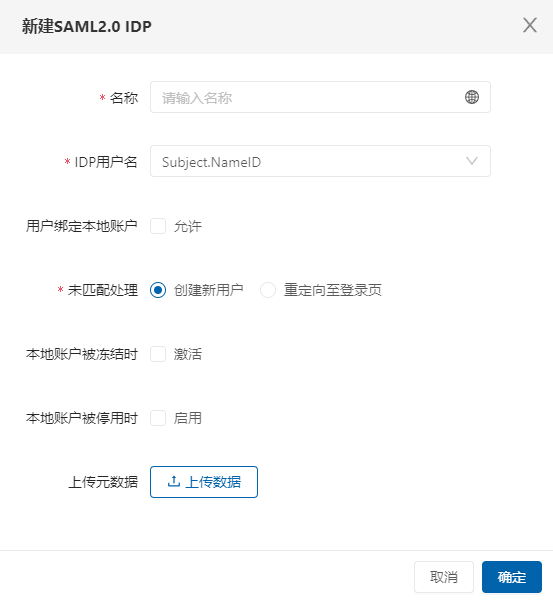
Add a new SAML2.0 IDP, upload the IDP metadata. To download the IDP metadata from IDaaS, please visit https://{your_domain}/api/v1/saml2/idp/metadata.
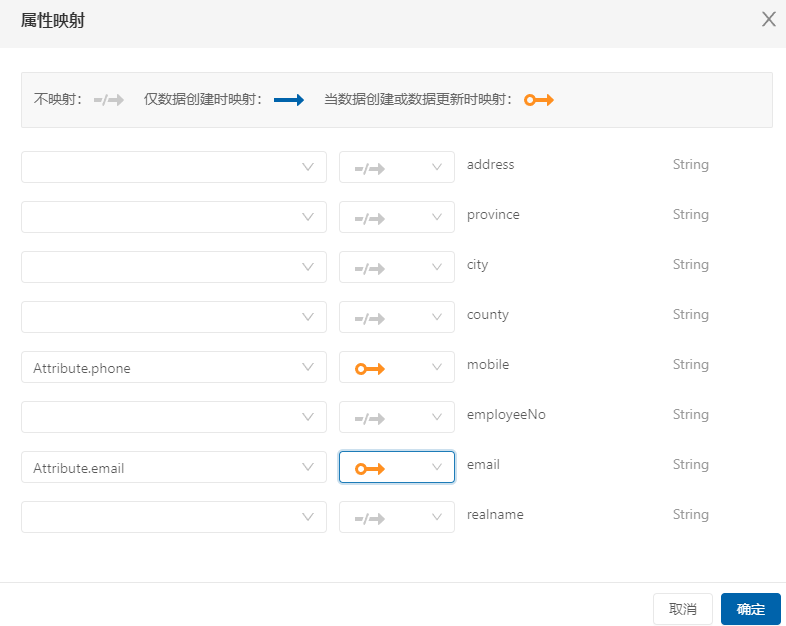
Configure attribute mapping.
# Zhuyun IDaaS Configuration
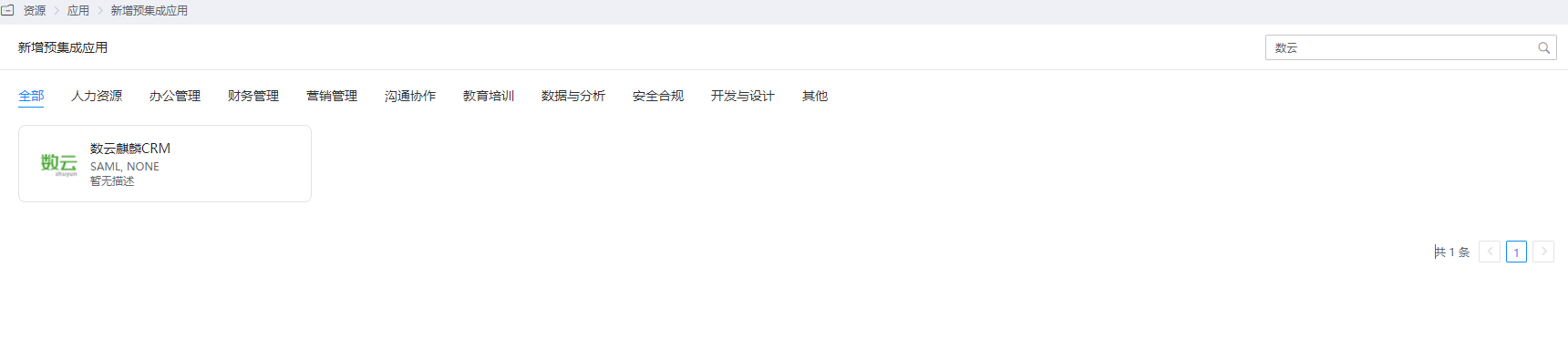
Administrator logs into the IDaaS Enterprise Center, goes to Enterprise Center - Resources - Applications - Pre-integrated Applications - Add Pre-integrated Application, searches for Shuyun, and selects Shuyun Kirin CRM.
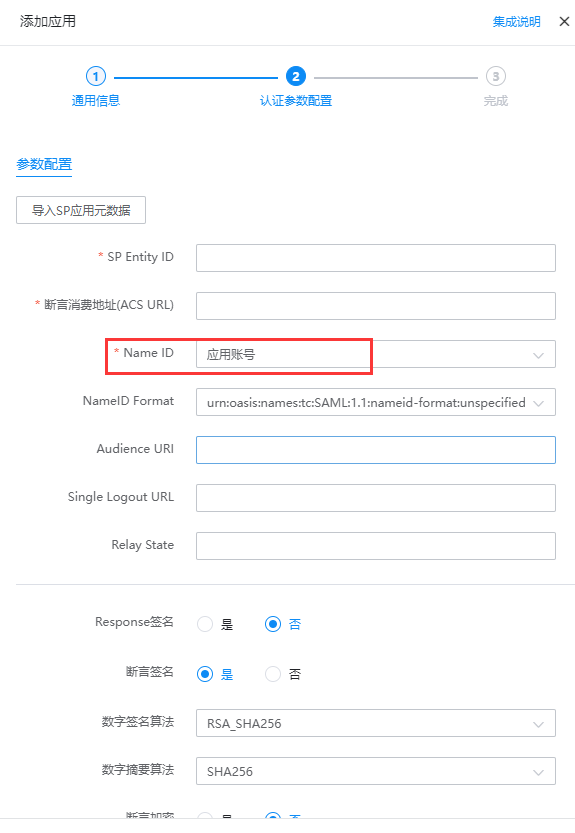
Enter the Authentication Configuration, import the SP metadata saved in the above step, and select the Name ID. It is recommended to set it to the account name.
Enter Application Details - Authentication Configuration - Mapping Configuration, and add 2 mappings.

Enter Application Details - Authorization Management - Application Accounts, click the Add Account button, and select authorized users.
# Login Verification
There are two login methods as follows:
Access the CRM login address, select third-party login as the single sign-on method, and you will be automatically redirected to the IDaaS authentication interface. Enter your IDaaS username and password to log in.
Log in through the IDaaS User Center. Log into the User Center and click the CRM logo to enter the application.