Preparation
This document introduces how to configure event callbacks on the IDaaS Enterprise Center platform.
# Prerequisites
Have administrator permissions for the IDaaS Enterprise Center platform.
# Steps
# Create an Application
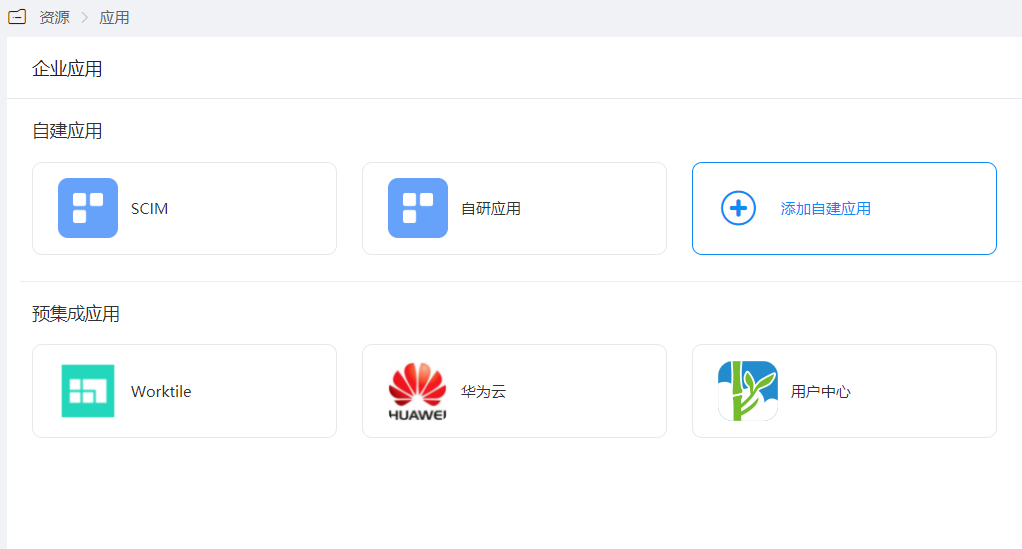
Log in to the Enterprise Center, select "Resources > Applications", click "Add Self-built Application" under Self-built Applications, set the Logo and name, and click "Save".
# Enable Synchronization Integration
Enter the created application, and on the Application Information page, toggle the switch under Synchronization Integration to enable the synchronization integration method as Event Callback.
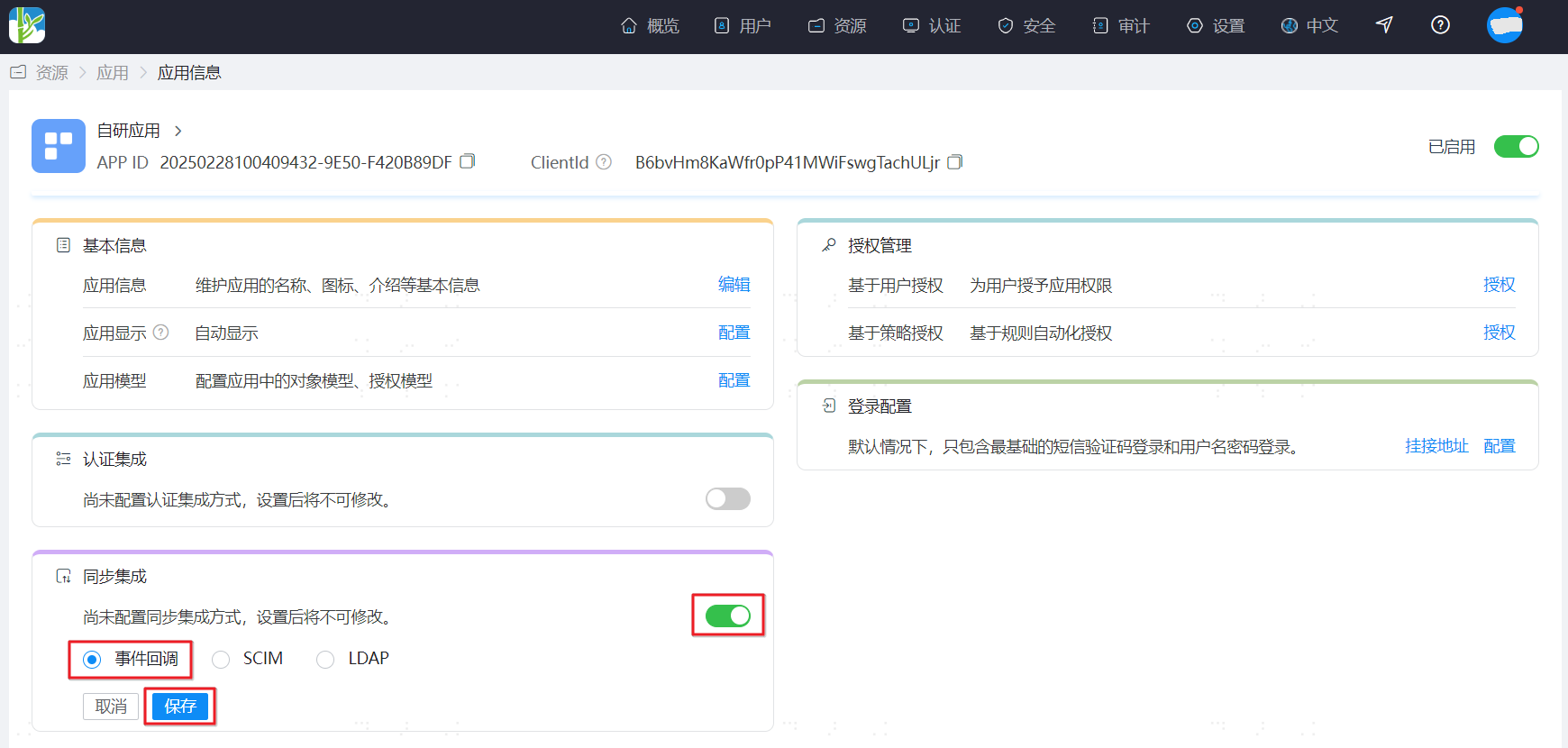
On the Application Information page, click the "Configure" button next to Integration Protocol to enter the Synchronization Integration Parameter Configuration page.
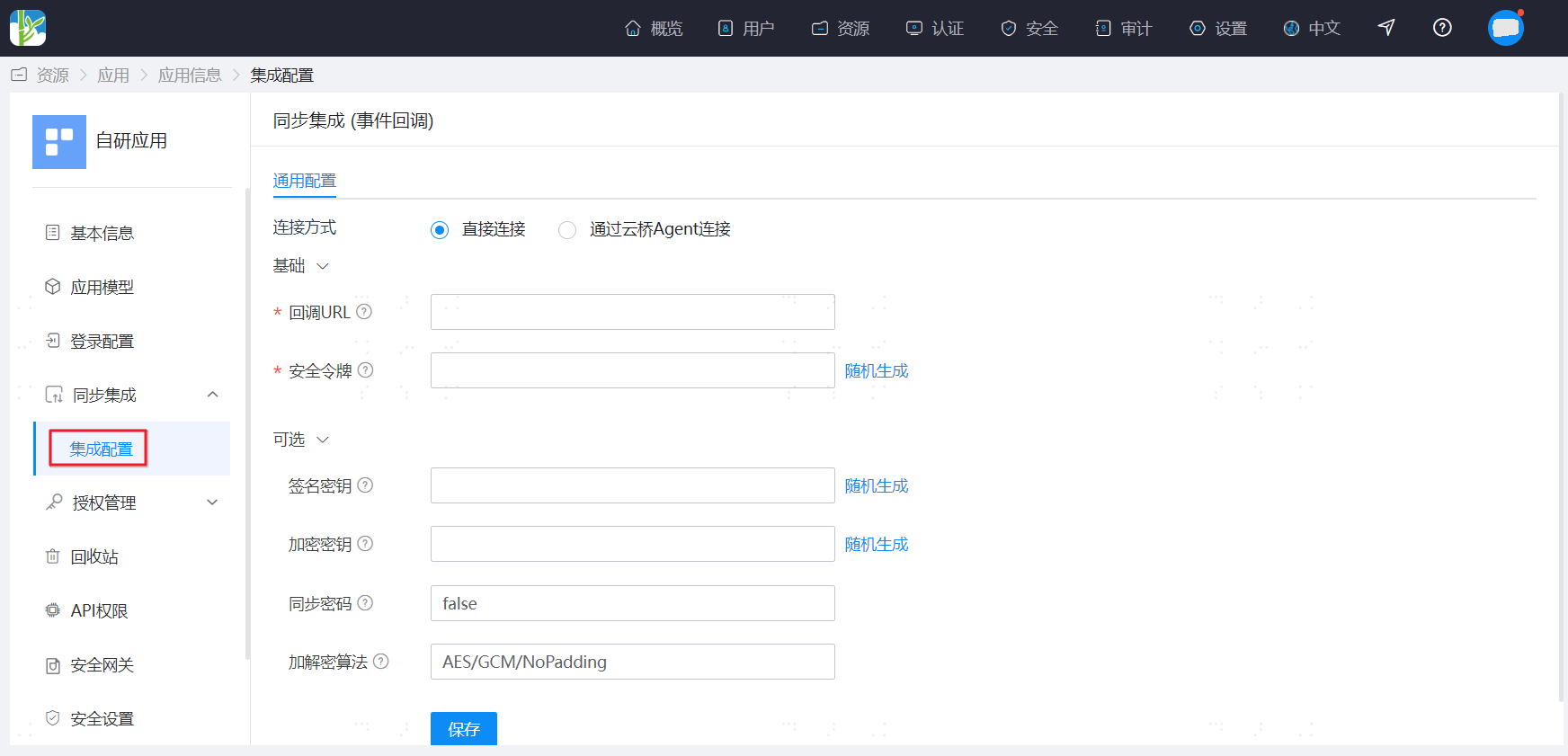
Parameter configuration is as follows:
Configuration Item Description *Callback URL The address used by the enterprise application to receive events pushed by Zhuyun IDaaS. *Security Token Bearer token carried in the request header of each event callback interface. The callback service of the enterprise application needs to authenticate it, must be at least 32 characters. Signature Key Use the signature key to generate a data signature based on the message content. Must be 16 characters if not empty. Encryption Key Use the key to encrypt the message. Must be 16 characters if not empty. Synchronize Password Value: false or true, default is false (do not synchronize user password attribute to the application system), true (synchronize user password attribute to the application system), password field is password.
# Configure Synchronization Objects
Configure the objects that need to be synchronized in the application, such as application organizations and application accounts.
You can enter the configuration page by clicking "Application Object Synchronization Configuration" in the top right corner of the Synchronization Integration - Integration Configuration page, or directly by clicking the "Application Model" in the left navigation menu.
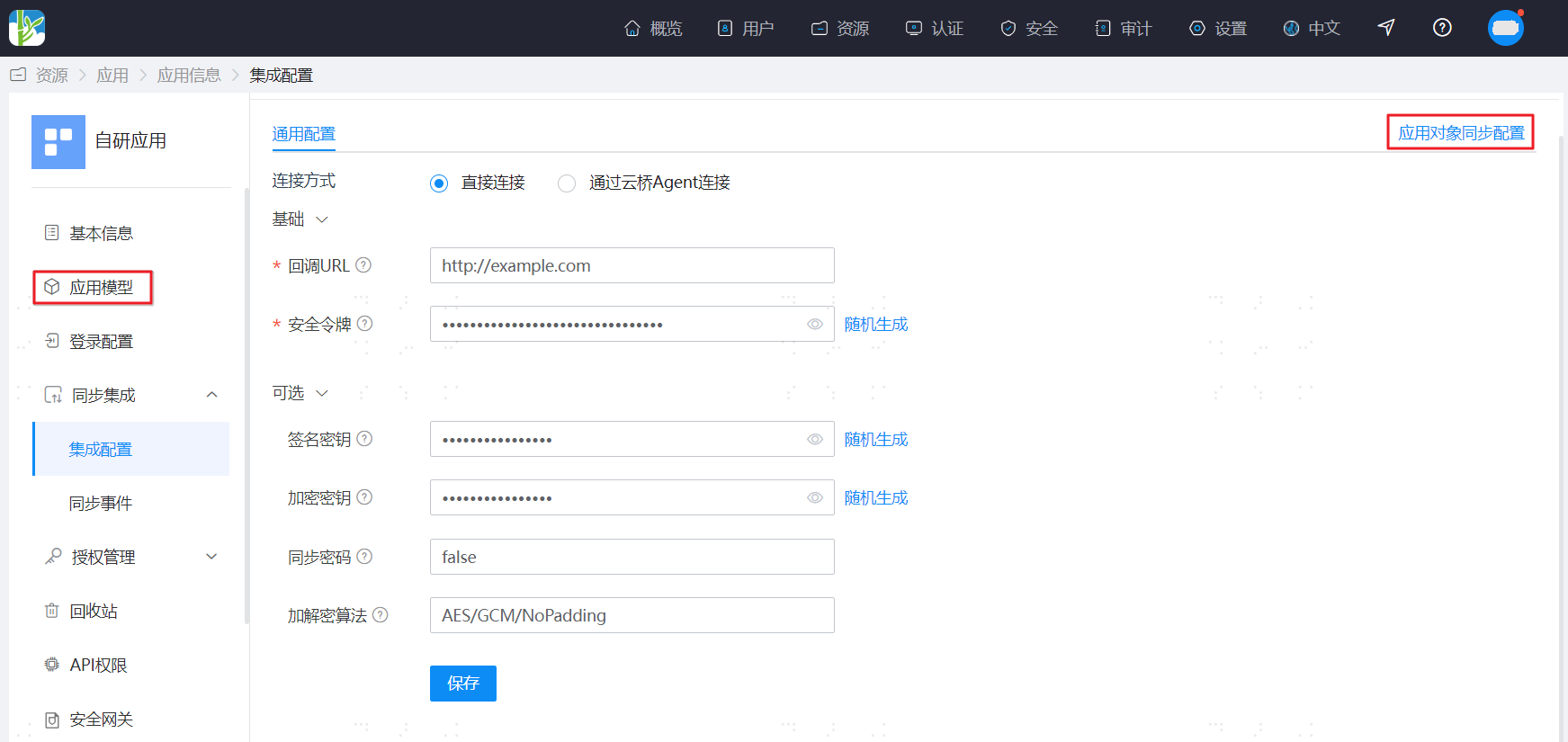
(Optional) Enable Application Organization Object
Toggle the switch between the application and the application organization to enable the application organization.
Enabling the application organization is to synchronize organizational data to the enterprise application. You can skip this step if you do not need to synchronize organizational data.
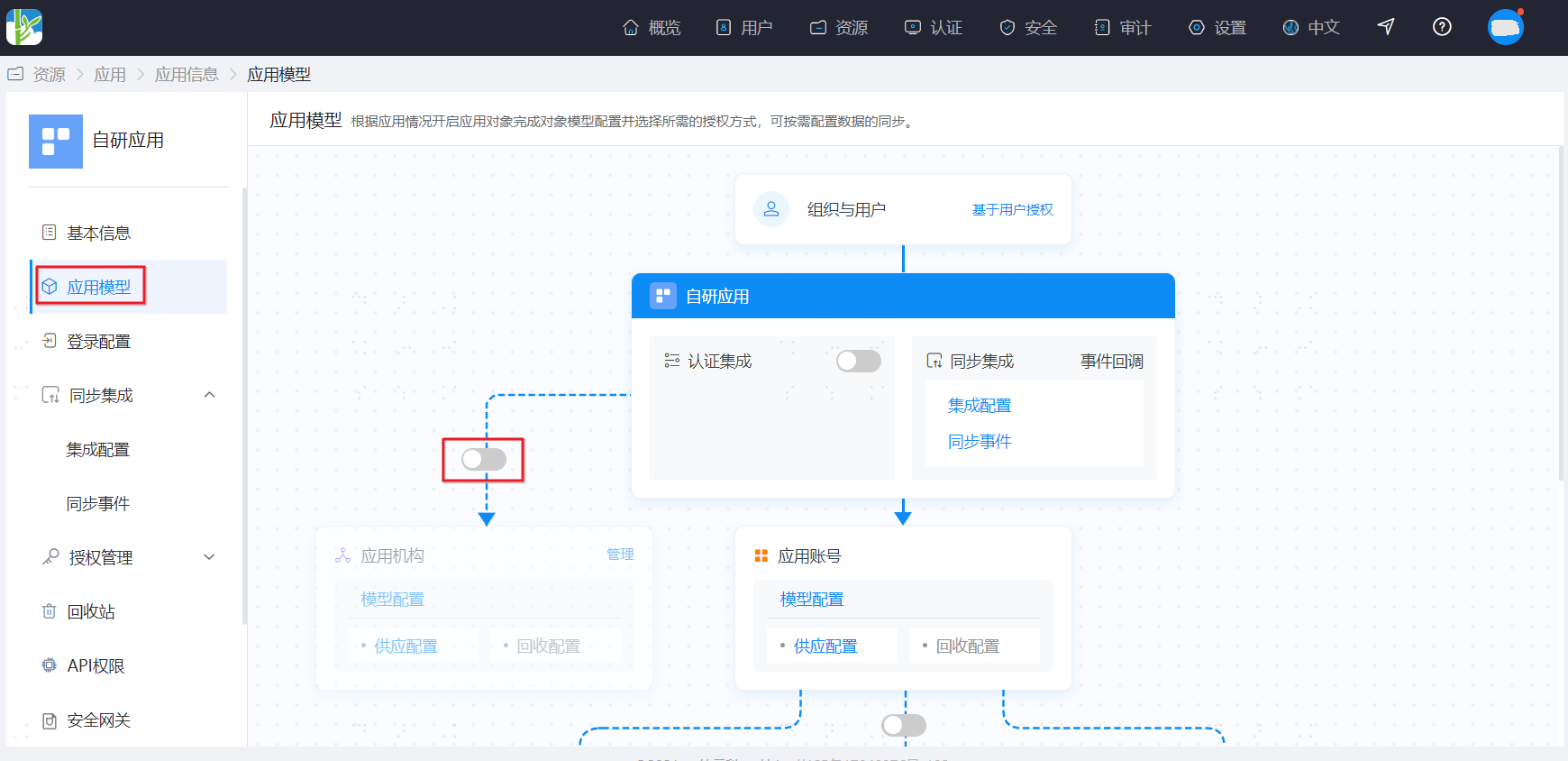
(Optional) Configure Organization Attributes and Mapping Definitions
Click "Model Configuration" within the application organization to enter the Application Organization Model Configuration page.
On the Attribute Definition tab, you can configure the organization attributes to be synchronized to the enterprise application.
- When synchronizing built-in attributes to the enterprise application, the attribute names must match those of the built-in attributes shown in the figure below.
- When synchronizing non-built-in attributes to the enterprise application, the attribute names must match those set by the enterprise administrator.
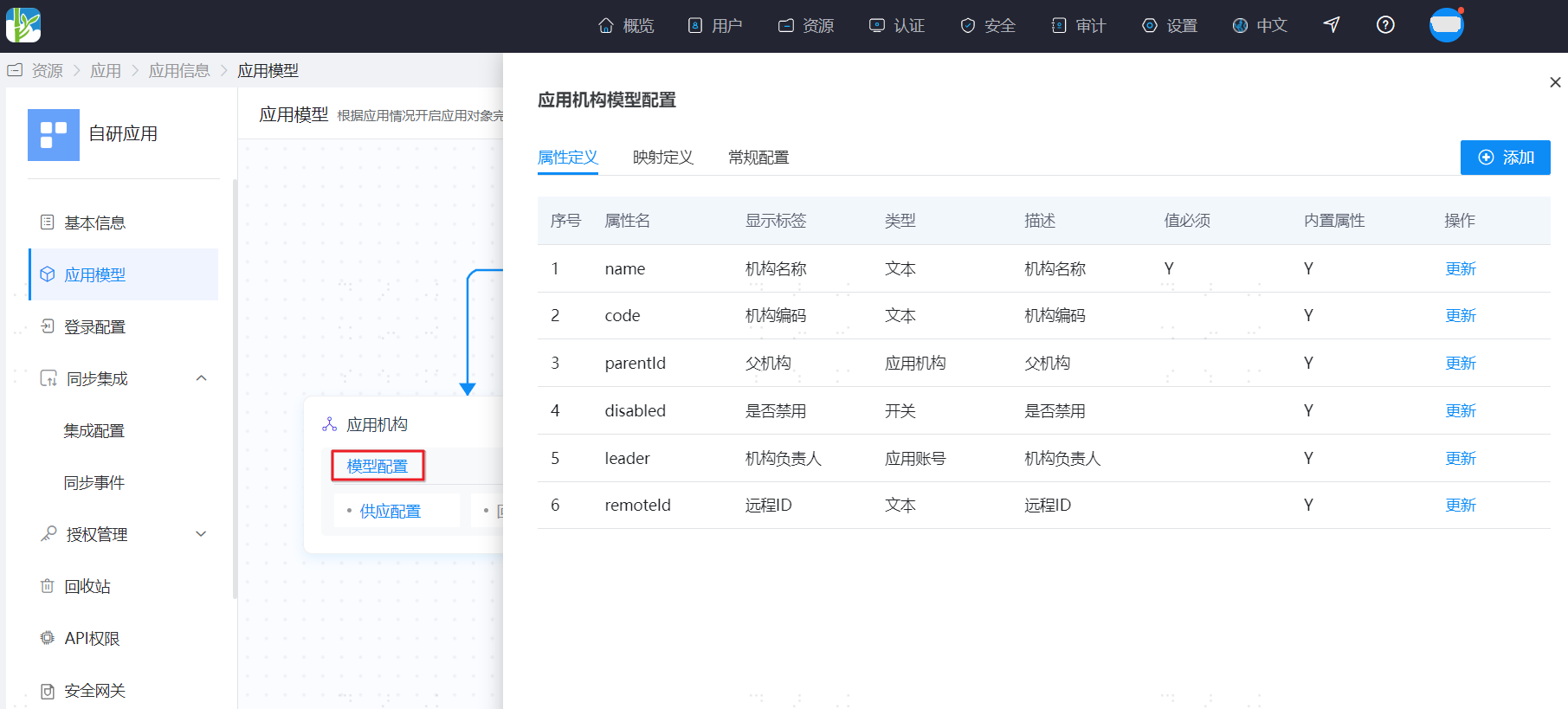
Attribute parameters:
Parameter Description *Attribute Name The field identifier synchronized to the enterprise application. Can be customized. Modification is not supported after successful setup. Display Label The name of the organization's attribute. It is recommended to correspond with the Attribute Name. Description Text Instructions for filling in the Attribute Name field. *Attribute Type The data type for the Attribute Name field. Can be selected from the dropdown. Modification is not supported after successful setup. Format The format of the Attribute Type. When Attribute Type is selected as Text, it can be chosen from the dropdown. Required Not checked by default, meaning it is not required.
On the Mapping Definition tab, click "Edit" to set the mapping method for organization attributes.
When the transformation method for the mapping definition is set to script transformation, please refer to: How to Develop Mapping Scripts for script writing.
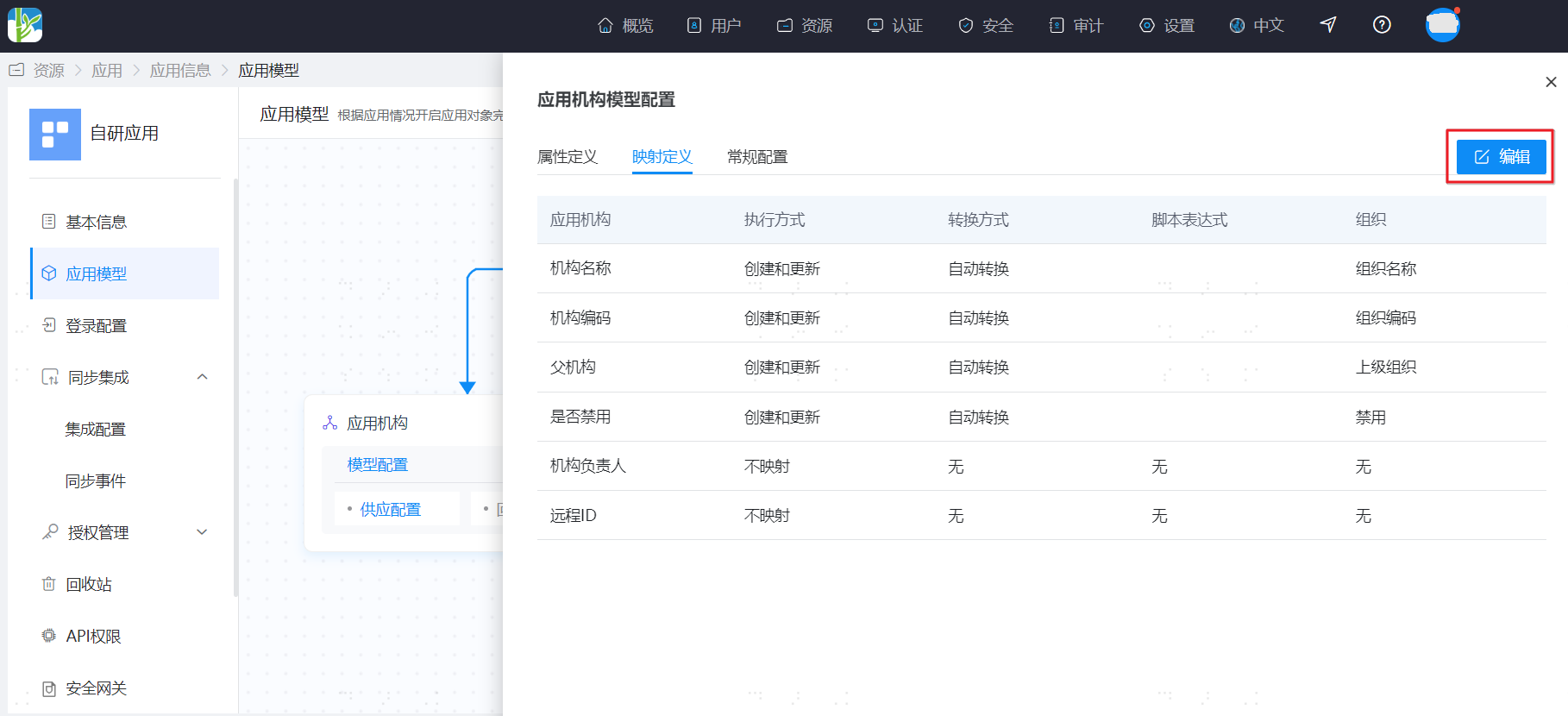
Mapping Parameters:
| Parameter | Description |
|---|---|
| Organization | Maps to the organization attribute of the application organization, selectable from the dropdown. |
| Transformation Method | Mapping method between the organization attribute and the application organization, selectable from the dropdown. |
| Script Expression | When the transformation method is script transformation, fill in the specific mapping script. |
| Execution Method | Synchronization method for mapping between the organization attribute and the application organization, selectable from the dropdown. |
| Application Organization | The attribute name of the organization in Attribute Definition. |
(Optional) Configure Account Attributes and Mapping
On the Application Model page, click "Model Configuration" in the Application Account section to enter the Application Account Model Configuration page.
On the Attribute Definition tab, you can configure the account attributes synchronized to the enterprise application.
- When synchronizing built-in attributes to the enterprise application, the attribute names must be consistent with those shown in the built-in attributes in the figure below.
- When synchronizing non-built-in attributes to the enterprise application, the attribute names must be consistent with those set by the enterprise administrator.
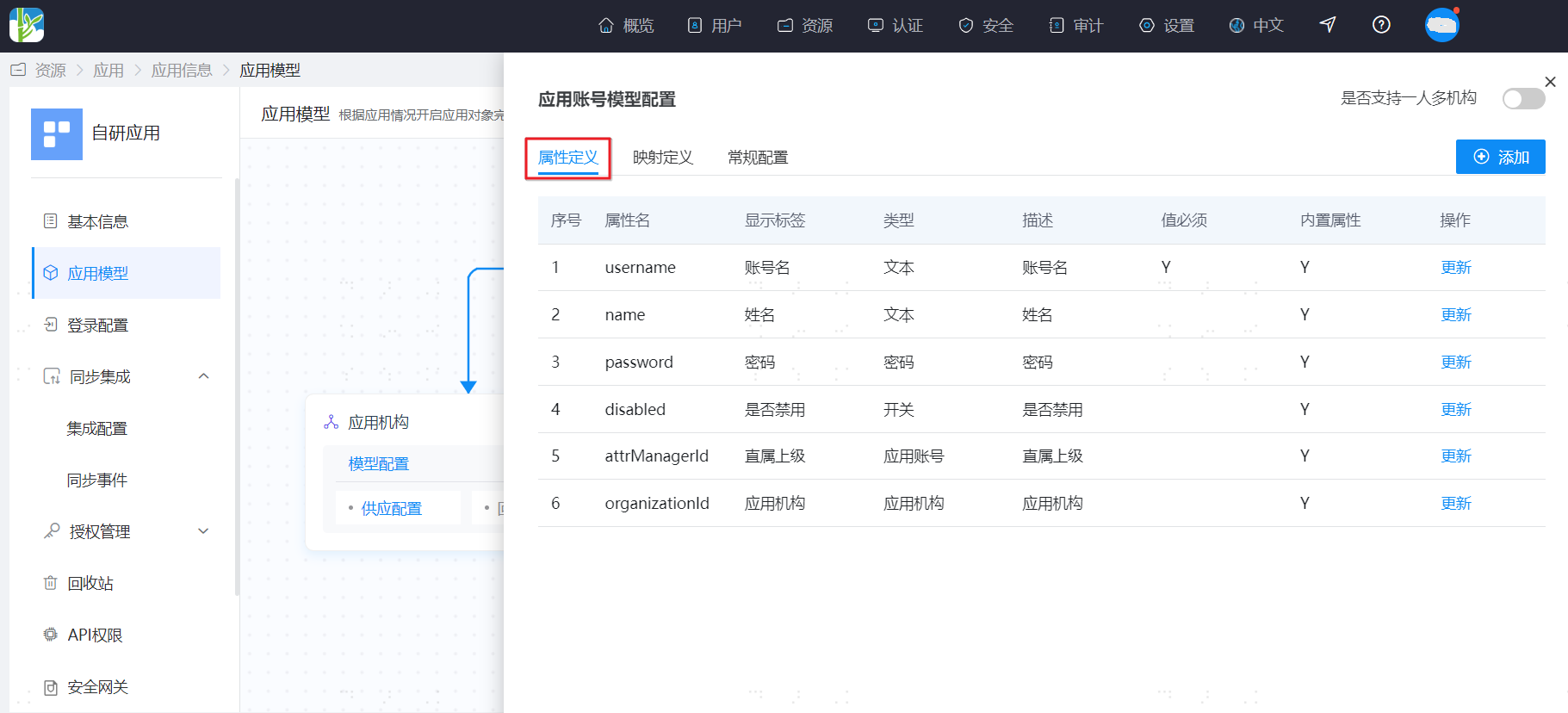
Attribute Parameters:
Parameter Description *Attribute Name Field identifier synchronized to the enterprise application, customizable, cannot be modified after successful setup. Display Label Name of the account attribute. It is recommended to correspond with the Attribute Name. Help Text Instructions for filling in the Attribute Name field. *Attribute Type Input type for the attribute name field, selectable from the dropdown, cannot be modified after successful setup. Format Format of the attribute type. When the attribute type is set to text, selectable from the dropdown. Required Default is unchecked, meaning not mandatory. On the Mapping Definition tab, click "Edit" to set the mapping method for account attributes.
When the transformation method for the mapping definition is set to script transformation, please refer to: How to Develop Mapping Scripts for script writing.
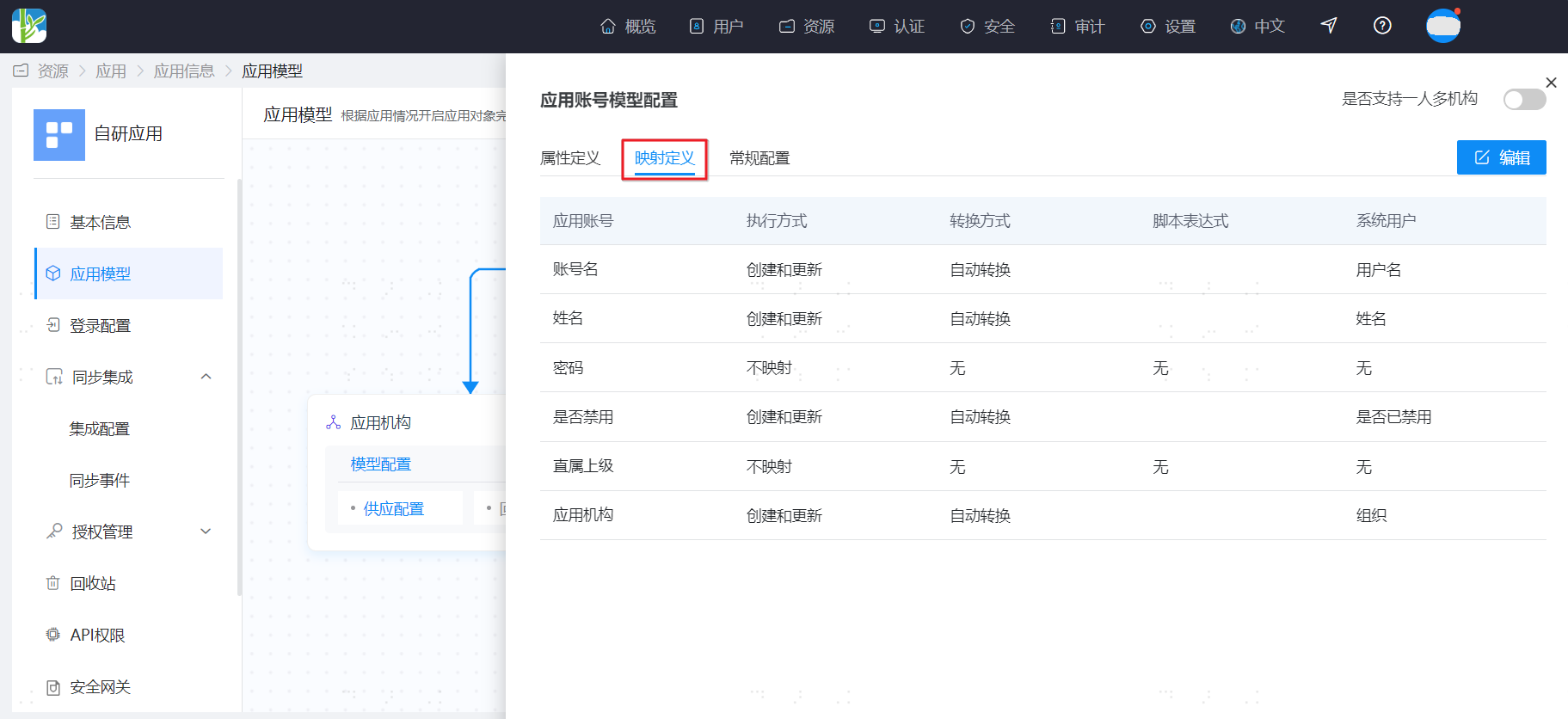
Mapping Parameters:
Parameter Description User Maps to the user attribute of the application account, selectable from the dropdown. Transformation Method Mapping method between the user attribute and the application account, selectable from the dropdown. Script Expression When the transformation method is script transformation, fill in the specific mapping script. Execution Method Synchronization method for mapping between the user attribute and the application account, selectable from the dropdown. Application Account The account Attribute Name in Attribute Definition.
# Enable Application Object Synchronization {/examples/}
Configure Organization Synchronization
If you need to synchronize organization data to the enterprise application, click "Provisioning Configuration" in the Application Organization section on the Application Model page to enter the Provisioning Configuration page, and turn on the Enable Provisioning switch.
When enabling provisioning configuration, you can configure the corresponding actions to be taken in the enterprise application when the application organization is disabled or deleted.
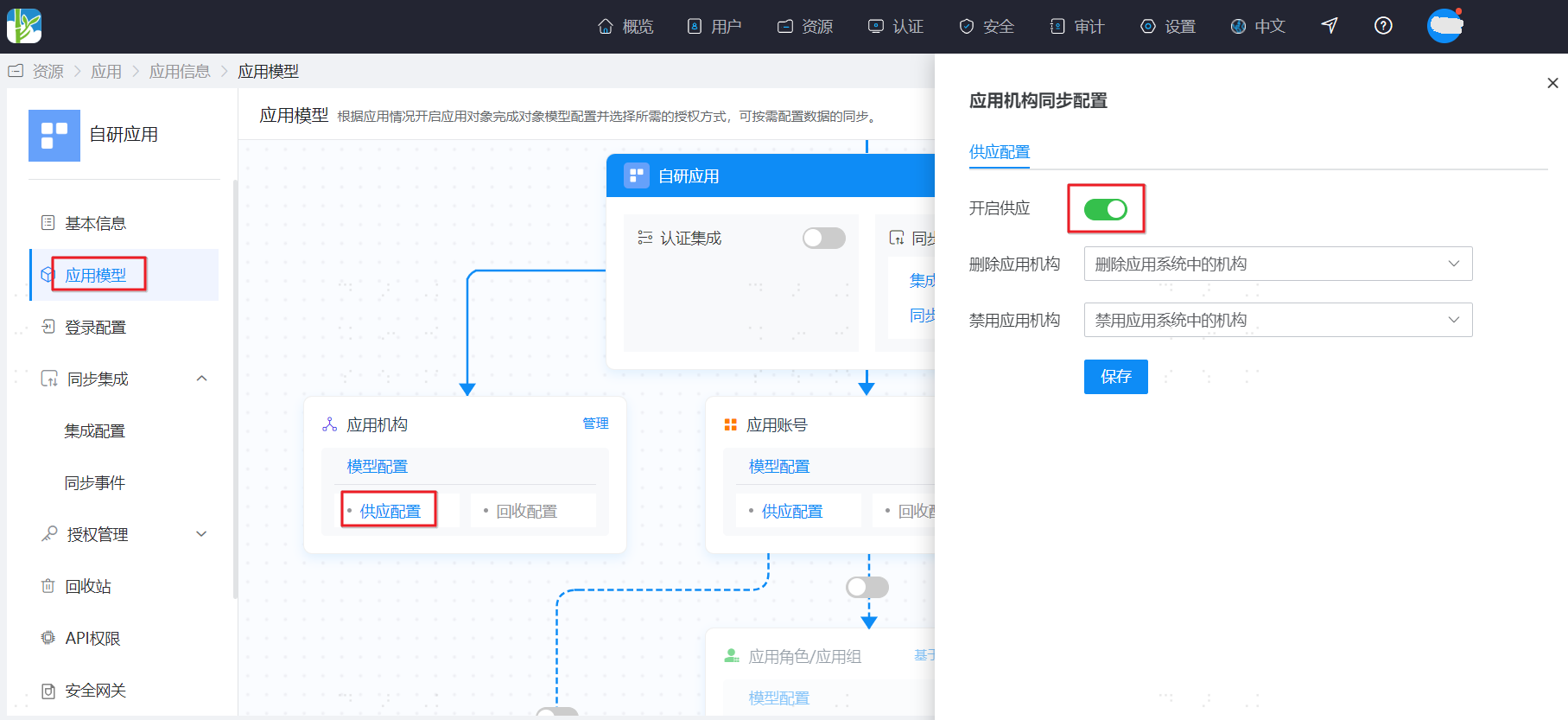
Configure Account Synchronization
To synchronize account data for enterprise applications, navigate to the application model page, click on "Provisioning Configuration" within the application account section to enter the provisioning configuration page, and toggle on the "Enable Provisioning" switch.
When enabling provisioning configuration, you can configure the corresponding actions to be executed in the enterprise application when the application account is disabled or deleted.